Do you need to set an alarm for a future date on iPhone - not just tomorrow or next week, but a specific day far in the future?
You’re not alone. This is one of the most common iOS frustrations.
In this post, we’ll walk through three practical ways to set an iPhone alarm for a specific date.
Which option works best depends on how often you need future alarms and how much control you want over them.
Whether it’s a flight, a deadline, or an important call, these methods cover every use case - from native tools to a dedicated future date alarm app for iPhone.
Why Setting a Future Date Alarm on iPhone Is So Confusing
If you’ve already tried to do this, you’ve probably run into the same limitation most people do: the default Clock app simply isn’t designed for date-based alarms.
Here’s what it allows:
- You can set repeating alarms by weekday
- You can set a one-time alarm, but only if it’s within the next seven days
If the date is further out than that, iOS doesn’t support it at all.
That limitation becomes a real problem when you need a true alarm - not a quiet notification - for something that actually matters, such as:
- A flight or train departure
- Doctor or visa appointments
- Project deadlines or due date reminders
- A call you really don’t want to forget
Without a proper workaround, people end up doing some awkward things, like:
Setting a reminder… to remind themselves to set an alarm later 🫣 Or creating a repeating weekday alarm and hoping they remember to turn it off
If any of that sounds familiar, this post is for you.
The 3 Best Ways to Set an Alarm for a Future Date on iPhone
Here’s a quick overview. We’ll break each option down step by step.
- Use Urgent Reminders (iOS 26.2+)
- Use Alarmate (a dedicated date alarm app, iOS 26+)
- Use Calendar alerts
Option #1: Use Urgent Reminders (iOS 26.2 and Later)
Best for: You want to stay within Apple’s native apps and only need date-based alarms occasionally.
Starting with iOS 26.2, Apple added a subtle but powerful feature to the Reminders app.
When you mark a reminder as Urgent, iOS schedules a real alarm, not just a standard notification.
That alarm:
- Rings even in Silent mode
- Works with Focus modes enabled
- Demands your attention like a proper alarm
Pros of Urgent Reminders
- Free and built into iOS
- The only native Apple app that supports true date-based alarms
- Works reliably in Silent and Focus modes
Limitations
- Requires iOS 26.2 or later
- Reminders must be allowed to access Alarms
- iCloud Reminders must be enabled and signed in
- Alarms only work for future reminders
- No clear list of upcoming alarms (just a small icon)
- You must create one reminder per alarm
- Very limited customization
How to set a future date alarm using Reminders
- Open Reminders
- Create a new reminder or tap ⓘ next to an existing one
- Enable Date & Time
- Turn Urgent ON
- Set the exact date and time (iOS defaults to the next hour)
Once marked urgent, the reminder becomes a date-based alarm, not a notification.
For the broader Siri workflow, including natural-language reminders, Urgent Reminders, and their limits, read How to Create Reminders With Siri in iOS 27.
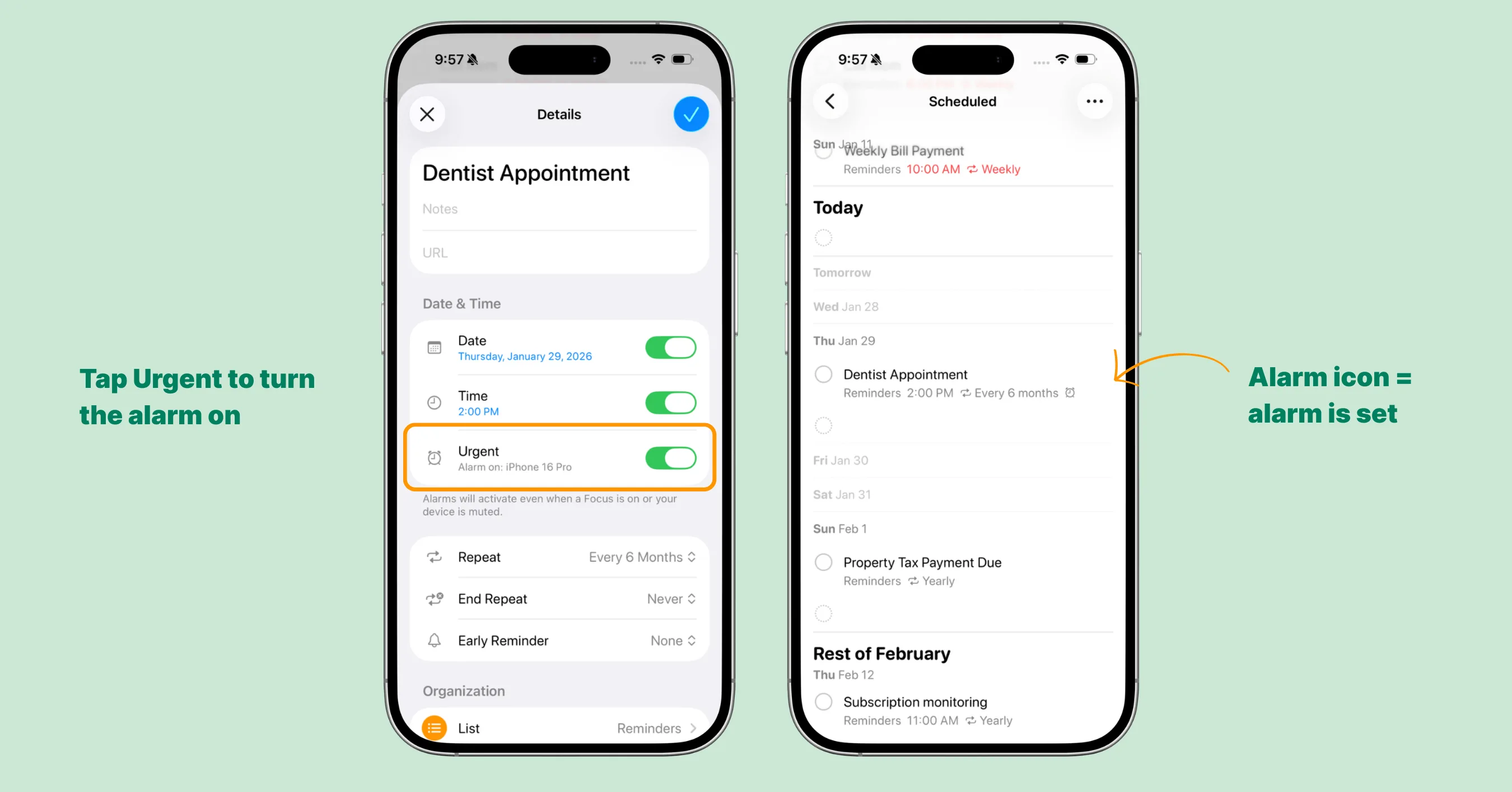
Setting a future date alarm using Urgent Reminders
Important permission check
If alarms don’t ring:
- Go to Settings → Apps → Reminders
- Enable Alarms under “Allow Reminders to Access”
Option #2: Use Alarmate (Best Overall Solution)
Best for: You regularly need date-based alarms or want alarms tied to calendar events and reminders.
Alarmate is built specifically to solve this problem - creating reliable alarms for specific dates and times without hacks or workarounds.
It behaves like the native Clock app, but without the seven-day limitation.
That is why it is also a strong fit if you’re looking for the best alarm app for iPhone beyond basic wake-up alarms.
Pros of Alarmate
- Alarms behave like native iOS alarms
- Works offline and in Do Not Disturb, Silent, Sleep, and Airplane modes
- Creates alarms from Calendar events and Reminders automatically
- Includes a clean alarm timeline with filtering and search
- Lets you control when Live Activities start (minutes or hours before the alarm)
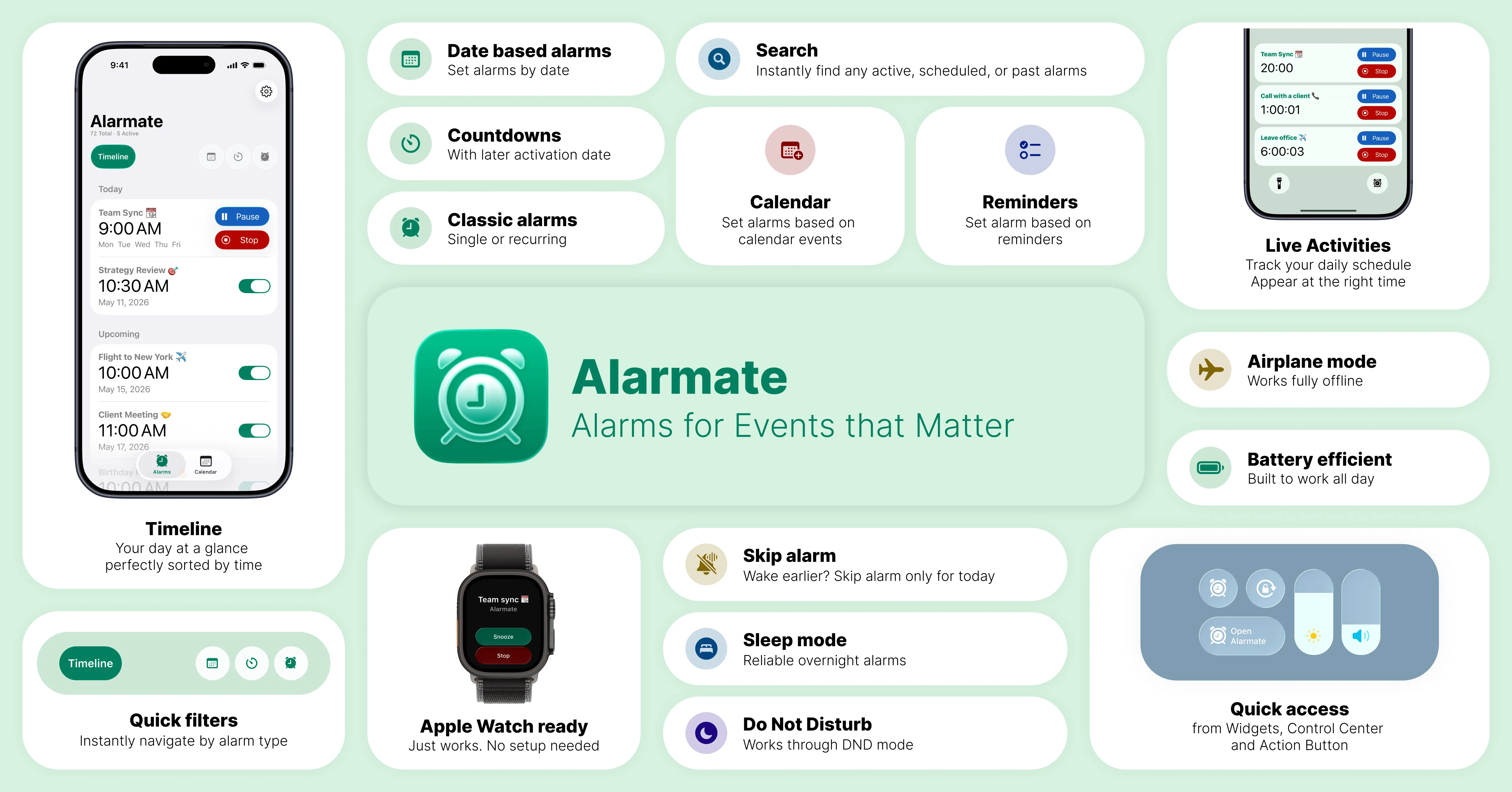
Alarmate: key features at a glance. View all features here ➔
Limitations
- Requires iOS 26 or later
- Free version includes three active alarms
- Requires permission to access Alarms
- Calendar and Reminders access needed for integrations
4 Ways to Create Date-Based Alarms in Alarmate
1. Manual Date-Based Alarms
Perfect for flights, appointments, or one-off deadlines.
Steps:
- Tap +
- Select Date based alarm
- Choose date and time
- Optional: name the alarm
- Optional: customize snooze and Live Activity timing
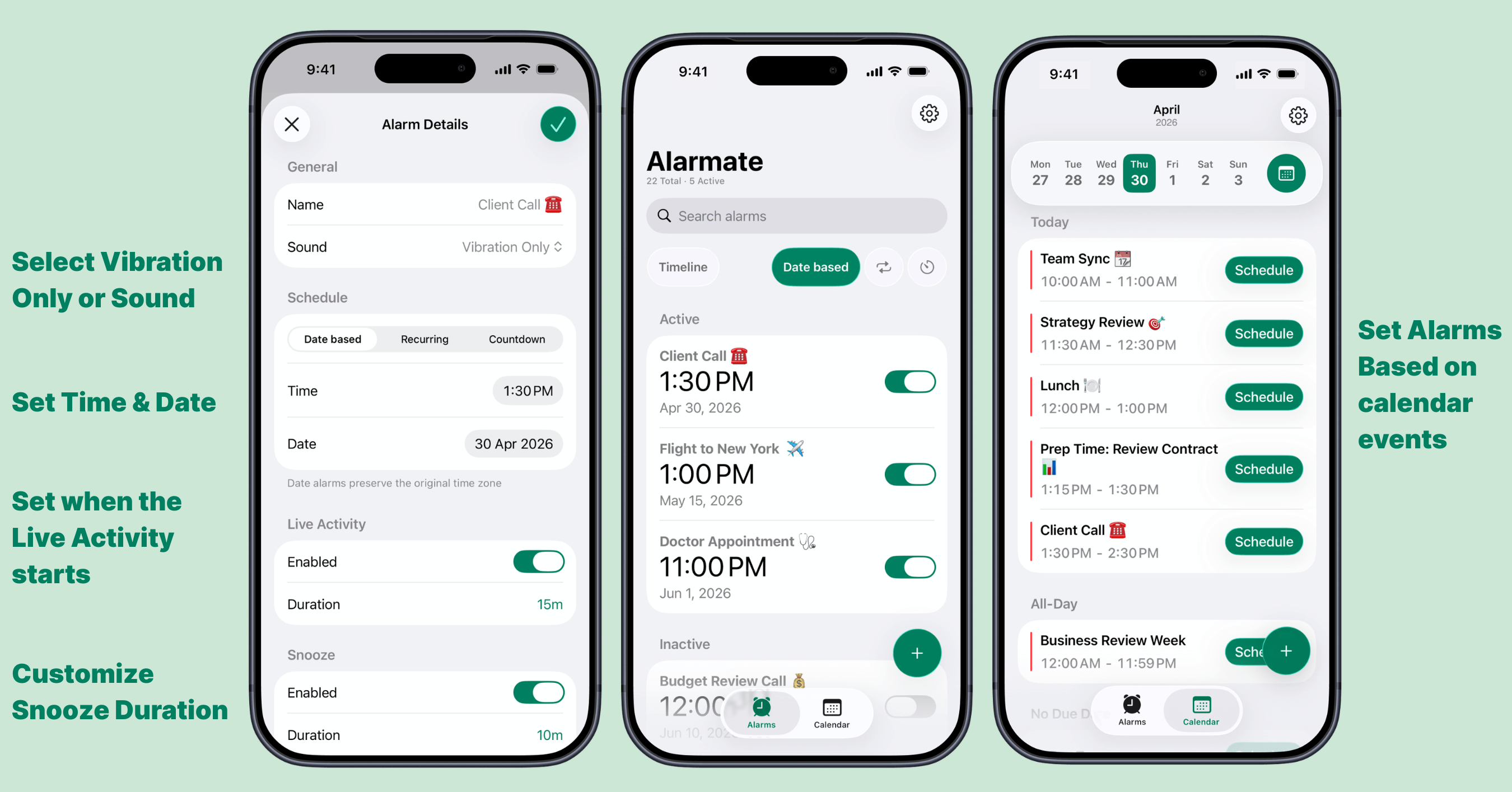
Setting a specific date alarm using Alarmate
2. Calendar-Based Alarms (Highly Recommended)
Ideal if you have multiple meetings or time-critical events.
Requirements
- Grant access to Apple Calendar.
- Don’t see events? You most likely need to connect your work calendars to the Apple Calendar first. We explain how to do it here.
Steps:
- Tap +
- Select Calendar alarm
- Choose an event (today or future dates)
- Adjust alarm timing (e.g., 5 minutes before)
You can:
- Set multiple alarms per event
- Create alarms for today, tomorrow, or the week
- Customize each alarm independently
3. Reminder-Based Alarms
Unlike the default Reminders app, Alarmate lets you turn selected reminders into real alarms directly in the app, all automatically sorted by trigger time. If that is the setup you want, see the full reminder alarm iPhone guide.
Here is how to create date-based alarms based on your Reminders:
- Tap +
- Select Reminders alarm
- Choose an overdue or upcoming reminder
- Adjust time, snooze, and Live Activity
Alarmate automatically uses the reminder title - making it an excellent due date reminder app.
4. Voice Alarms with Siri (Fastest Method)
Ideal when your hands are full or you need an alarm the second a date comes up.
This is the quickest of the four. There’s nothing to open and nothing to tap - you just say it.
Alarmate works with Siri, so you can create a date-based alarm out loud, even one that’s weeks or months away. That’s the key difference from asking the default Siri, which can only set alarms within the next 24 hours. For exact phrases, setup, and troubleshooting, read the full Siri set alarm guide for iPhone.
Steps:
- Activate Siri
- Say “Alarmate, set a date alarm”
- Tell Siri the date and time, or just a timeframe like “in 5 weeks”
- Add a name when prompted
You don’t need to look up the calendar date yourself. Alarmate works out when the alarm should ring and saves it, where it joins your timeline with every other alarm.
Handy examples:
- “Alarmate, set a date alarm for September 3rd at 8 AM”
- “Alarmate, set an alarm in 6 weeks”
- “Alarmate, set an alarm 3 days before the 1st”
Start the sentence with “Alarmate” so Siri opens the right app. You can also use this inside Siri Shortcuts, and it’s ready for the smarter, AI-powered Siri coming in iOS 27.
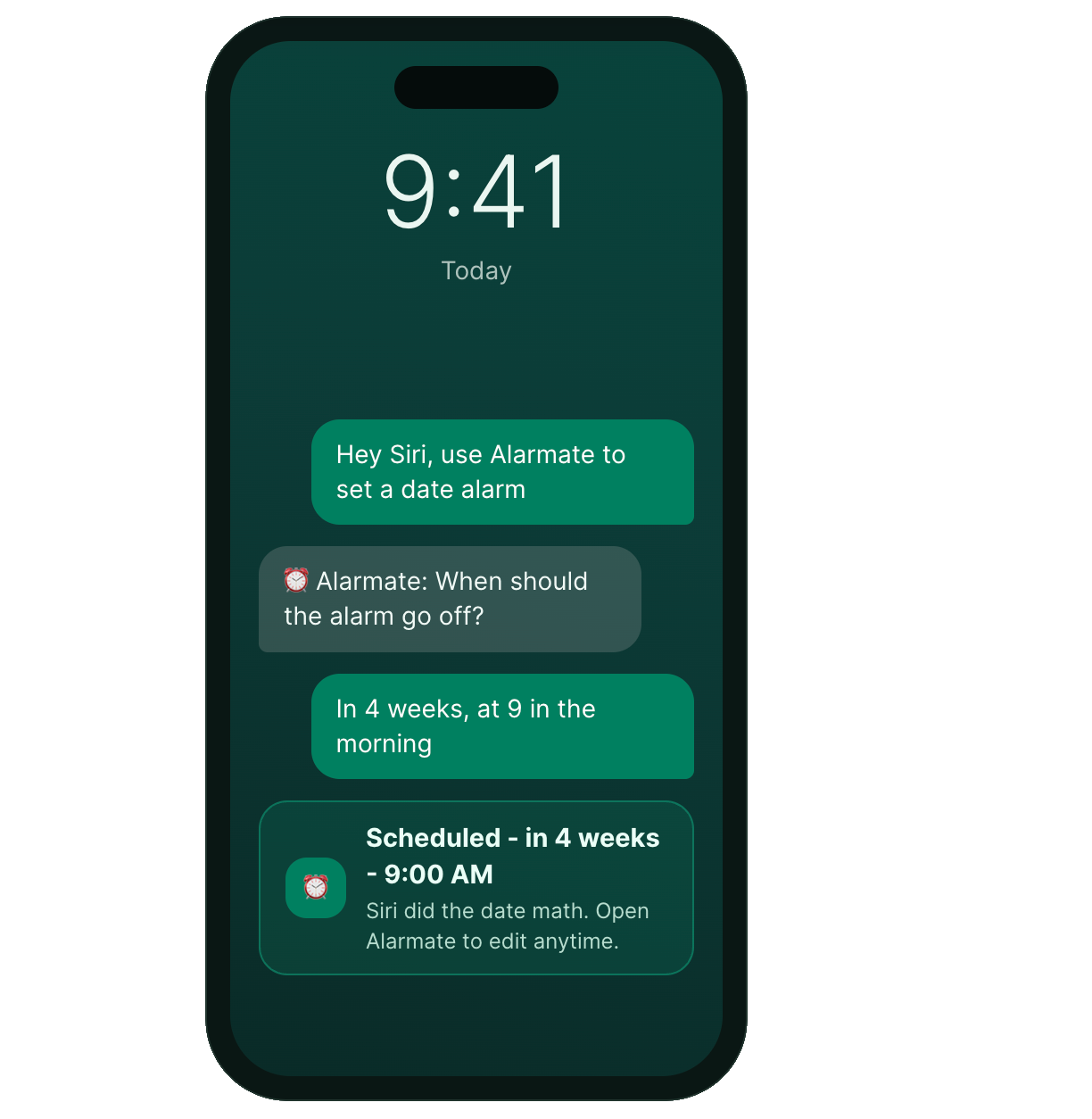
Alarm Timeline & Filters
Alarmate keeps date-based alarms clearly organized, which is something the Clock and Reminders apps don’t do well:
- Date-based alarms live in their own tab
- Alarms are grouped by active and inactive status
- Everything is ordered by when it will go off
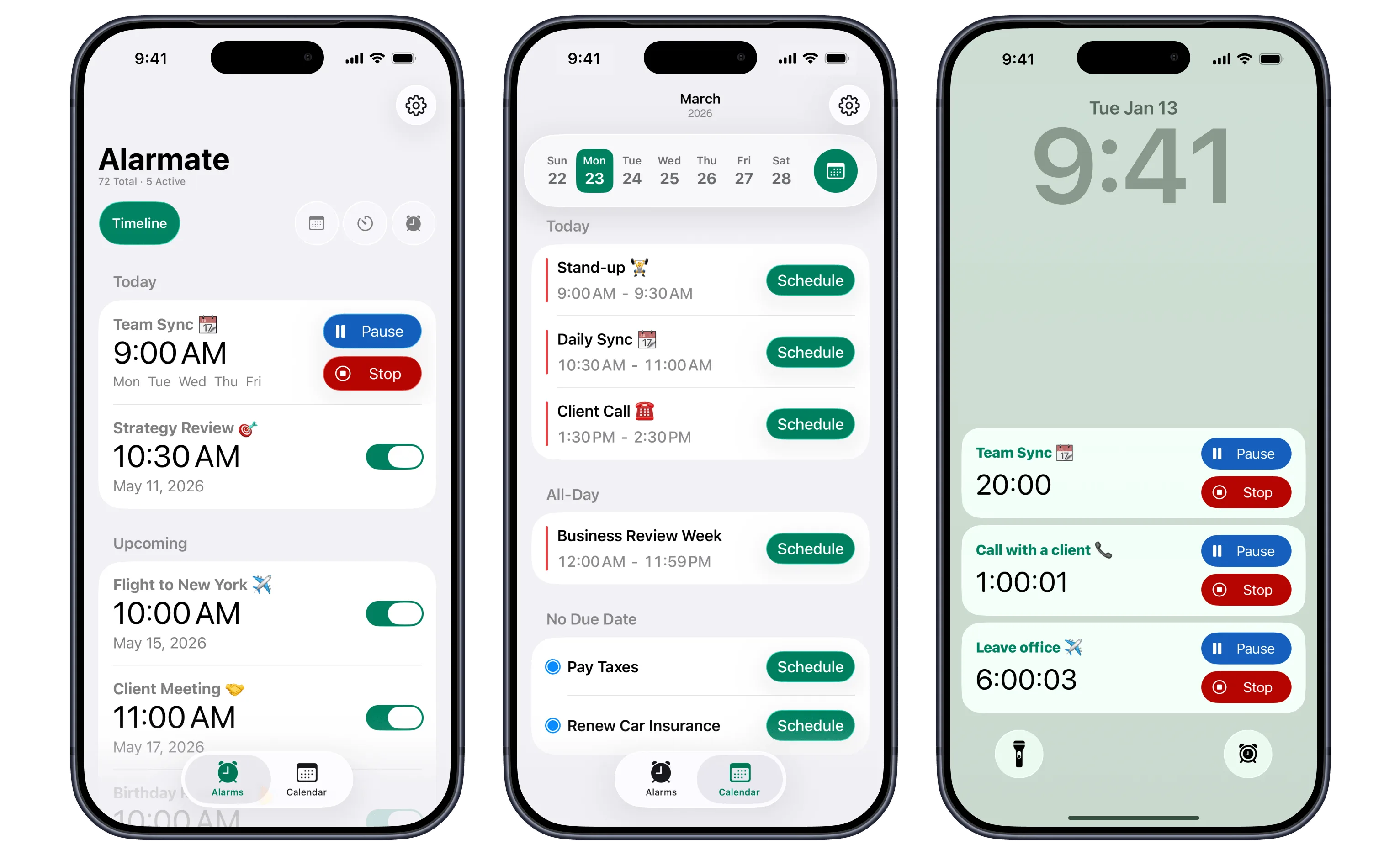
Alarmate features (left to right): Upcoming alarms timeline, calendar-based alarms, Live Activities
The Timeline view shows:
- All alarms for today
- Upcoming alarms for future days
- Timers, recurring alarms, and date-based alarms in one place
If you manage many alarms, this alone can save a lot of time.
Option #3: Use Calendar Alerts
Best for: Low-stakes events or older iOS versions.
If the event isn’t high-stakes, the native Calendar app can be enough.
Steps:
- Create a Calendar event on the desired date
- Tap Alert and choose when to be notified. Optionally add a second alert
Pro Tip:
Go to Settings → Notifications → Calendar → Sounds → Classic
Choose a longer sound like Update or Sherwood Forest to make alerts easier to notice.
The catch: Calendar alerts are still notifications. They don’t snooze, they’re easier to miss, and they won’t persist if you’re busy or focused.
Quick Recommendation
If you’re deciding which option to use, it really comes down to how important the alarm is and how often you need it.
Low-priority events → Calendar alerts
Calendar alerts are fine when you just need a gentle nudge and the timing isn’t critical.
They work best for informational reminders, but because they’re still notifications, they’re easier to miss and can’t be snoozed like a real alarm.
Occasional needs → Urgent Reminders
This is a good choice if you only need a date-based alarm from time to time and prefer to stick with Apple’s built-in apps.
Urgent Reminders work well for one-off situations, like a single appointment or deadline, but they don’t give you much visibility or control once the alarm is set.
Critical or frequent needs → Alarmate
If you regularly rely on alarms for important dates - or if missing one would cause real problems - Alarmate is the most reliable option.
It’s designed specifically for date-based alarms, keeps everything organized in one place, and gives you more control over timing, snoozing, and visibility.
This makes it a better long-term solution for flights, meetings, and recurring responsibilities.
Hands-free or on the move → Alarmate with Siri
When you can’t stop to tap, just say it. Voice is the fastest way to capture a future date alarm, and unlike the built-in Siri, Alarmate isn’t capped at the next 24 hours. The full Siri alarm guide walks through date alarms, recurring alarms, timers, and the phrases that work best.
If you want the full walkthrough for Alarmate’s date alarms, including templates, time zone behavior, Calendar, and Reminders, read Date Alarms on iPhone: The Complete Guide to Alarmate.
Read Also: