It’s a common frustration: you put an event in your calendar, but then you completely miss it because your phone didn’t actually shout at you.
By default, iOS often treats calendar notifications as a quiet banner rather than a persistent alarm - it shows up, sits there for a few seconds, and disappears.
If you didn’t happen to glance at your screen at exactly the right moment, you missed it.
Here is how to make sure your iPhone calendar events actually get your attention - from tweaking the built-in settings to using a dedicated calendar alarm clock app if you need something more reliable.
Option 1: Improve the Built-In iOS Calendar Experience
Before reaching for a third-party app, there are a few things you can tweak inside iOS itself to make calendar alerts on iPhone harder to miss.
Change the Alert Tone to Something Louder
iOS lets you change the sound your calendar alerts make.
The default tone is subtle by design - which is exactly the problem.
To change it: go to Settings → Sounds & Haptics → Calendar Alerts and pick a more attention-grabbing tone.
Options like Update, Sherwood Forest, or Minuet are significantly louder and more noticeable than the default.
You can also change the haptic pattern to Rapid or even create a custom vibration that’s harder to ignore on a silent phone.
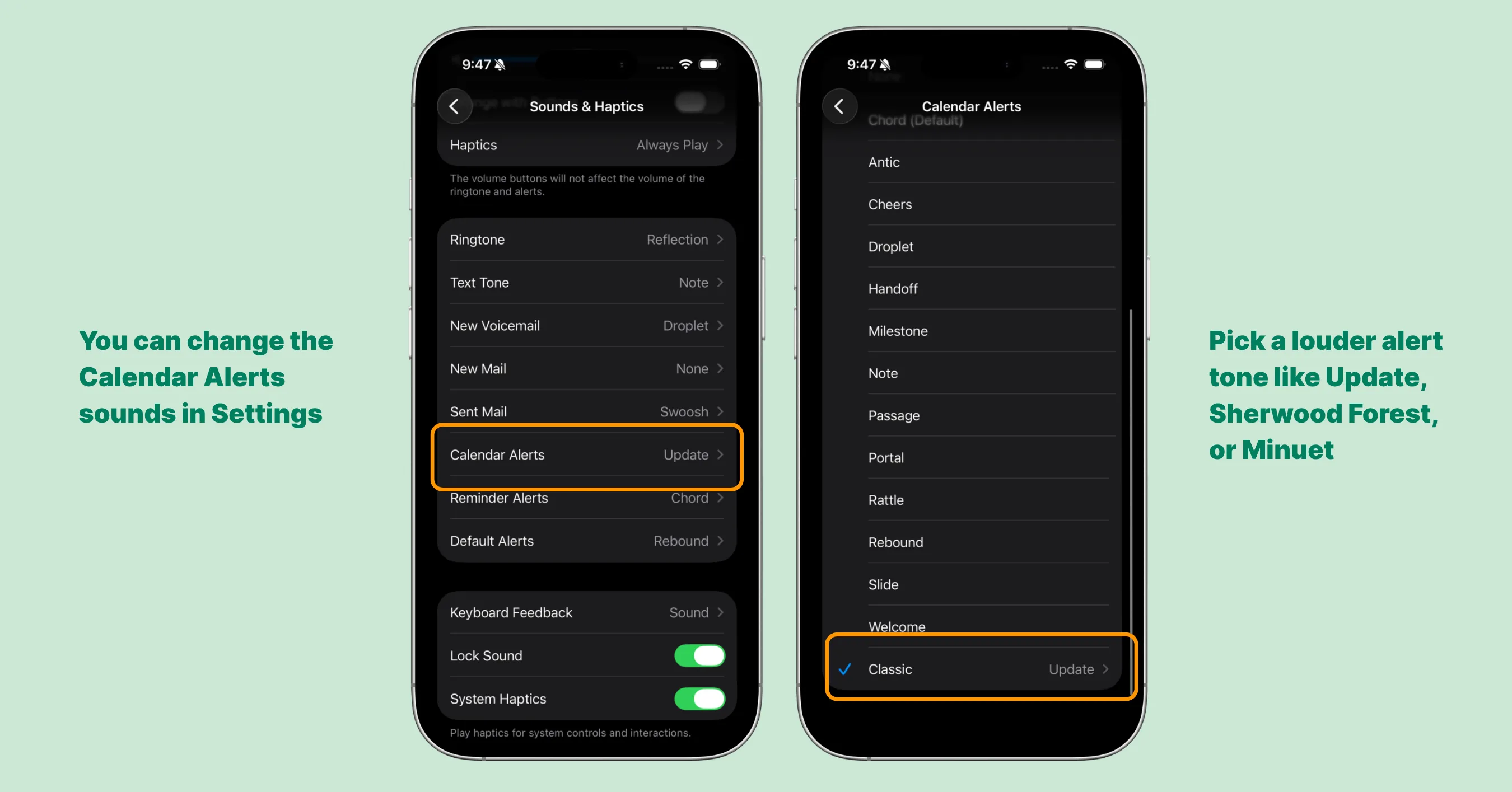
Open Settings → Sounds & Haptics → Calendar Alerts to change the sound your calendar notifications use.
Add a Second Alert to Important Events
iOS Calendar lets you set two separate alerts per event - a feature most people never use.
Using both strategically makes a real difference:
First alert: 5–15 minutes before the event - gives you time to wrap up what you’re doing, find the meeting link, or mentally switch gears before the event starts.
Second alert: at the time of the event - your safety net.
If you got distracted or lost track of time after the first alert, this one fires exactly when you need to act.
Together, they give you a heads-up and a hard deadline. To set it up: open the event in the Calendar app, tap Edit, scroll to Alert and set your first alert time, then tap Second Alert and set it to the event start time.
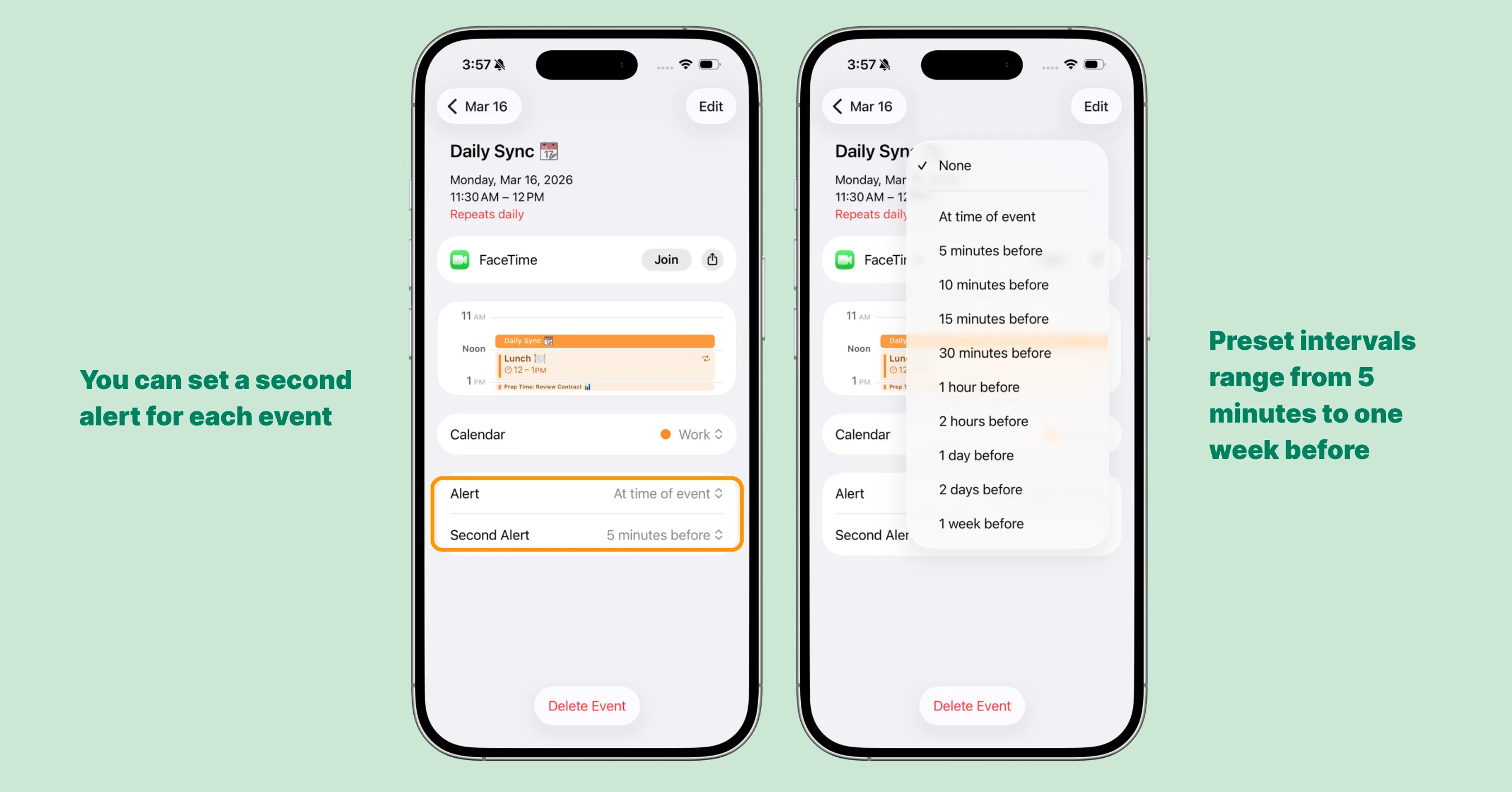
How to set two alerts for an iPhone calendar event
Make Sure Notifications Are Set to “Persistent”
iOS gives you two notification styles:
Temporary (banner disappears on its own) and Persistent (stays on screen until you dismiss it). Calendar is often set to Temporary by default.
To change it: go to Settings → Notifications → Calendar and under Banner Style, select Persistent instead of Temporary.
This keeps the notification on screen until you actively dismiss it.
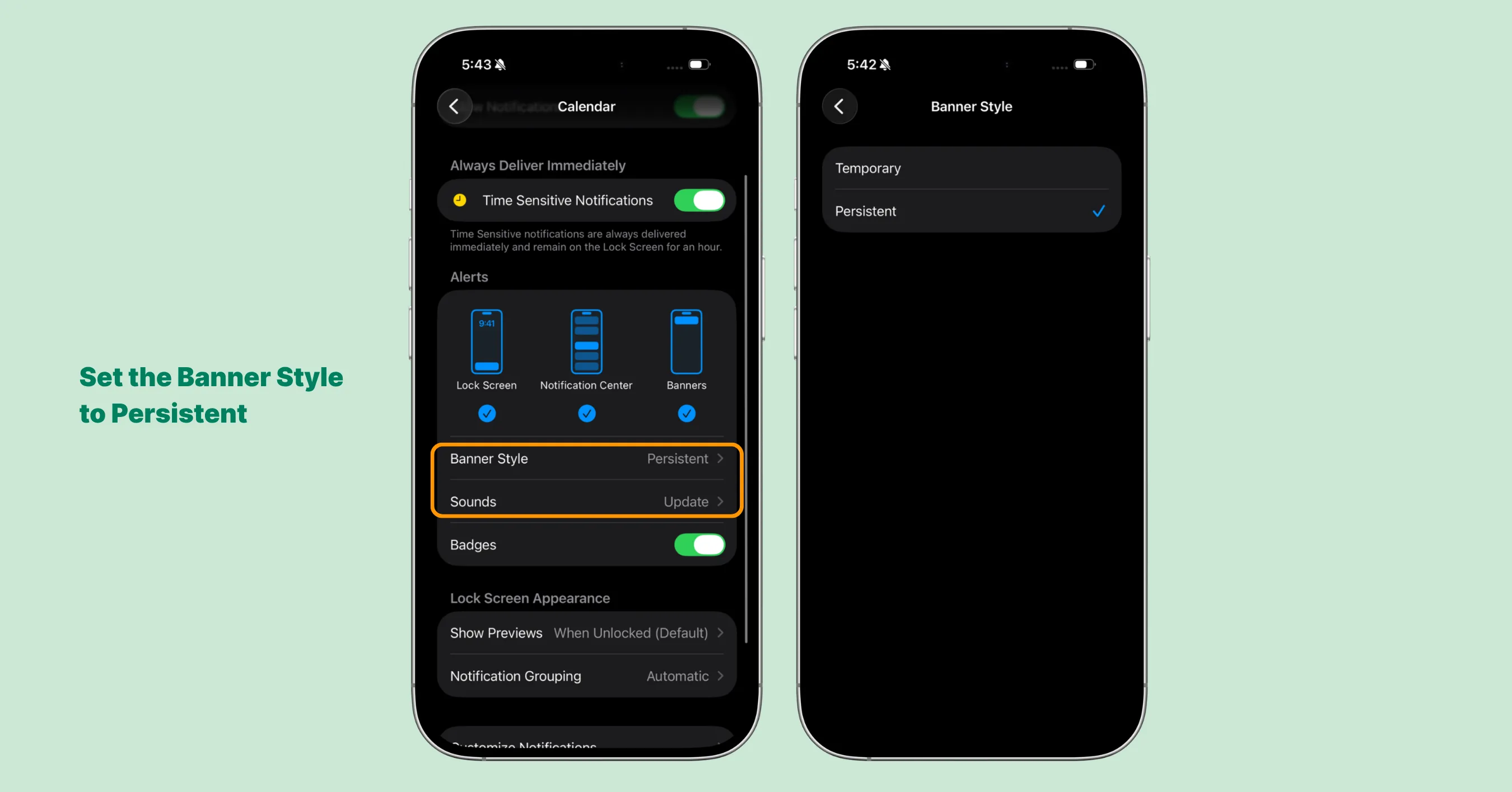
Make sure to select Persistent instead of Temporary under Banner Style.
Enable Time-Sensitive Notifications
iOS Focus modes - including Do Not Disturb - can silently block Apple Calendar alerts unless you explicitly allow them through.
Time-Sensitive Notifications is the setting that makes this work.
To enable it: go to Settings → Notifications → Calendar and toggle on Time Sensitive Notifications.
Then go to Settings → Focus → Do Not Disturb and confirm Time
Sensitive Notifications are allowed there too.
You can also add the Calendar app directly to the list of apps allowed to notify you when Do Not Disturb is active.
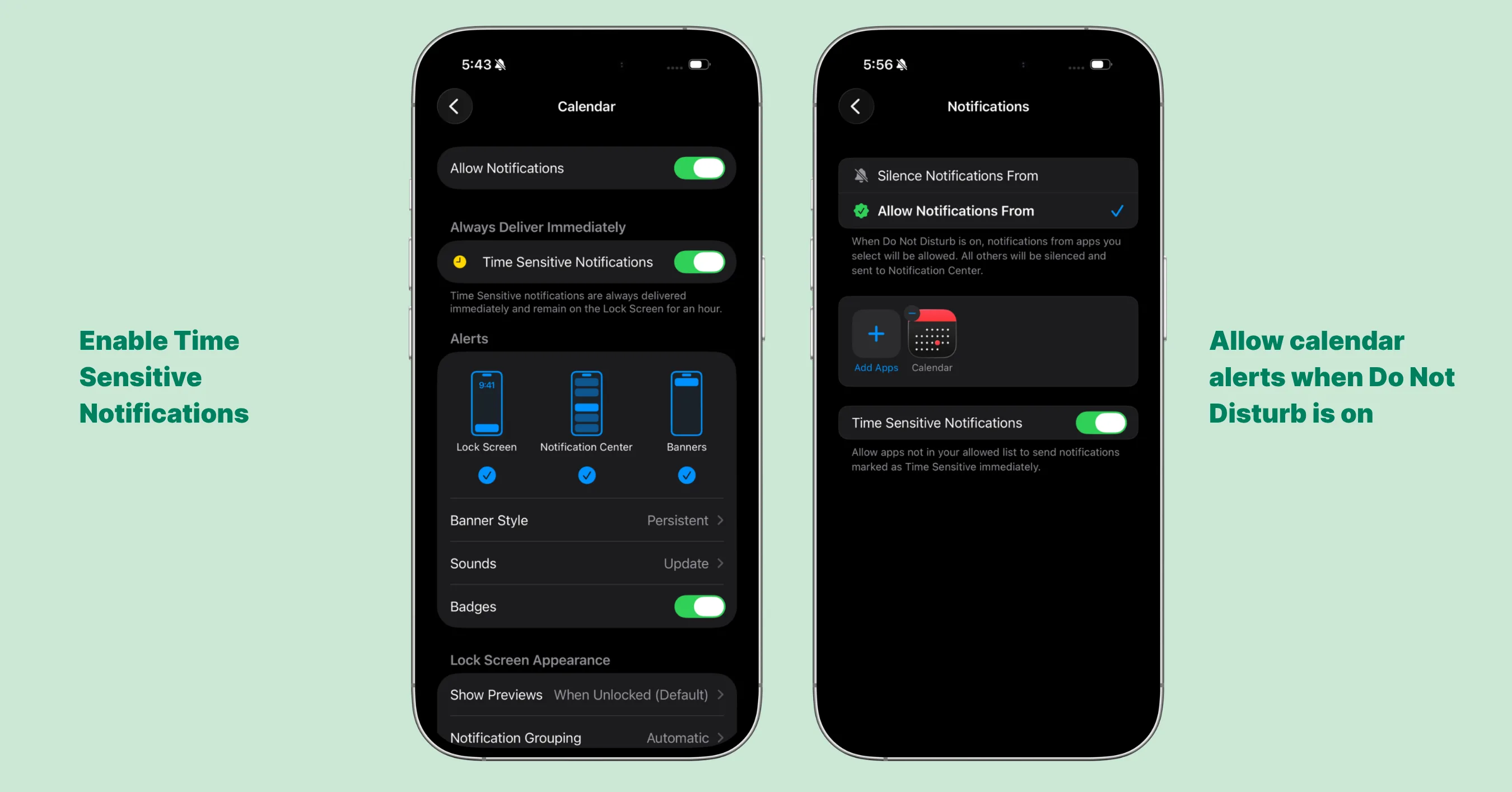
Enable Time-Sensitive Notifications for Calendar in Settings → Notifications → Calendar.
Pros and Limitations of the Built-In Approach
✅ Pros
- No extra app needed - everything lives inside iOS
- Free and already available on your iPhone
- Works across all your calendar accounts (iCloud, Google, Exchange)
⚠️ Limitations
- Manual setup for every event. You need to configure alerts individually for each event. For meetings you didn’t create yourself - like ones a colleague scheduled - you’ll need to edit them just to add an alert, and it’s easy to forget for new events.
- Not fully reliable in Focus mode. Even with Time-Sensitive Notifications enabled, alerts may still be suppressed if your Focus settings aren’t configured correctly across both Settings menus. One wrong toggle means silence.
- Notifications, not alarms. Even at their most persistent, calendar alerts are still banners - they don’t ring, don’t demand action, and can be swiped away in a moment of distraction without truly registering.
- No coverage if your phone is muted. A muted iPhone will vibrate briefly at best. If your phone is on a desk while you’re deep in work, you may not notice at all.
Option 2: Use a Calendar Alarm Clock App
If the built-in settings aren’t enough - or if you want a more reliable system without configuring each event manually - it’s worth looking at a dedicated calendar alarm app.
The fundamental problem with iOS calendar notifications is that they are, at their core, just notifications.
They don’t ring persistently.
They can be silenced by a muted phone or a misconfigured Focus mode.
And they rely on you seeing them at exactly the right moment.
A calendar alarm clock app solves this differently: instead of sending a notification for your event, it fires a real alarm - one that rings until you stop it, the same way an alarm clock does.
One option worth considering is Alarmate, a calendar alarm app for iPhone built specifically for this problem.
Here’s an honest look at how it works and where it fits.
How Calendar Alarms Work in Alarmate
Step 1: Grant Calendar and Reminders access.
On first launch, Alarmate asks for permission to read your Apple Calendar and Reminders.
This is what lets the app show your events without any manual entry.
Your data stays private and is only used to help you schedule alarms.
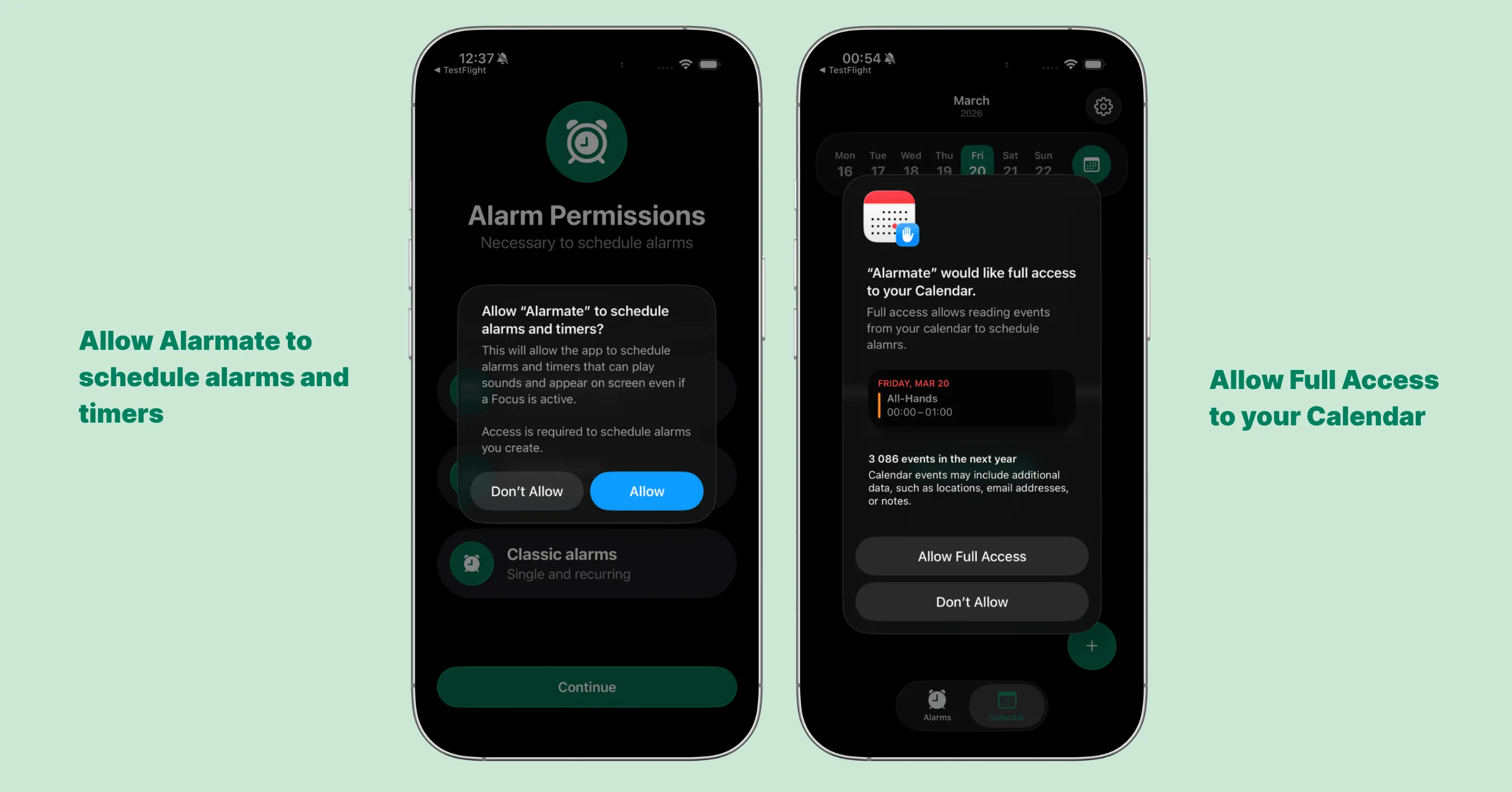
Alarmate first-launch permission request screen for Calendar and Reminders access
💡 Using a work calendar?
Add your work account to Apple Calendar in iPhone Settings (here is how to connect your work email to see events) and your work events will appear in Alarmate automatically - no extra setup needed inside the app.
Step 2: Browse your events in the Calendar tab.
The Calendar tab brings all your calendar events and reminders into one place, organized day by day. If you mainly want to work from reminders, we also have a full guide on turning Apple Reminders into real alarms, plus a practical look at creating reminders with Siri in iOS 27 and making sure you actually hear them.
You can scroll to any day and tap an event to set an alarm for it - no switching between apps.
One workflow that works well: open the app at the start of the day, look at what’s ahead, and set alarms for the meetings and tasks that matter.
This takes a minute or two and eliminates the need to check your calendar repeatedly throughout the day out of fear of missing something.
You’re not limited to upcoming events either.
Alarmate lets you set alarms for past events and reminders too - useful if you need to follow up on something that already happened.
Tap a past event and Alarmate pre-fills the next full hour as a starting point (at 3:45 PM, it shows 4:00 PM), so you can adjust without starting from scratch.
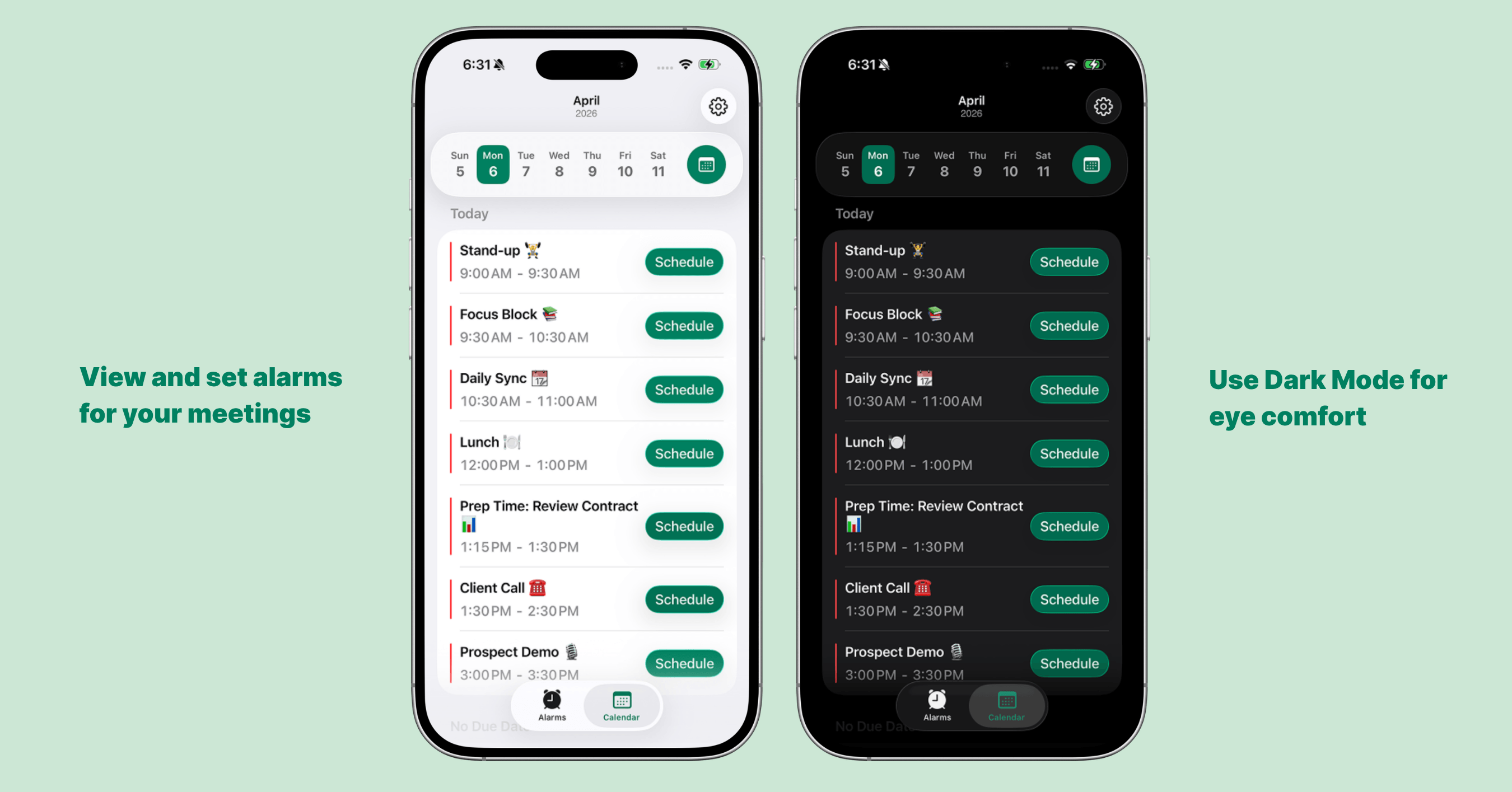
Alarmate Calendar tab showing today’s events
Step 3: Choose your alarm timing.
Tap any event and choose how far in advance the alarm should fire - 5 or 10 minutes before, or any custom offset.
You can also set an alarm before the event ends, not just when it starts - handy for meetings where you need to wrap up and transition on time.
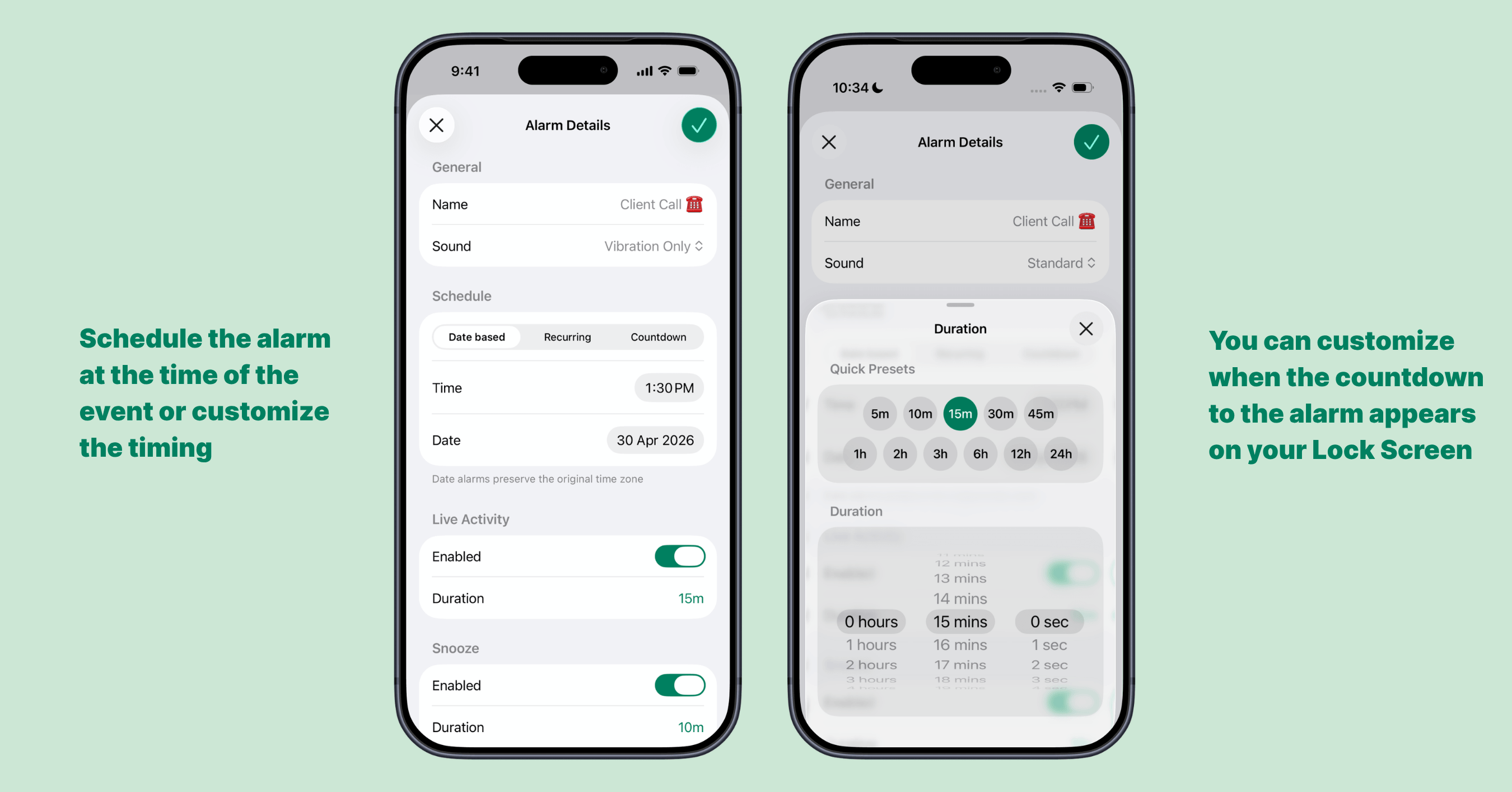
Alarmate event detail screen showing lead time options
Step 4: The alarm fires like a real alarm - and you can snooze it strategically.
When the alarm goes off, it rings the same way an alarm from the default Clock app does.
You can stop it or snooze it, and the snooze duration is configurable per alarm or globally in Settings.
One approach that works well in practice: set the alarm for 5 minutes before a meeting with a 4-minute snooze.
When it first rings, hit snooze immediately.
That buys a few minutes to finish what you’re doing, and the alarm rings again right before the meeting starts.
The 4-minute (rather than 5-minute) snooze accounts for the moment it takes to tap the button, so the second ring reliably lands before the meeting begins.
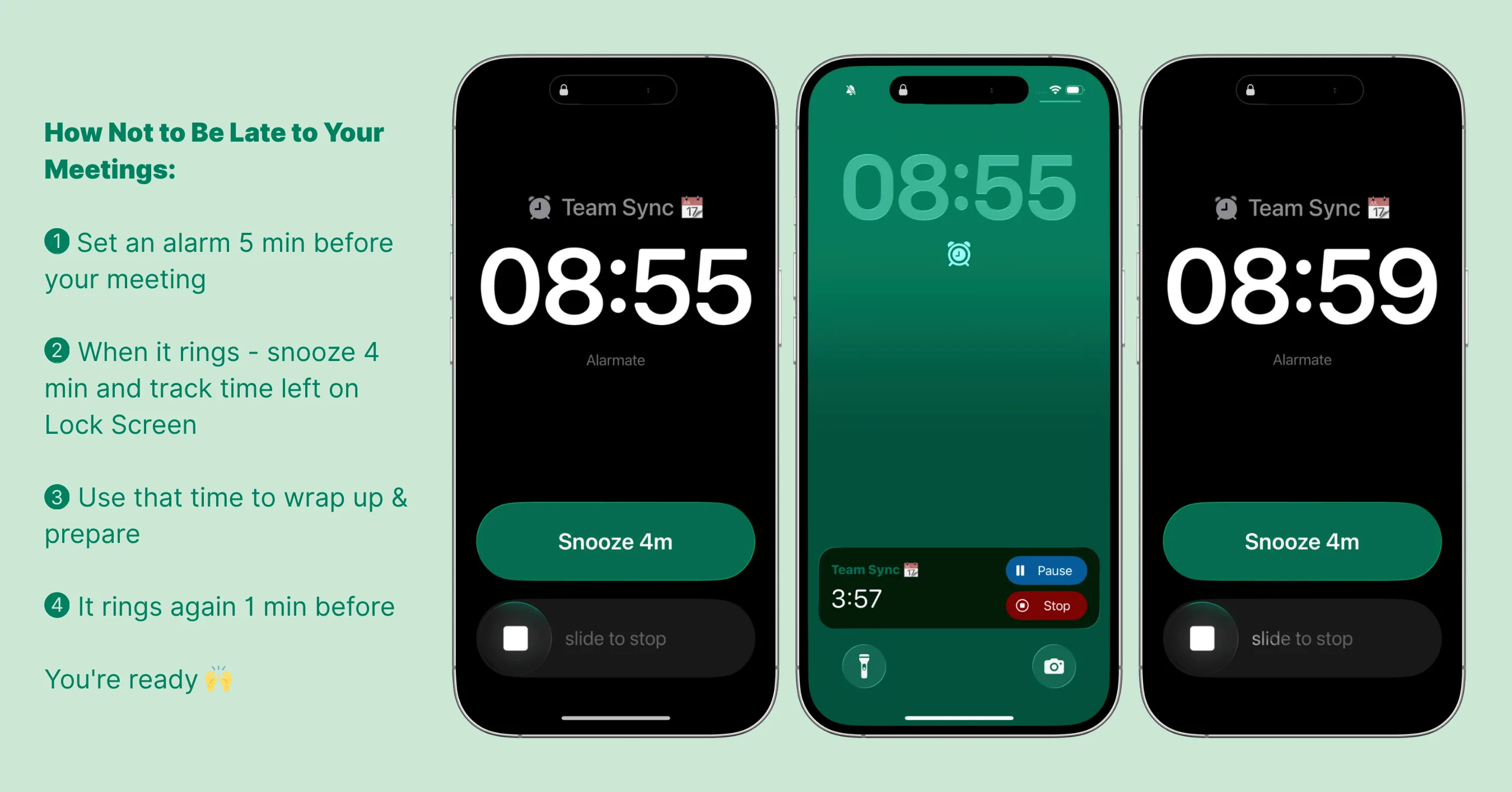
Using Alarmate calendar alarms not to be late to meetings
The Countdown: Knowing What’s Coming Before the Alarm Rings
This is one of the more distinctive features of Alarmate, and worth understanding separately from the alarm itself.
Most calendar alarm apps only alert you at the moment they’re scheduled.
Alarmate also shows a live countdown to your next event on the Lock Screen and in the Dynamic Island - so you can see how much time you have left without opening any app.
The countdown start time is configurable.
You can set it individually per alarm or as a default for all your calendar-based alarms.
For example, setting it to 30 minutes means you’ll see “Team standup in 28 min” on your Lock Screen while you’re working - a passive, always-visible reminder that helps you pace yourself rather than getting caught off guard.
The practical effect: instead of being surprised by an alarm, you’ve been watching the time tick down.
By the time the alarm fires, you’re already winding down what you’re doing.
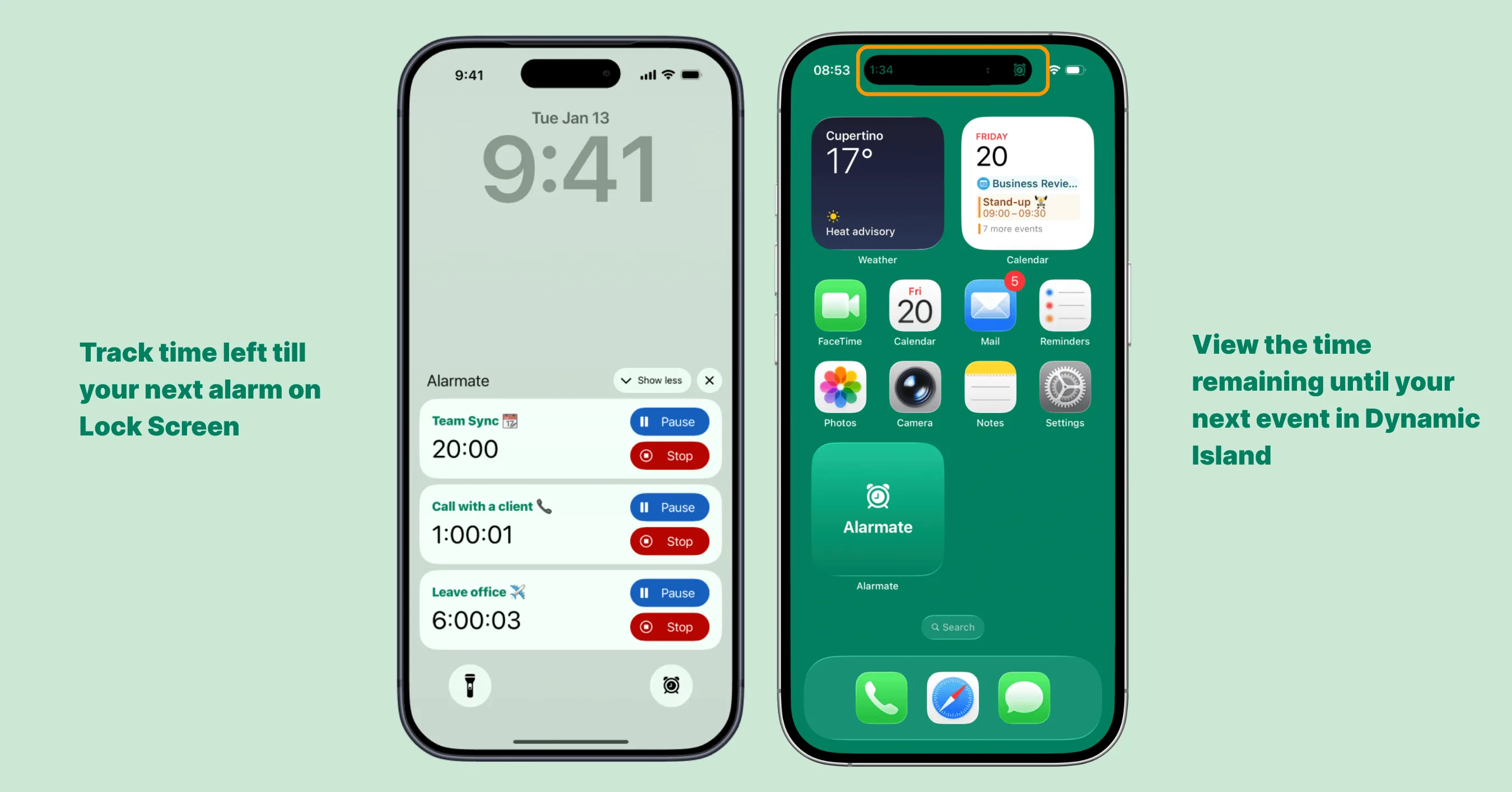
Dynamic Island and Lock Screen countdown with event name and time remaining
Pros and Limitations of Using Alarmate
✅ Pros
- Real alarms, not notifications - rings until you stop it, works on a muted phone, in Do Not Disturb and all Focus modes
- Covers events you didn’t create - all calendar events are available to alarm once you’ve granted access, including meetings others scheduled
- Live countdown on Lock Screen and Dynamic Island - see time remaining before your next event, with full control over when the countdown appears (you can also add widgets to your Home and Lock Screens for even faster access)
- Convenient alarm timeline - all upcoming alarms sorted by time in one view; easy to pause or adjust
- Works beyond meetings - date-based alarms, timers, Reminders integration, and recurring alarms all included
⚠️ Limitations
- Third-party app - requires a separate download from the App Store
- You set alarms for each event individually - there’s no automatic alarm for every calendar event; you decide which ones get an alarm
- Free plan: 3 active alarms at a time - heavier calendar days may require Alarmate Pro
- Requires iOS 26 or above - you’ll need to be on the current iOS version
Which Approach Is Right for You?
Stick with built-in iOS if:
- You only occasionally miss events and a louder alert is enough
- You prefer not to install additional apps
- Most of your events are low-stakes and a persistent banner is sufficient
Consider a calendar alarm clock app like Alarmate if:
- You’re regularly late to meetings despite having them in your calendar
- You find yourself checking your calendar too often out of fear of missing something
- You work in Focus or Do Not Disturb mode and need alerts that break through reliably
- You want a real alarm - not just a louder notification
- You like seeing a live countdown to what’s next
What a Typical Day Looks Like With and Without a Calendar Alarm App
| Event | Without a calendar alarm app | With Alarmate |
|---|---|---|
| 9:30 standup | Notification fired at 9:28. You were in flow. Missed it. | Alarm fired at 9:20. You wrapped up, joined on time. |
| 2:00 client call | Swiped the banner away mid-email. Remembered at 2:07. | Alarm fired at 1:45. You had 15 minutes to prep. |
| 5:00 doctor's appointment | Phone was on silent. No alert got through. Left late, arrived stressed. | Alarm fired at 4:15. Left on time. |
The difference isn’t the events - it’s the kind of alert protecting them.
Beyond Calendar Events: Other Things Alarmate Handles
Once the calendar alarm workflow clicks, it’s natural to reach for Alarmate for other time-sensitive things too:
- Date-based alarms - use Alarmate to set an alarm for any future date on iPhone, like a flight check-in or a deadline
- Timers - “wake me in 45 minutes” or “remind me to check the oven in 20 minutes”
- Reminders integration - turn items from your Apple Reminders app into real alarms
- Recurring alarms - daily medication reminders, regular breaks, hydration goals
- Siri voice alarms - set alarms by voice on iPhone for future dates, recurring alarms, and timers
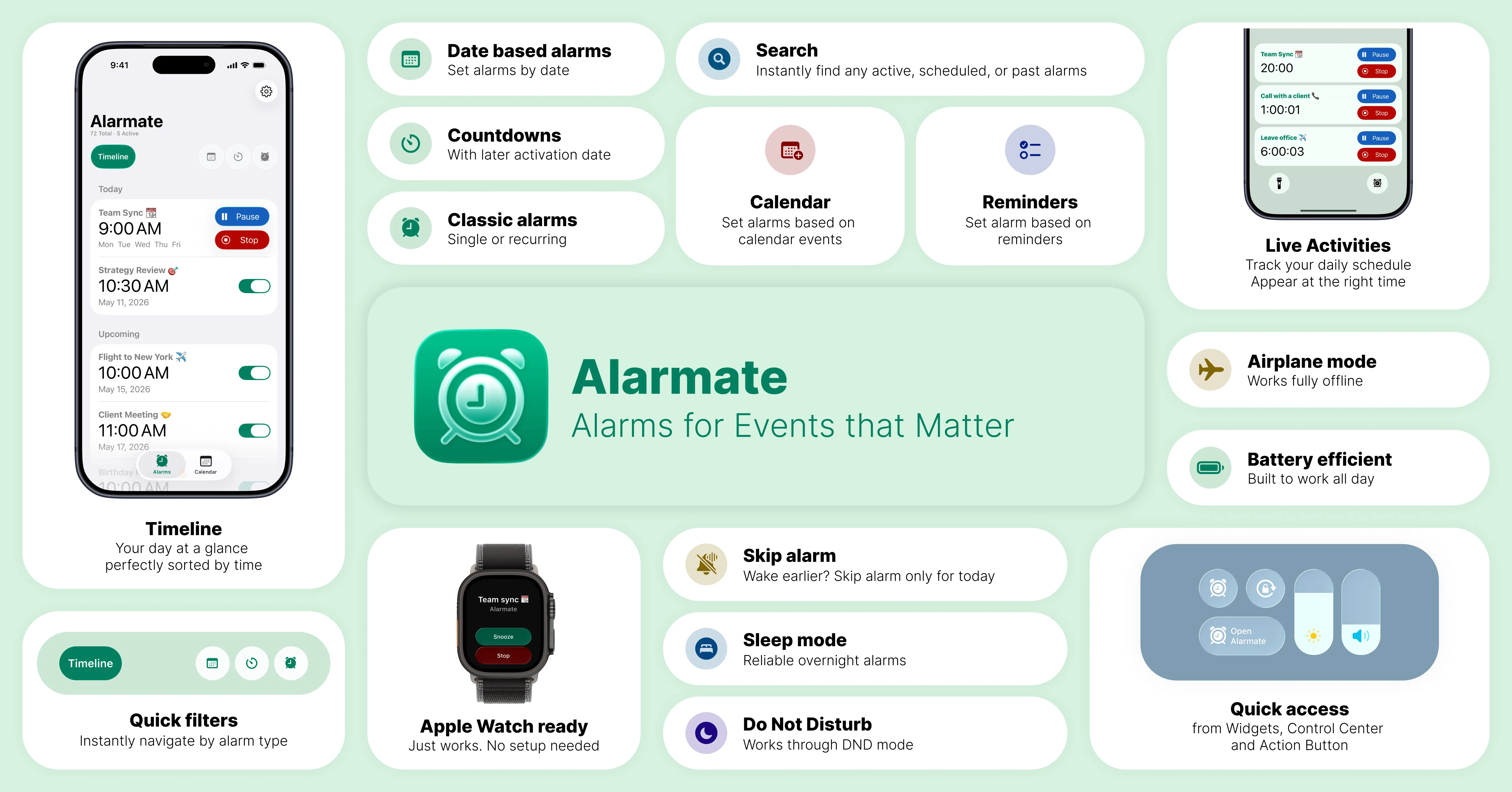
Alarmate: key features at a glance. View all features here ➔
Try Alarmate
Alarmate is free to download.
Calendar alarms, date-based alarms, timers, and Apple Watch support are all available from day one.
Read Also: