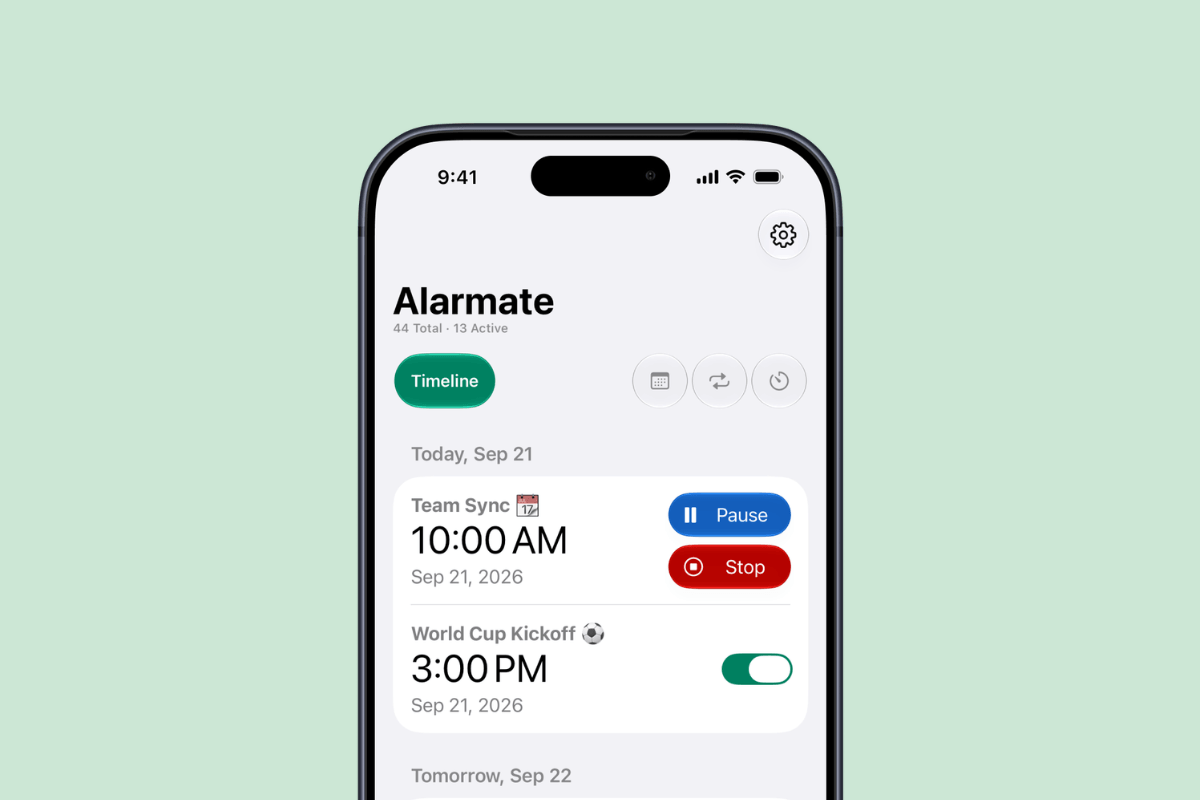
Date alarms have been part of Alarmate from day one, and they are what set us apart from the default Clock app. As more of you set alarms months - and even years - ahead, it was time to make the Alarm Timeline easier to scan.
This release also adds support for the new AI-powered Siri, so you can create alarms with your voice, plus full iOS 27 support. Here is what is new and how to use it.
What’s new
- Improved Alarm Timeline: Scheduled alarms are now grouped by day for the upcoming seven days, then by month. Paused and snoozed alarms have their own sections, and inactive alarms are sorted by type.
- Siri AI and Shortcuts: On iOS 27, create date alarms, recurring alarms, and timers by voice or in Shortcuts. Learn more in our iOS 27, Siri AI, and alarms guide.
- iOS 27 support: Alarmate now supports iOS 27, including new Appearance and transparency settings.
- One-tap sharing: Send Alarmate to anyone who could use more time management in their life.
Improved Alarm Timeline
Every time you open Alarmate, you start with the Alarm Timeline. It is where you see your scheduled, active alarms and your past alarms, so it was the first place we wanted to improve.
Why we updated it
Because Alarmate lets you set date alarms for any future date, many of you now have dozens of scheduled alarms. Some alarms were also not sorted as well as they could be, especially snoozed, paused, and past ones. Based on your feedback, we reworked how Active and Inactive alarms are displayed.
What’s new
1. Scheduled alarms are grouped by day, then by month
Alarms for the upcoming seven days are grouped by the day they ring. Anything further out is grouped by month. You can quickly see what is planned, and an empty month is a useful nudge to add an alarm for something important.
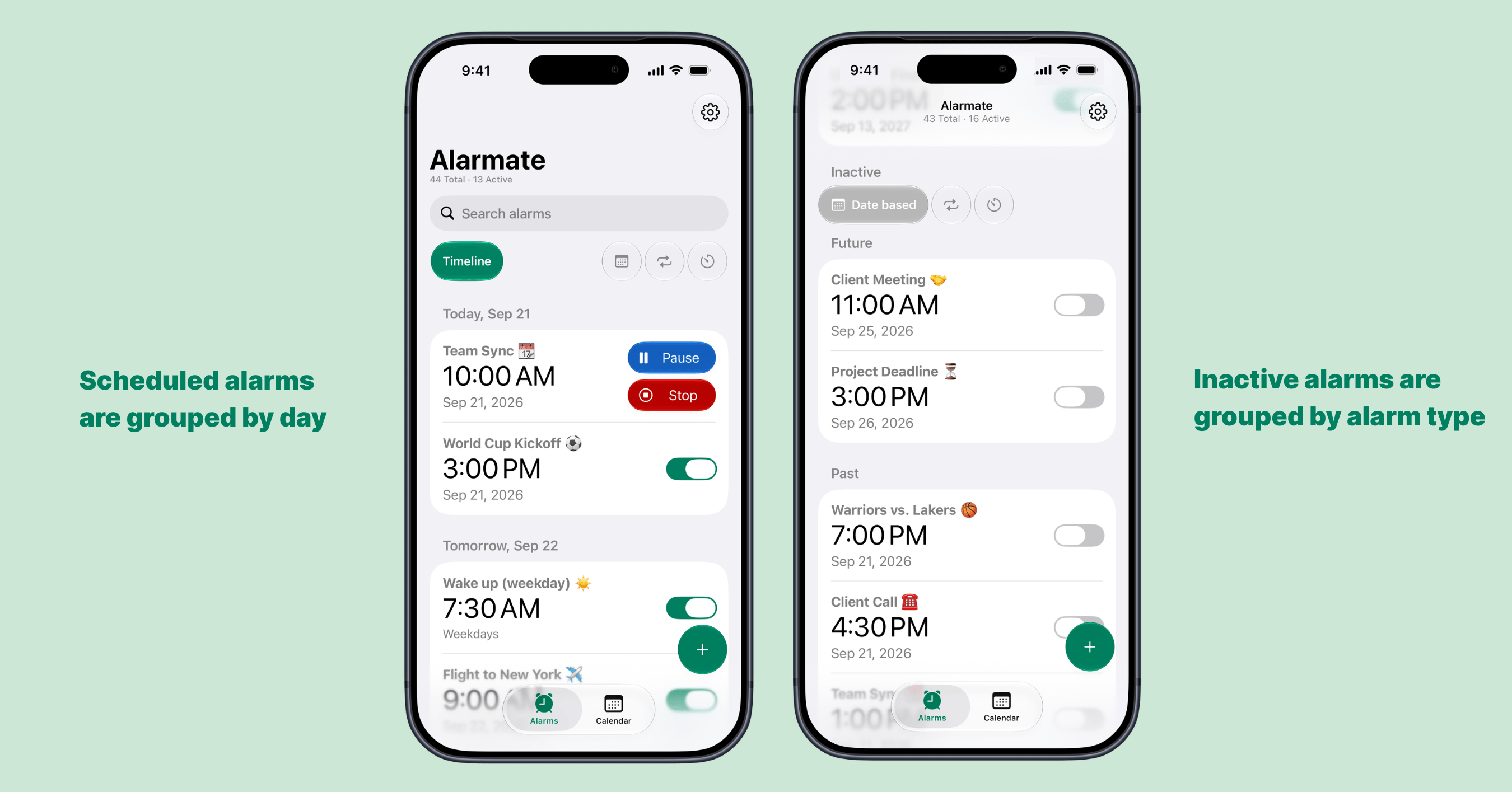
The upcoming week is grouped by day; alarms further ahead are grouped by month.
2. Paused and snoozed alarms get their own sections
When you have paused or snoozed alarms, they now appear in dedicated sections. You can spot them at a glance and manage them from there.
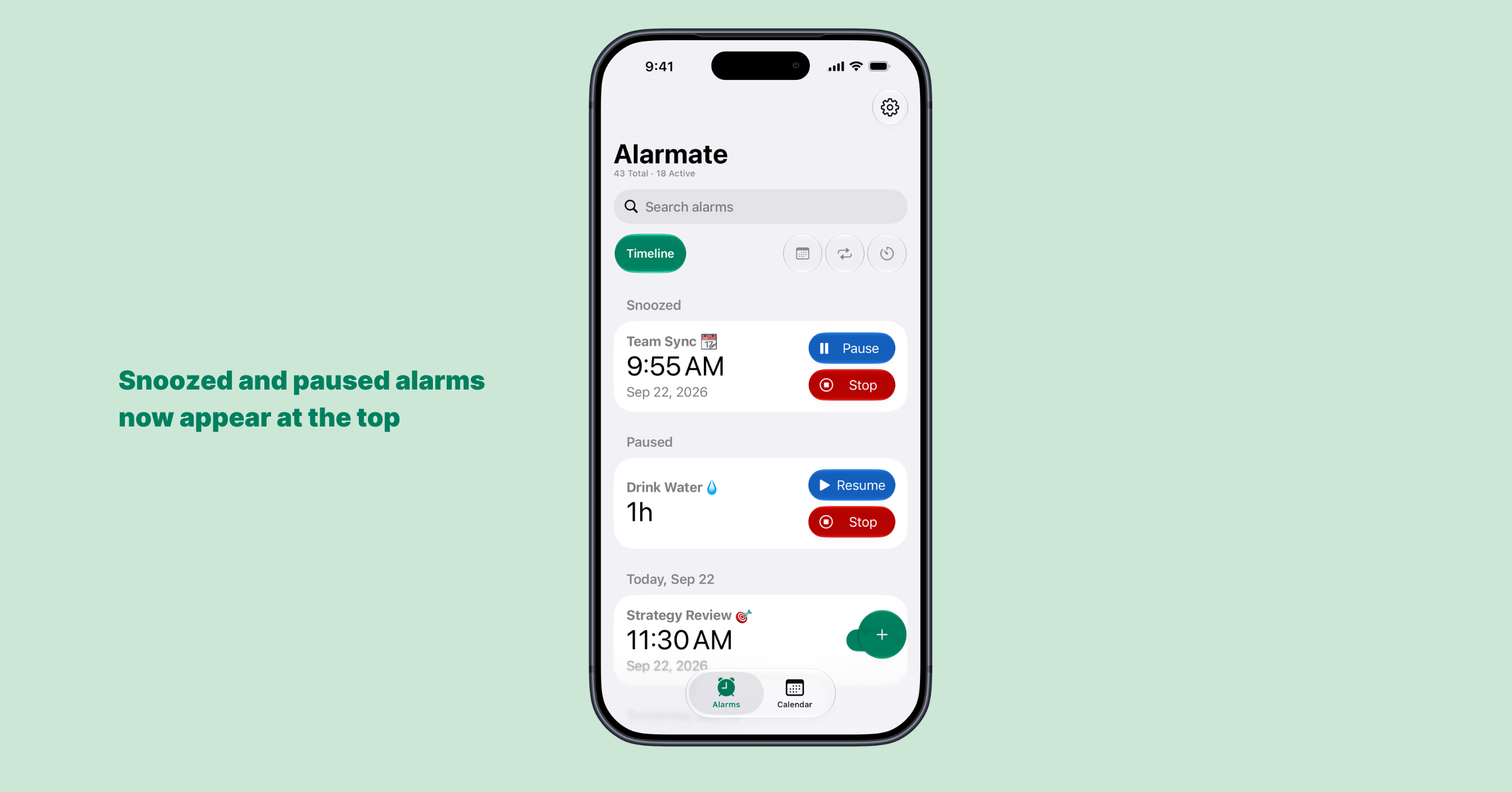
Paused and snoozed alarms no longer get lost in the main timeline.
3. Inactive alarms are grouped by type
When you turn off or stop an alarm, it moves to Inactive. Inactive alarms are now sorted into three groups: date-based alarms, recurring alarms, and timers.
Date-based alarms that rang recently appear first in your past alarms, so you can quickly edit them if you want to reschedule. Before this release, all alarm types were mixed in one list and past alarms appeared at the end.
Inactive date alarms also have Future and Past sub-groups. An inactive date alarm whose date has not arrived yet lives under Future. That is where alarms end up when you no longer need them, or when you switch them off after reaching the three-alarm limit on the free plan. If plans change - or you upgrade - you can find them there and turn them back on.
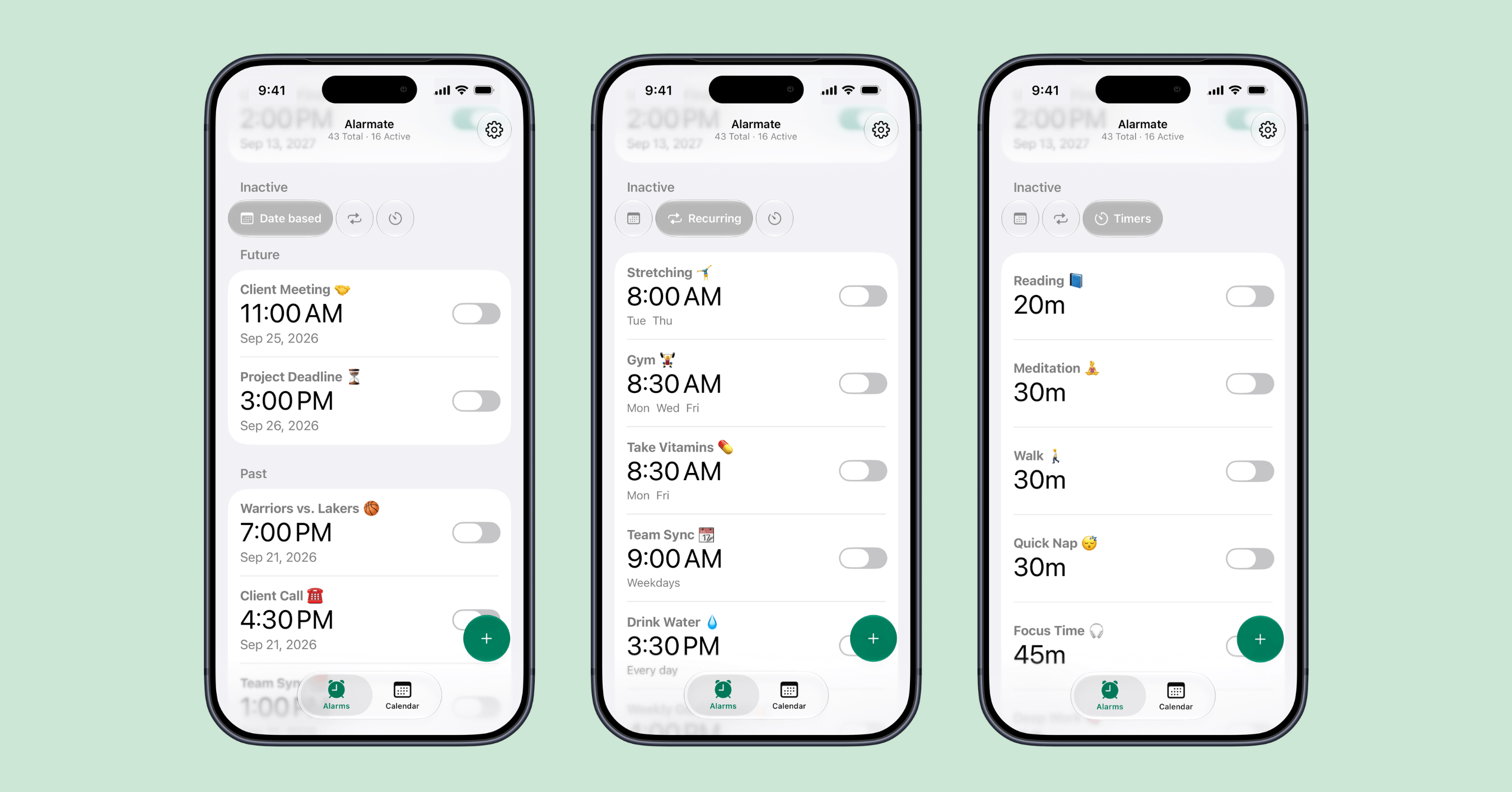
Inactive alarms are organized by type, with future and past date alarms kept separate.
How to get the most out of the new Timeline
- Make it a daily habit. Start your day by reviewing today’s alarms, or end it by reviewing tomorrow’s. It takes a few seconds, and you will know what is ahead.
- Do a weekly scan. Look through upcoming alarms once a week. If something important is missing, set a new alarm right away.
- Set alarms for anything with a date. Meetings, doctor appointments, flights, buses, trains, sports games, birthdays, anniversaries, document-expiration deadlines - anything you do not want to forget. See how to set an iPhone alarm for a specific future date for a full walkthrough.
- Keep an eye on paused alarms. Tap Resume to keep an alarm active, or Stop to turn it off.
Set alarms with Siri AI and Shortcuts
Creating alarms got easier, too. On iOS 27, you can set alarms hands-free with the new AI-powered Siri. Say, “Alarmate, set a date alarm,” then give a date or timeframe. Alarmate works out the exact date for you, so there is no counting weeks on a calendar. It works for recurring alarms and timers, too.
You can also create alarms through Shortcuts. If you build automations for your morning routine or trips, alarm creation can now be part of them. For more voice-command examples, read how to set alarms with Siri and Alarmate.
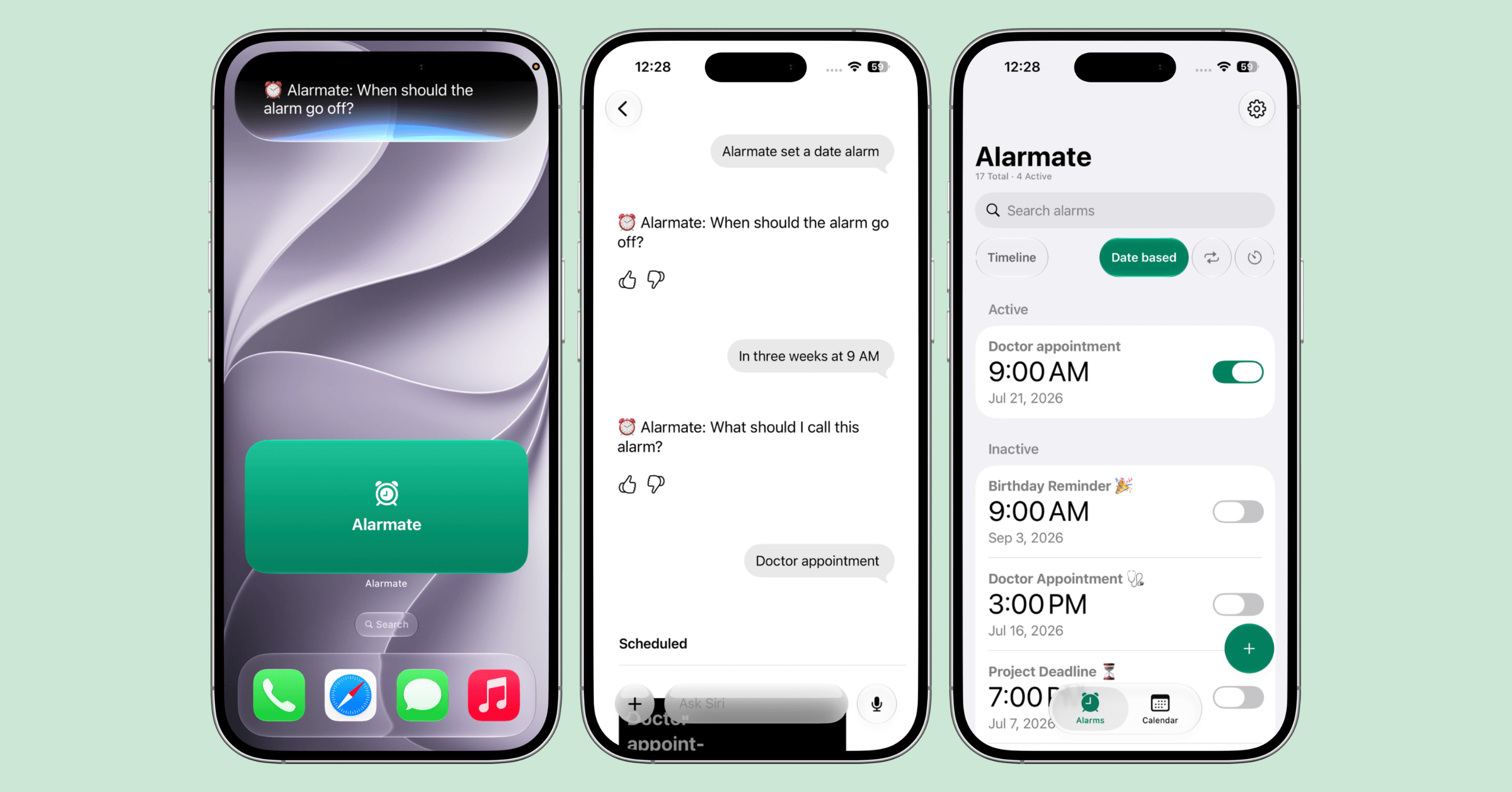
Siri asks for the date and title, then Alarmate saves it as a scheduled date alarm.
Curious about what Siri AI changed across the system? Our guide to iOS 27, Siri AI, and alarms covers it in detail.
How to create an alarm with Siri, step by step
Siri sometimes reaches for Apple’s default Clock app, even when you mention Alarmate. The fix is simple: start your request directly with “Alarmate.”
Try these exact phrases first:
“Hey Siri, Alarmate, set a date alarm.”
“Hey Siri, use Alarmate to set a date alarm.”
Starting with “Alarmate, set a date alarm” tends to work best.
- Say the phrase, but do not mention a date or time yet. Say, “Hey Siri, Alarmate, set a date alarm.” Siri will ask for the details next.
- Tell Siri when the alarm should go off. Speak naturally: “In three weeks at 3 PM” or “On the 19th of September at 11:30.” Alarmate does the date math for you.
- Give the alarm a name. Something like “Doctor appointment” or “Passport renewal” works well. Done - your alarm is scheduled.
Look for the Alarmate icon at the start of the Siri interaction. If it is missing and Siri opens the Clock app instead, cancel Siri and try again. Siri may still prefer the Clock app once in a while, but a second attempt with the “Alarmate” opener usually solves it.
Before you try it
Siri AI needs iOS 27 or later and an iPhone that supports Apple Intelligence. Apple Intelligence must be switched on and set up in a supported region and language. Siri access for Alarmate is enabled by default, but it is worth a quick check: go to Settings → Apps → Alarmate → Apple Intelligence & Siri and make sure it is on.
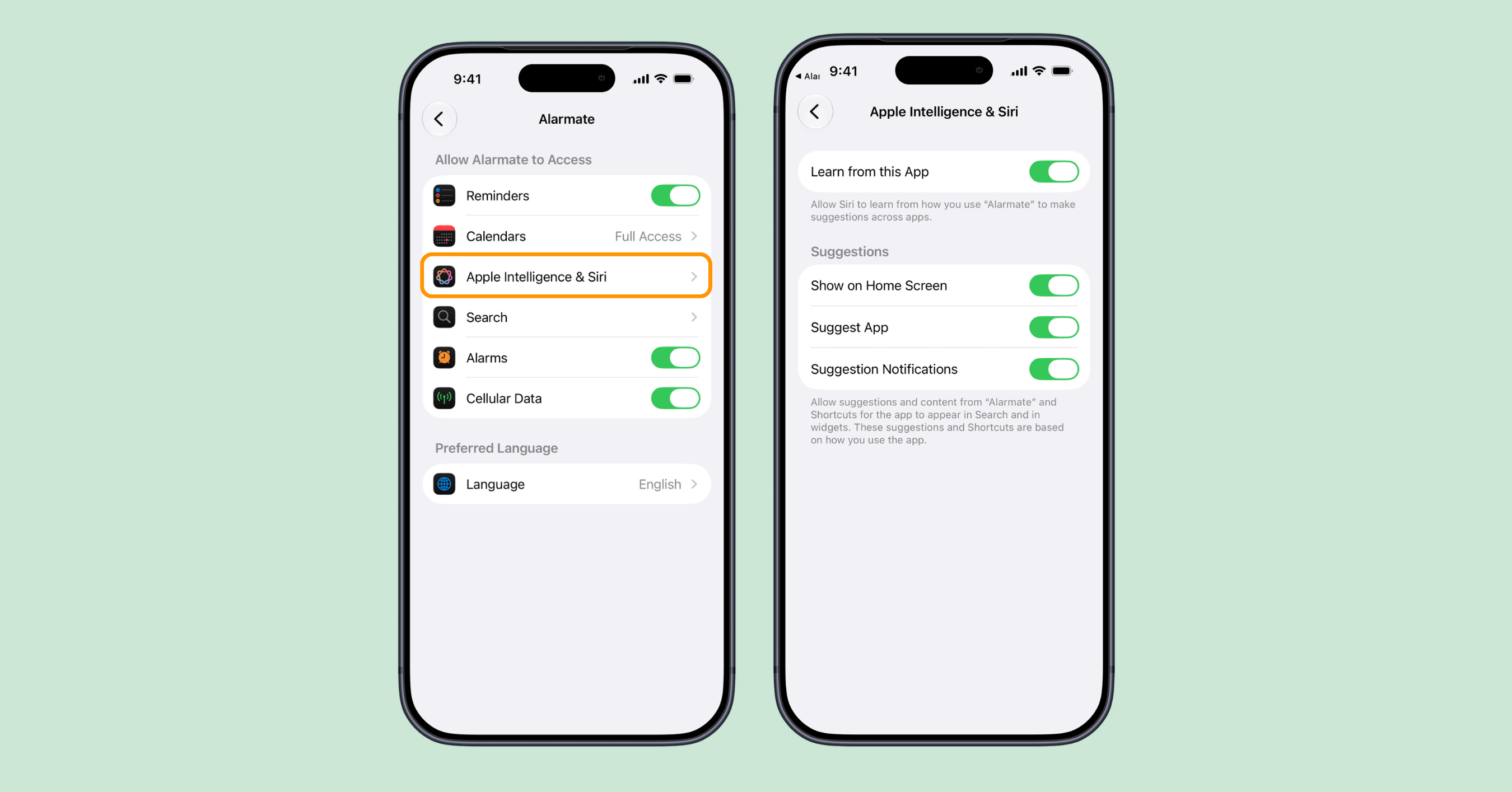
Confirm that Apple Intelligence and Siri access is enabled for Alarmate before creating alarms by voice.
iOS 27 support
Alarmate now supports iOS 27. We also added new Appearance and transparency settings, so the app can better match your preferences.
A new Appearance setting for the Alarms tab
You can now choose whether the search bar stays visible or hides until you need it. If you have a long list of alarms, that gives you a little more room on screen. On iOS 26, the search bar always stays visible so the screen renders correctly.
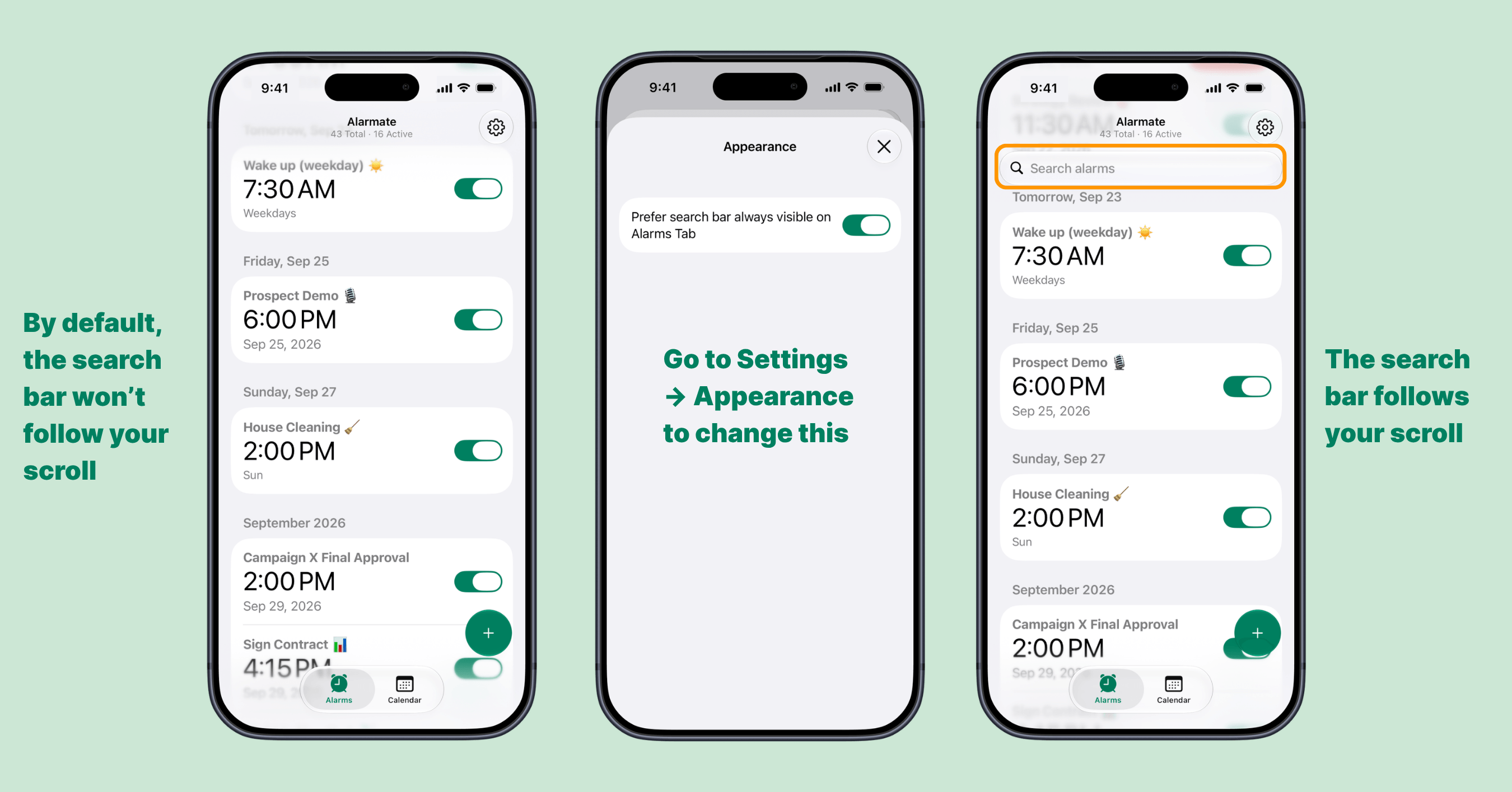
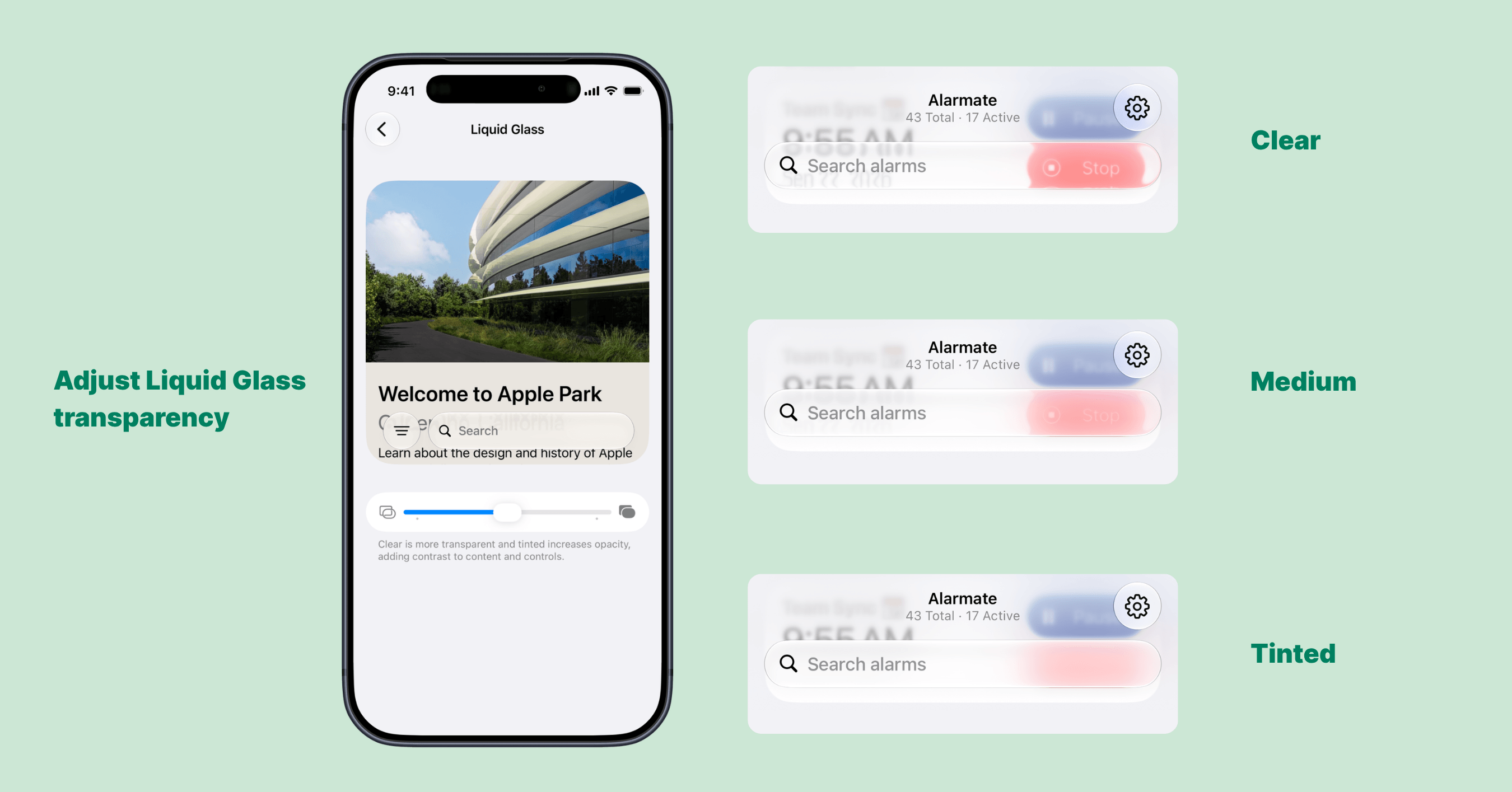
Support for iOS 27 transparency settings
You can also adjust the look and feel of the app to your liking with iOS 27’s transparency settings.
If you do not want to use Siri AI, you can always disable access in Settings → Apps → Alarmate → Apple Intelligence & Siri.
Share Alarmate with someone who needs it
Know someone who is always running late or missing things? Sharing Alarmate is now one tap away. Open Settings and send it to anyone who could use a little more time management in their life.
Final thoughts
The improved Timeline is the change we are most excited about. It does not add new alarm types, but it makes the ones you already have much easier to manage. Siri AI support is a useful bonus if you are on iOS 27 - and it takes about ten seconds to try.