If you’ve ever wished the iPhone Clock app could set an alarm for a specific future date, not just tomorrow or next week, you’re in good company.
It’s one of the most common iOS frustrations.
The built-in Clock app simply wasn’t designed for it.
That’s exactly what Alarmate was built for.
In this guide, we’ll walk through everything you need to know about date alarms on iPhone using Alarmate: how to create them, how to customize them, how they handle time zone changes, and all the smart ways Alarmate makes the whole experience feel effortless.
Whether you’re setting an alarm for a flight months away, a doctor’s appointment, a subscription renewal date, or your car’s next service, this is the guide for you.
What’s in This Guide
- What a date alarm is and why the default iPhone Clock app can’t do it
- How to create date alarms in Alarmate manually, from Calendar, from Reminders, and with Siri
- What you can customize: name, emoji, sound, snooze, and Live Activities
- Using alarm templates to create alarms in seconds
- What happens to your alarms when you travel or change time zones
- Real-world use cases where date alarms make a real difference
- Alarmate at a glance: features, pricing, and compatibility
Why the iPhone Clock App Can't Set a Date Alarm
Open the default Clock app on your iPhone and try to set an alarm for a date three months from now.
You’ll quickly discover the problem: you can’t.
The native Clock app lets you set repeating alarms by weekday, or a one-time alarm, but only if it rings within the next seven days.
Anything further out simply isn’t supported.
This limitation becomes a real issue for anything you need to plan ahead.
People work around it in all sorts of awkward ways: setting a reminder to remind themselves to set an alarm later, creating recurring alarms they have to manually delete, or just hoping they’ll remember.
None of that is reliable.
Alarmate solves this at the root.
It’s a dedicated future date alarm app for iPhone that lets you set an alarm for any date, days, weeks, or months from now, with the same reliability as a native iOS alarm. It rings in Silent mode, Do Not Disturb, Focus mode, and even offline.
If you want the wider comparison across wake-up alarms, calendar alarms, reminders, timers, and daily scheduling, see the full best alarm app for iPhone guide.
Requires iOS 26 or later. Compatible with iPhone and iPad.
How to Create a Date Alarm in Alarmate
There are four ways to create a date alarm in Alarmate, and each one is designed for a different situation.
Here’s how each works.
1. Create a Manual Date Alarm
This is the most flexible option.
You choose the exact date and time, give the alarm a name, and set it.
It’s perfect for one-off events like flights, appointments, deadlines, or anything that isn’t already in your Calendar.
How to do it:
- Open Alarmate and tap the green
+button - Select
Date Based Alarm - Pick your date and time using the date picker
- Give the alarm a name and add an emoji if you like
- Adjust optional settings like snooze duration, sound, and Live Activity timing
- Tap
Save
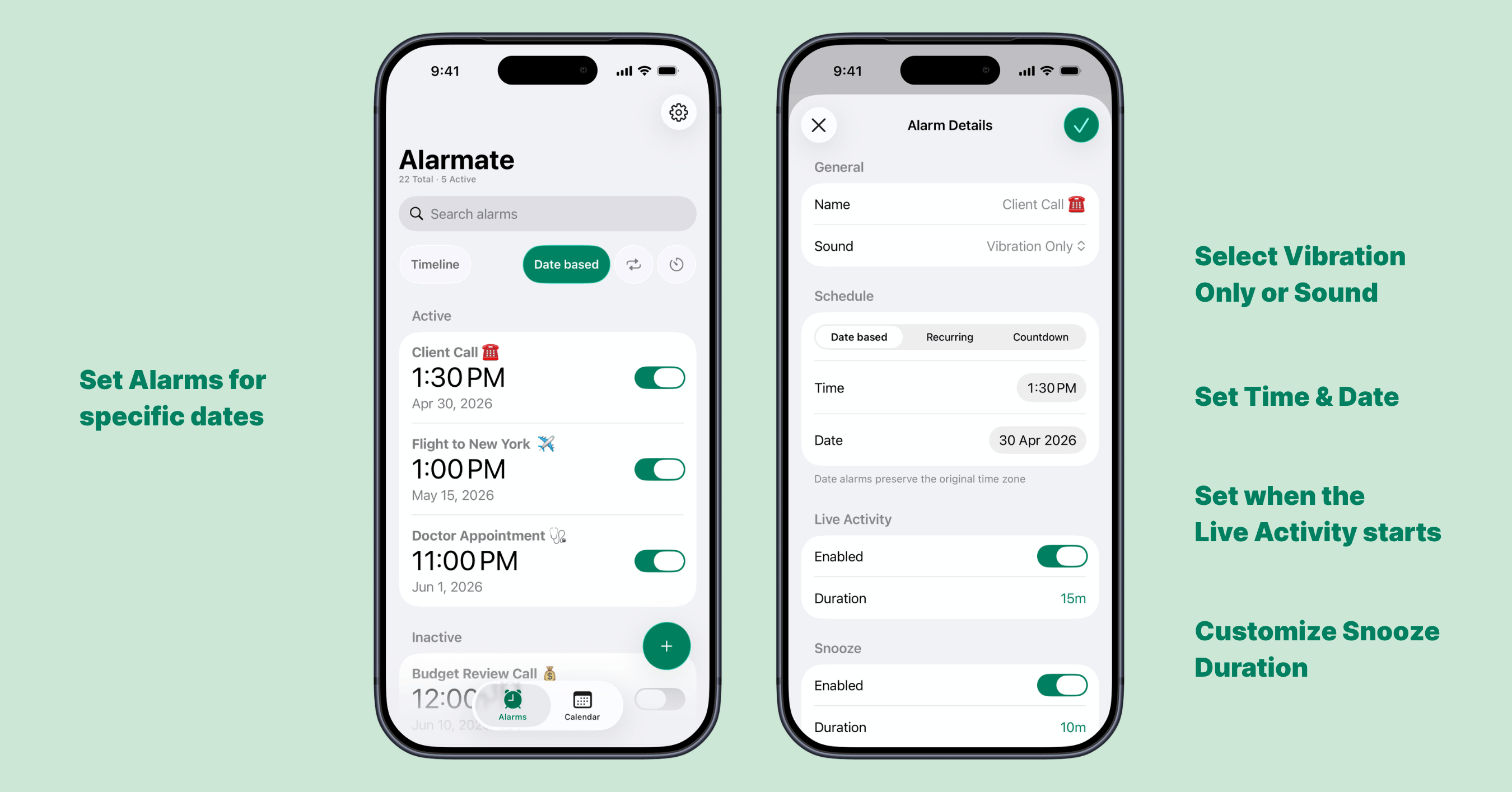
Date alarms grouped by category in Alarmate’s Date Based tab
All your date alarms live in the Date Based tab, neatly grouped by category so you can find everything at a glance.
Active alarms appear at the top.
Past or inactive alarms appear below, where they also double as templates for future use.
2. Create an Alarm from a Calendar Event
If you already use Apple Calendar for your schedule, this is the fastest way to set an iPhone alarm for a specific date.
Alarmate integrates directly with Apple Calendar, letting you turn any existing event into a real, ringing alarm for meetings, appointments, or anything else already on your calendar.
How to do it:
- Tap
+and selectCalendar Alarm - Browse all Apple Calendar events by date, including events months or even a year from now
- Choose the event you want an alarm for
- Set how early you want the alarm to go off, such as 5 or 15 minutes before
- Add multiple alarms to the same event if needed
- Tap
Save
Don’t see your work or school events?
You may need to connect your work email account to Apple Calendar first. Once added, all those events will appear in Alarmate automatically.
Here’s how to add work accounts to Apple Calendar.
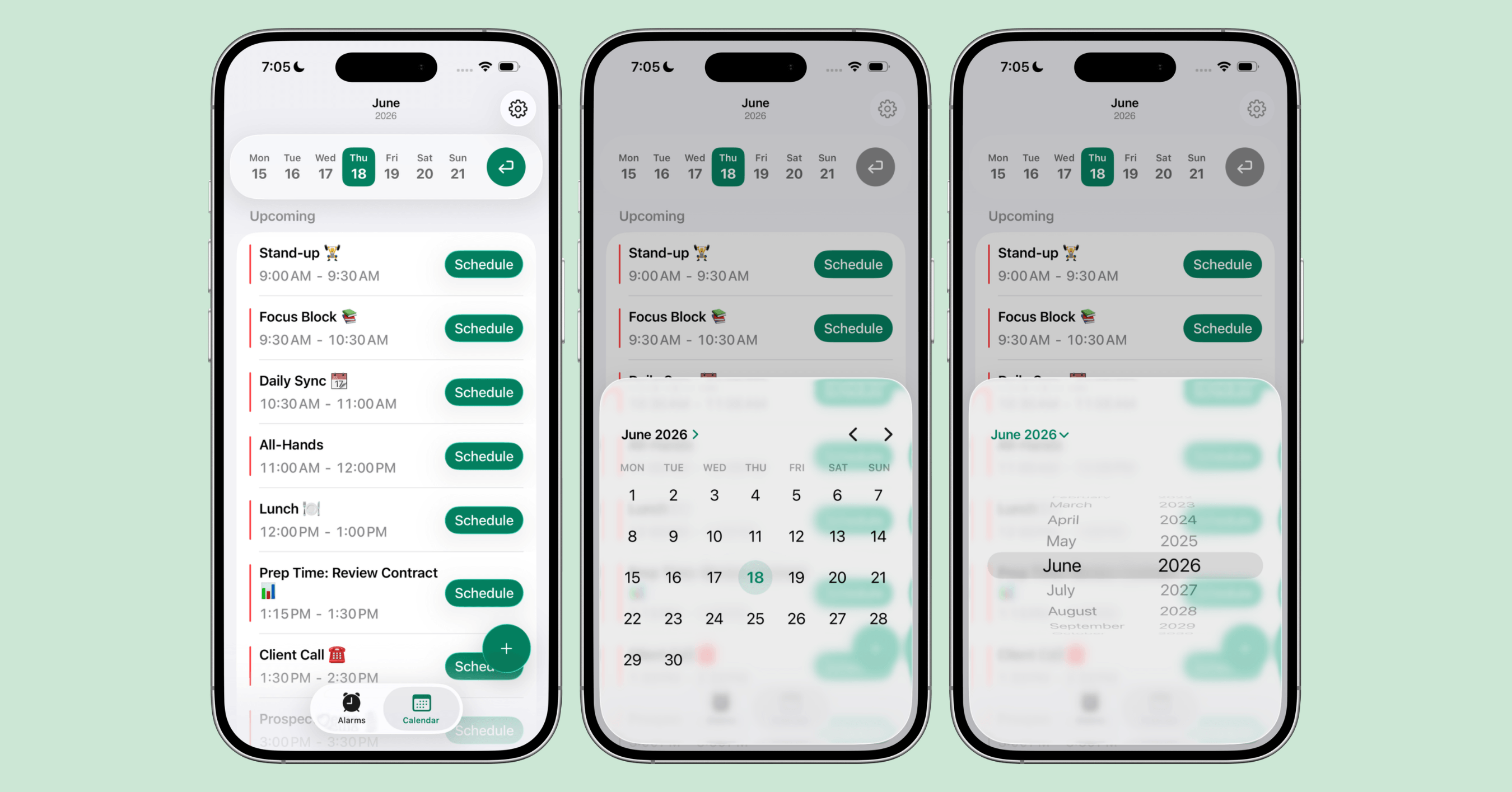
Alarmate shows all your Apple Calendar events, and you can navigate to any date to set an alarm
You can set multiple alarms per calendar event, which is especially useful for meetings you really can’t miss.
3. Create an Alarm from a Reminders Entry
Alarmate also integrates with the native iOS Reminders app.
You can turn any reminder into a proper ringing alarm, whether it has a due date, an overdue date, or no date at all. If reminders are your main workflow, here is the full guide for using Alarmate as a reminder alarm app for iPhone.
Alarmate uses the reminder’s title as the alarm name automatically, so you don’t need to retype anything.
If a reminder doesn’t have a date yet, or the due date has already passed, Alarmate simply lets you set a new date and time for when the alarm should ring.
It’s a great way to give any reminder the urgency it deserves.
How to do it:
Open the Calendar tab. This is where Alarmate brings together both your calendar events and reminders in one place.
Navigate to the date you need, find your reminder, and tap Schedule to turn it into an alarm.
If you don’t see your reminders, make sure you’ve granted Alarmate access to the Reminders app.
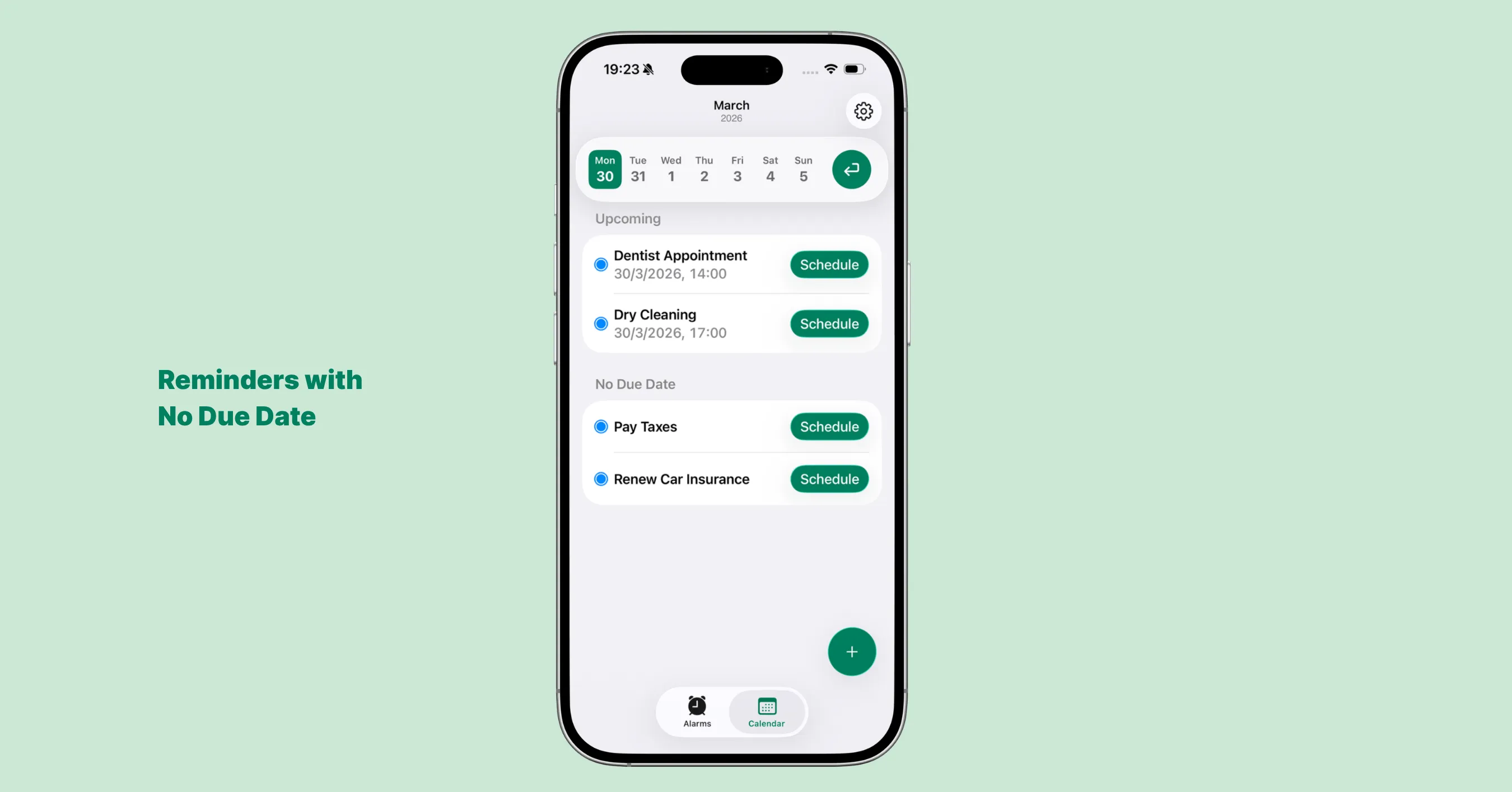
Alarmate works with any iOS Reminder, even ones without a due date
4. Create a Date Alarm with Your Voice (Siri & Siri AI)
Sometimes the date lands in your lap at the worst possible moment.
You’re in a waiting room, on a call, or halfway out the door when someone says “see you on the 14th.”
That’s the moment voice creation is built for.
Instead of opening the app, you just say it out loud and keep moving.
Alarmate connects to Siri, so you can create a date alarm hands-free, without tapping a single screen.
How to do it:
- Activate Siri, then say
Alarmate, set a date alarm - Tell Siri when, using either an exact date and time or a timeframe
- Give the alarm a name when Siri asks
The useful part is that you don’t need to know the calendar date.
Alarmate can work out the date math for you once Siri routes the request.
The Clock app can handle simple alarm requests too, but only inside its short alarm window. Alarmate removes that ceiling, so the requested date actually gets saved, whether it lands next week or next year.
A few things you can say:
Alarmate, set a date alarm in 3 weeks at 9 AMAlarmate, set an alarm 2 days before the 20thAlarmate, create a date alarm for July 14th at noon
For a complete list of supported phrases, setup tips, and what to do if Siri opens the Clock app instead, read the Siri set alarm guide for iPhone.
One small habit keeps it reliable: begin the request with “Alarmate” so Siri knows which app to use.
When Siri uses Alarmate, a quick ”⏰ Alarmate” tag appears above its questions to confirm it picked the right app.
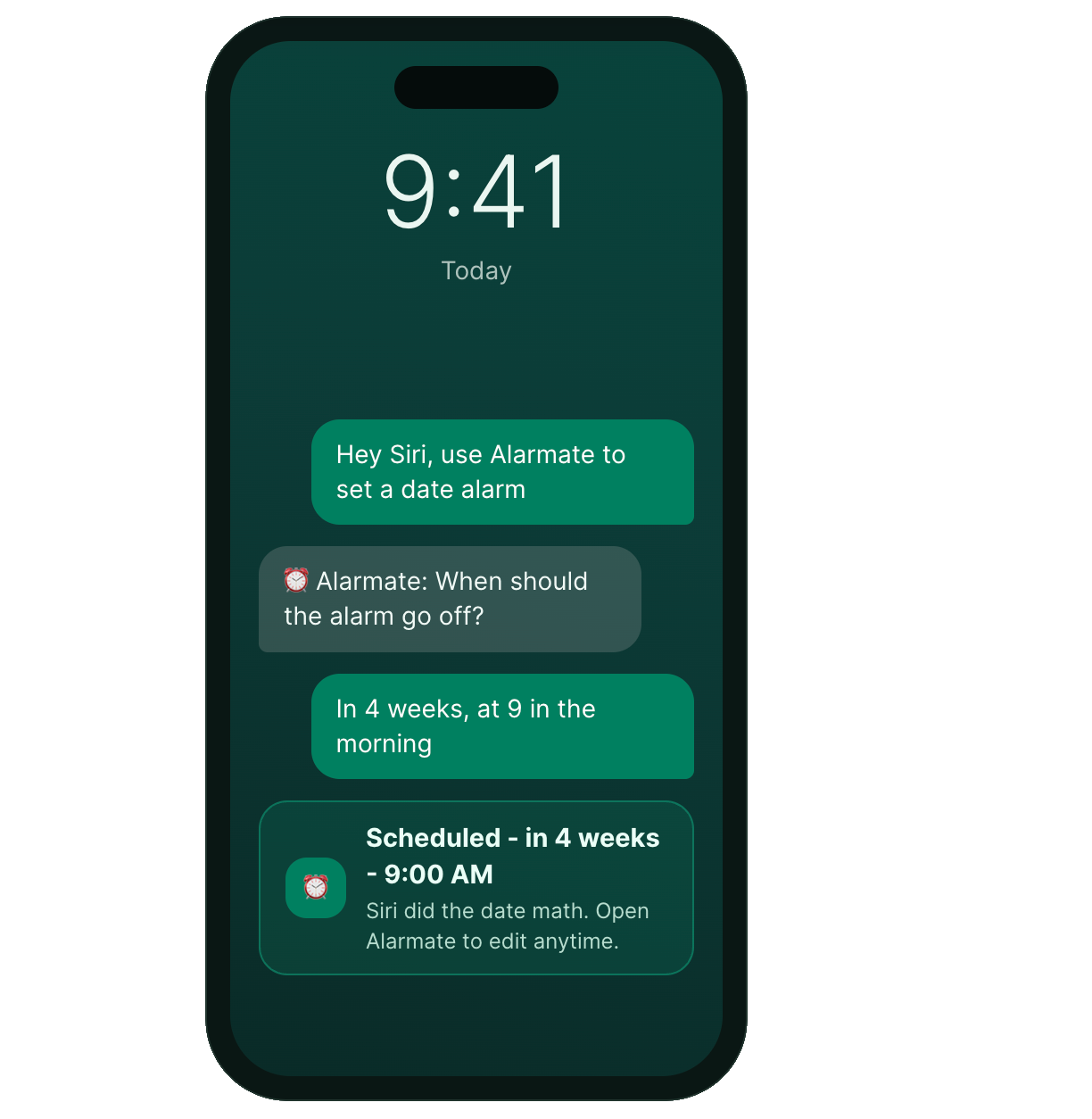
Once the alarm is created, it behaves like every other date alarm in this guide.
It lands in your Date Based tab, appears in the Timeline view alongside everything else, and can be edited later if you want to add an emoji, switch to vibration only, or set a Live Activity countdown for the morning of.
Voice gets the alarm scheduled in seconds.
The app is there when you want to fine-tune it.
And with the smarter, AI-powered Siri arriving in iOS 27, speaking these requests will feel even more natural. Alarmate is ready for it, so the same quick sentence keeps working as Siri gets better at understanding you.
What You Can Customize in Each Date Alarm
One of the things that makes Alarmate stand out is how much control you get over each alarm.
Here’s a breakdown of every option available.
Alarm Name and Emoji
Every alarm can have a custom name and emoji.
When the alarm goes off, you’ll see exactly what it’s for, which is a lot more useful than a generic alarm sound at an unexpected time.
If you’re creating an alarm from a calendar event or a reminder, Alarmate automatically uses its name, so you don’t need to type anything. And if you tend to reuse the same types of alarms, you can quickly start from templates or past alarms and adjust them in seconds.
If you don’t feel like naming it, that’s fine too.
Sound: Standard or Vibration Only
You can choose between a standard alarm sound or vibration only.
Alarmate lets you configure this separately for date alarms, recurring alarms, and timers, so you can have your date alarms ring out loud while your timers stay silent, for example.
The vibration-only mode is especially useful when you have multiple alarms in a day and don’t want to disturb people around you.
Snooze Duration
Alarmate lets you set your preferred snooze duration, so you’re not locked into the default 9 minutes.
Like sound settings, snooze duration can be configured separately for date alarms, recurring alarms, and timers, so each alarm type behaves exactly the way you want it to.
Live Activities: Real-Time Countdown on Lock Screen and Dynamic Island
Live Activities are available for all alarm types in Alarmate: date alarms, recurring alarms, and timers.
When active, Alarmate shows a real-time countdown directly on your lock screen and on the Dynamic Island on supported iPhones.
You can even stop an alarm directly from the Live Activity before it rings, without unlocking your phone.
The really useful part is that you control exactly when the Live Activity appears.
You don’t want a countdown cluttering your lock screen three months before a flight, but you absolutely do want it the morning of, or when you need to start heading to the airport.
You can set Live Activities to appear anywhere from a few minutes up to 24 hours before the alarm.
That means you get the heads-up exactly when it’s relevant.
Example: set a date alarm for your flight and configure the Live Activity to appear 3 hours before. Your lock screen will show a countdown right when you need it, not for the weeks in between.
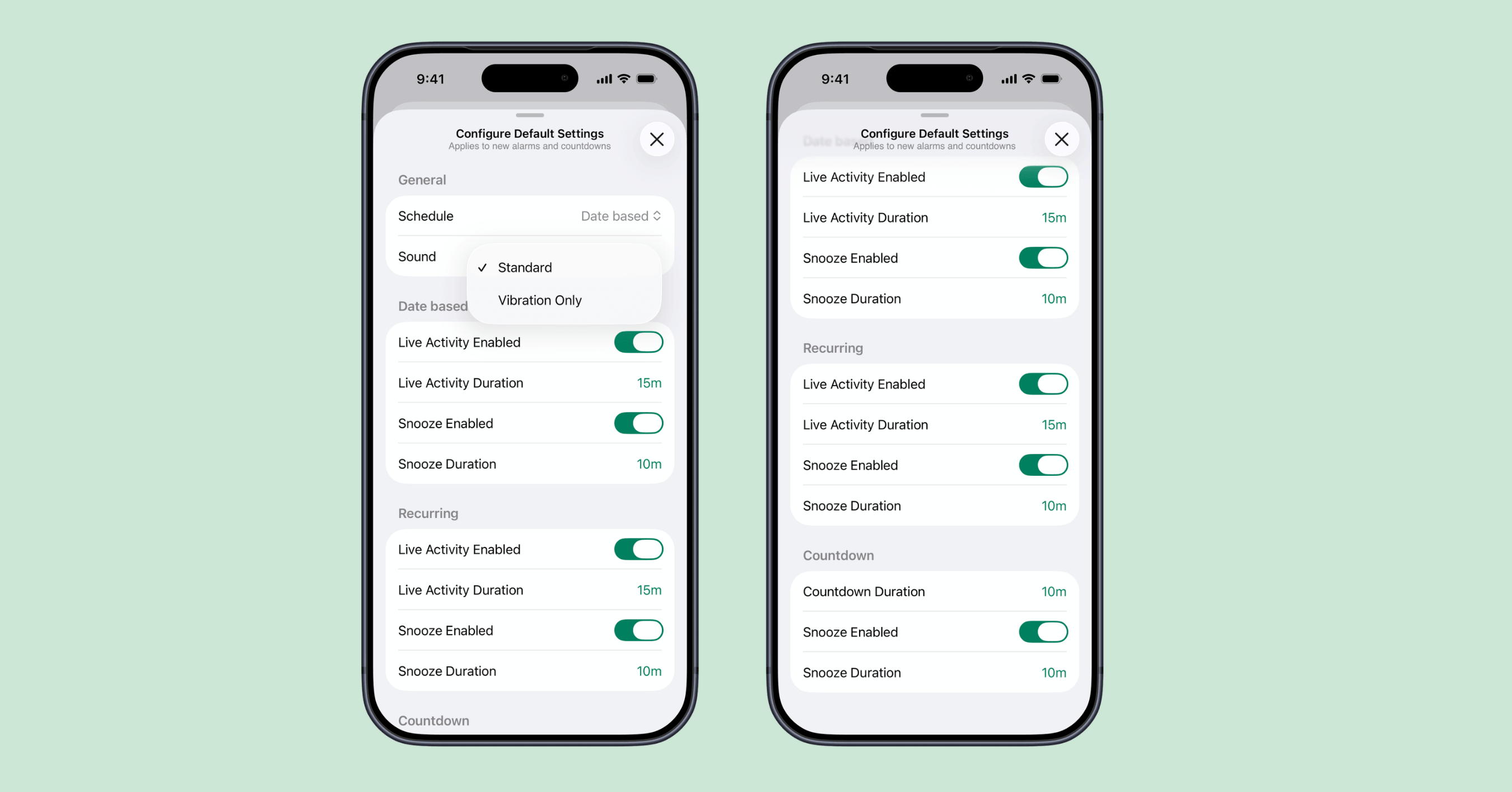
Alarmate’s settings let you configure sound, snooze, and Live Activity timing separately for each alarm type
Alarm Templates: Create Date Alarms in Seconds
Setting the same alarm from scratch every time creates unnecessary friction.
Alarmate’s alarm templates solve this by letting you create commonly used alarms in seconds without starting over each time.
Here’s how it works: every alarm you create, once it becomes inactive after it has fired or you deactivate it, stays available in the Date Based tab below your active alarms.
Tap any inactive alarm to reuse it as a template, update the date and time, keep the name and emoji if they still apply, and save.
That’s it.
Alarmate also comes with a curated library of pre-built templates for common situations: doctor appointments, flights, grocery runs, car service, medication refills, home maintenance, and more.
These are fully customizable. Change the name, date, time, snooze duration, Live Activity timing, or whatever else you need.
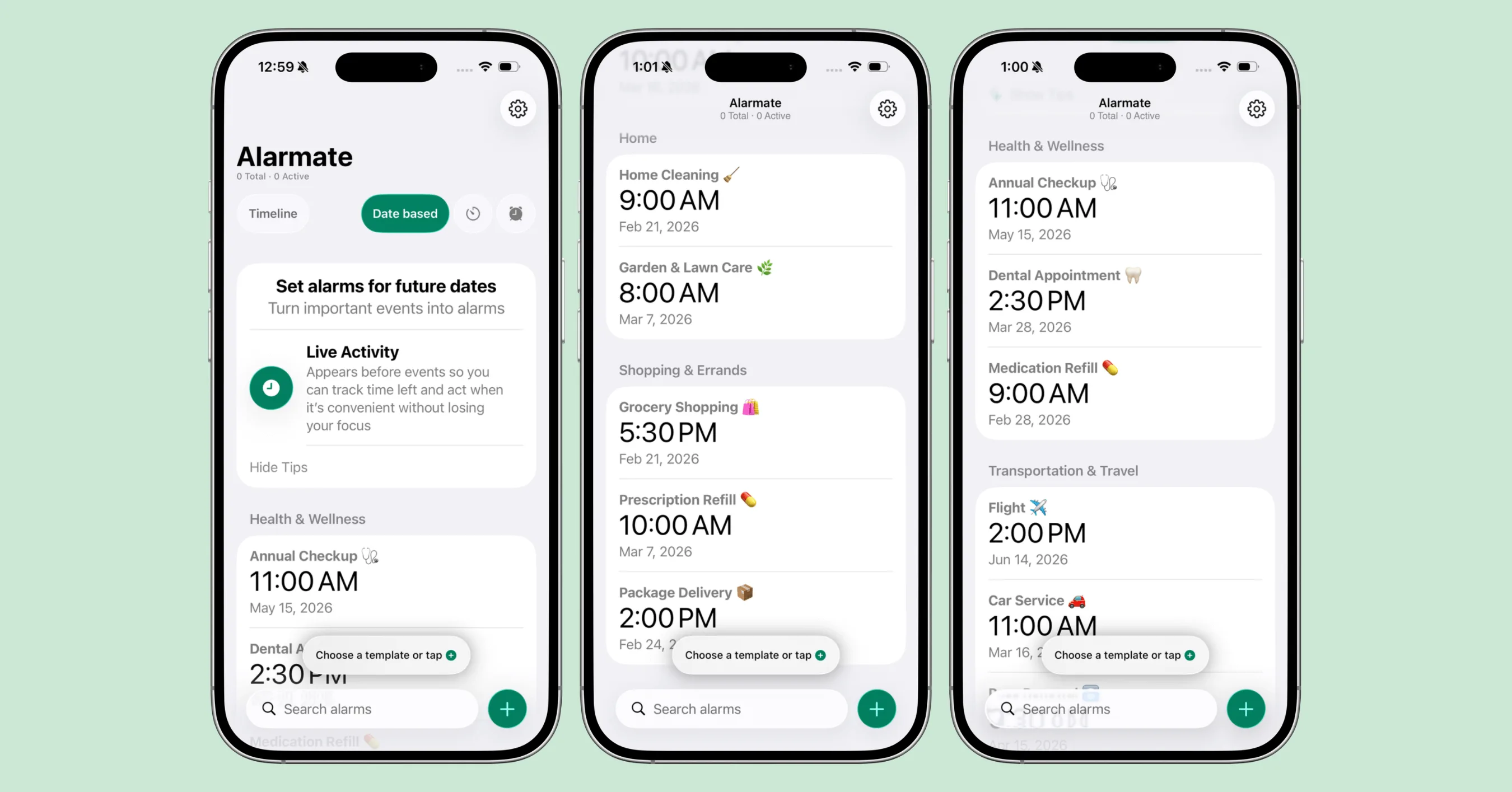
Alarmate’s template library covers health, travel, home, and more
Templates are available to all users, including the free tier.
Learn more about alarm templates in Alarmate.
Any alarm you’ve already created can be reused as a template. Just tap it, update the date, and save.
What Happens to Your Date Alarms When You Change Time Zones?
This is one of the most practical questions people have about date alarms, and it’s something Alarmate handles thoughtfully.
How Different Alarm Types Behave When You Travel
Recurring alarms automatically adjust to your new local time.
If your daily alarm was set for 7:00 AM, it’ll ring at 7:00 AM wherever you are.
Date alarms stay fixed to the time zone they were created in by default.
If you set an alarm for 4:00 PM Warsaw time and then land in Las Vegas, that alarm will ring at 7:00 AM Las Vegas time, because that’s when 4:00 PM Warsaw time is.
Timers continue normally, regardless of your time zone.
Alarmate Notifies You When Time Zones Change
When your phone detects a time zone change and you have date alarms or timers with future fire times, Alarmate will notify you to review your alarms if you’ve granted notification permission.
If not, you’ll see a prompt the next time you open the app.
This matters because the behavior might not be what you expected.
Say you created a date alarm for 9:00 AM on June 17 while in London, then flew to New York.
By default, that alarm will still ring at 9:00 AM London time, which is 4:00 AM in New York.
The Timeline View: All Your Alarms in One Place
The Timeline view in Alarmate shows you everything happening today and in the coming days: date alarms, timers, and recurring alarms, all in a single chronological list.
It’s the clearest way to answer the question: “What alarms do I have coming up, and when?”
No switching between apps.
No digging through separate lists.
Everything in order.
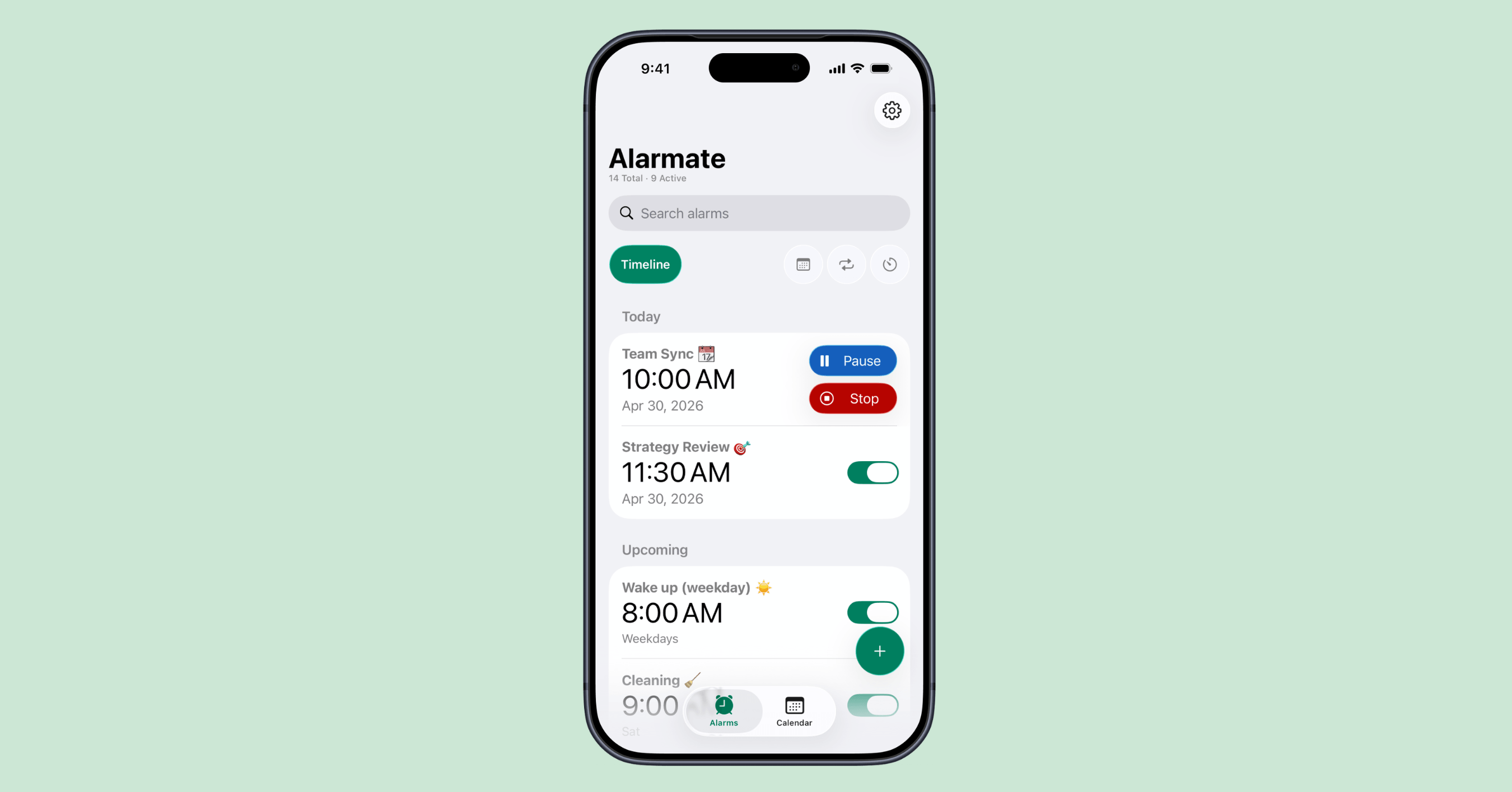
Alarmate’s Timeline view shows every alarm for today and the coming days in one ordered list
When Should You Use a Date Alarm? Real-World Use Cases
Once you have a future date alarm app on iPhone, you’ll find all sorts of situations where a reliable ringing alarm on a specific date is exactly what you need.
Here are the most common ones.
Meetings and Scheduled Calls
Instead of relying on calendar notification alerts that are easy to dismiss, or worse, miss entirely, try this:
Set a date alarm for your meeting via Alarmate’s Calendar integration, then enable Do Not Disturb on your iPhone.
You stay focused and undistracted by other apps and notifications, but when your meeting time arrives, Alarmate rings through Do Not Disturb and makes sure you actually show up.
This combination is especially useful for back-to-back meetings, important client calls, or any time you’re deep in work and can’t afford to miss the start time.
Travel and Transport
- Flight check-in or departure
- Hotel check-out reminders
- Car rental return deadlines
- Train or ferry departures in an unfamiliar city
Health and Wellness
- Doctor, dentist, or specialist appointments
- Prescription refills
- Annual check-ups and vaccinations
- Physio or therapy sessions
Documents and Renewals
- Passport expiry reminders months ahead
- Car registration or annual vehicle inspection due dates
- Visa expiry or application deadlines
- Insurance renewal dates
- Driving licence renewal
Subscriptions and Finance
- Annual software subscriptions
- Free trial end dates before you’re charged
- Bill payment deadlines
- Tax filing dates
Work and Study
- Project deadlines and deliverable due dates
- Job application closing dates
- Exam or certification dates
- Event registrations that close early
Personal and Family
- Birthdays and anniversaries
- School term or holiday dates
- Seasonal reminders like garden prep, winter tyre changeovers, or smoke alarm battery checks
- Any date you’d write on a calendar but might forget about
If you’d write it on a calendar, Alarmate can remind you with a real alarm, not just a notification that’s easy to swipe away.
Alarmate at a Glance: Features, Pricing, and Compatibility
Here’s a quick overview of everything Alarmate offers.
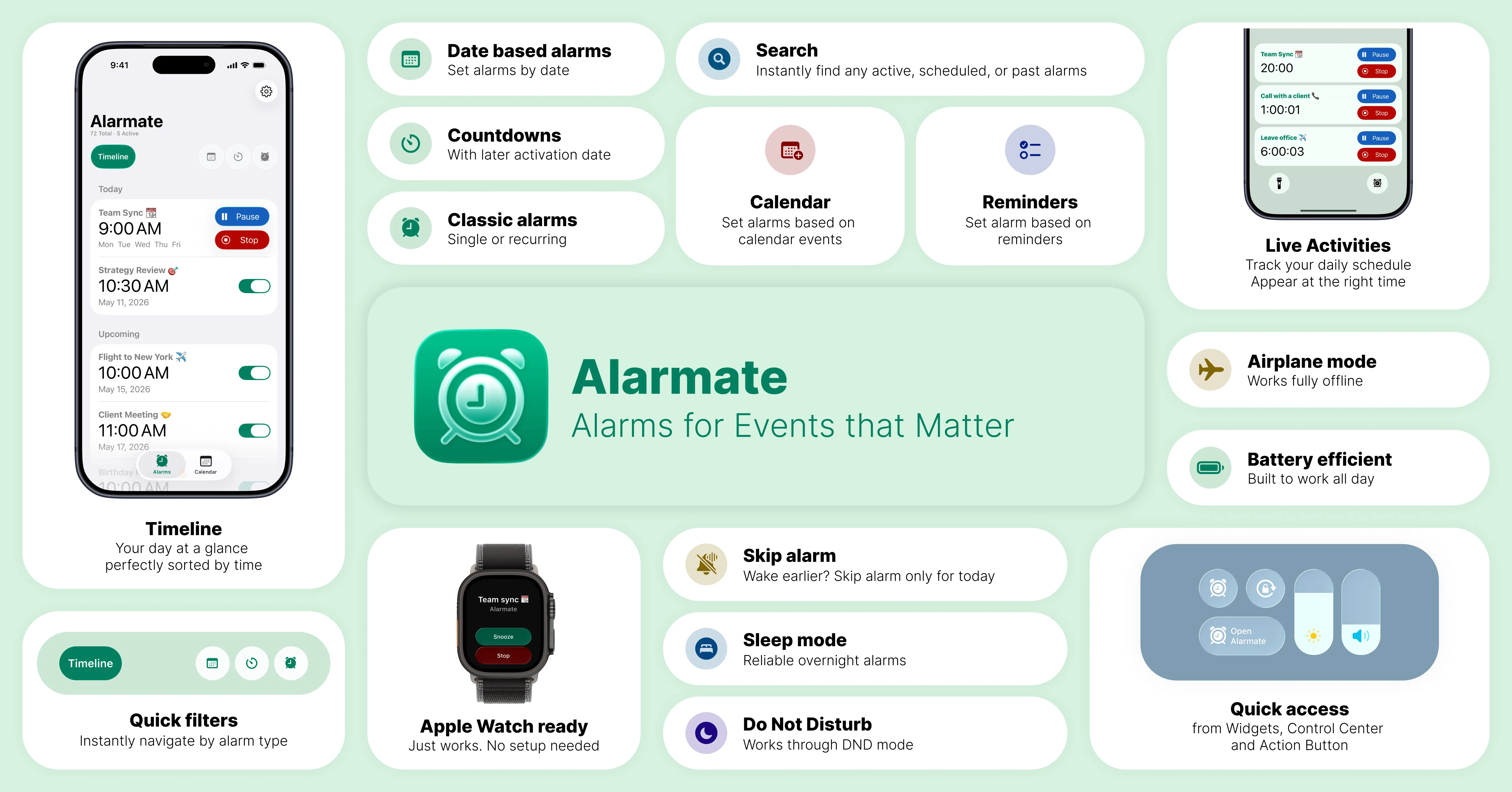
Alarmate: key features at a glance
Key Features
- Date alarms for any future date on iPhone and iPad
- Calendar integration that turns Apple Calendar events into real alarms
- Reminders integration that turns iOS Reminders into proper alarms
- Alarm templates that are both pre-built and reusable
- Live Activities on the lock screen and Dynamic Island
- Timeline view with all alarms in one chronological list
- A Date Based tab with alarms organized by category
- Separate settings per alarm type for sound, snooze, and Live Activity timing
- Vibration-only mode for silent alarms
- Apple Watch support
- CarPlay support
- Widgets and Control Center access
- No ads
- A clean minimalist interface in dark and light themes
Pricing
- Free tier: up to 3 active alarms at a time, with no trial deadline
- Free trial: try unlimited alarms free before committing to Pro
- Alarmate Pro: unlimited active alarms, while all other features remain identical to the free tier
For the full breakdown, see what is included in Alarmate Pro.
Compatibility
- iOS 26 or later
- iPhone and iPad
- Apple Watch support for mirrored alarms, snooze, and stop controls
- CarPlay
Want to understand more about what makes Alarmate different from the native Clock app?
Start Using Date Alarms on Your iPhone Today
The default iPhone Clock app was never built for alarms tied to specific dates on iPhone.
Alarmate was.
Whether it’s a flight, a meeting, a passport renewal, or a birthday you always forget, set it once and Alarmate will ring when it matters.
Download it free, set your first date alarm in under a minute, and stop relying on quiet notifications for things that actually matter.
Read Also:
- How to Set an iPhone Alarm for a Specific Future Date (3 Easy Ways)
- Siri Set Alarm: How to Set Alarms by Voice on iPhone
- iOS 27, Siri AI & Alarms: Everything New
- How to Turn iPhone Calendar Events Into Real Alarms
- Alarm Templates Are Here: Set Alarms & Timers in Seconds
- How does Alarmate differ from the default iOS Clock app?