If you use alarms for meetings, flights, routines, and one-off reminders, your list fills up fast. Sooner or later you’ll want a clean slate, and deleting alarms one by one takes forever.
The latest Alarmate update fixes that. You can now delete all alarms at once, remove all inactive alarms by type, or stop everything that’s active with a single tap.
What you can do in bulk
- Remove inactive alarms by type: clear out old date-based alarms, recurring alarms, or timers
- Stop all active alarms and timers: nothing is deleted, everything just goes quiet
- Delete everything: wipe every alarm and timer in Alarmate, active and inactive, in one action
Need to get rid of just one alarm? Swipe left on it and tap Delete. The bulk tools are for when one by one takes too long.
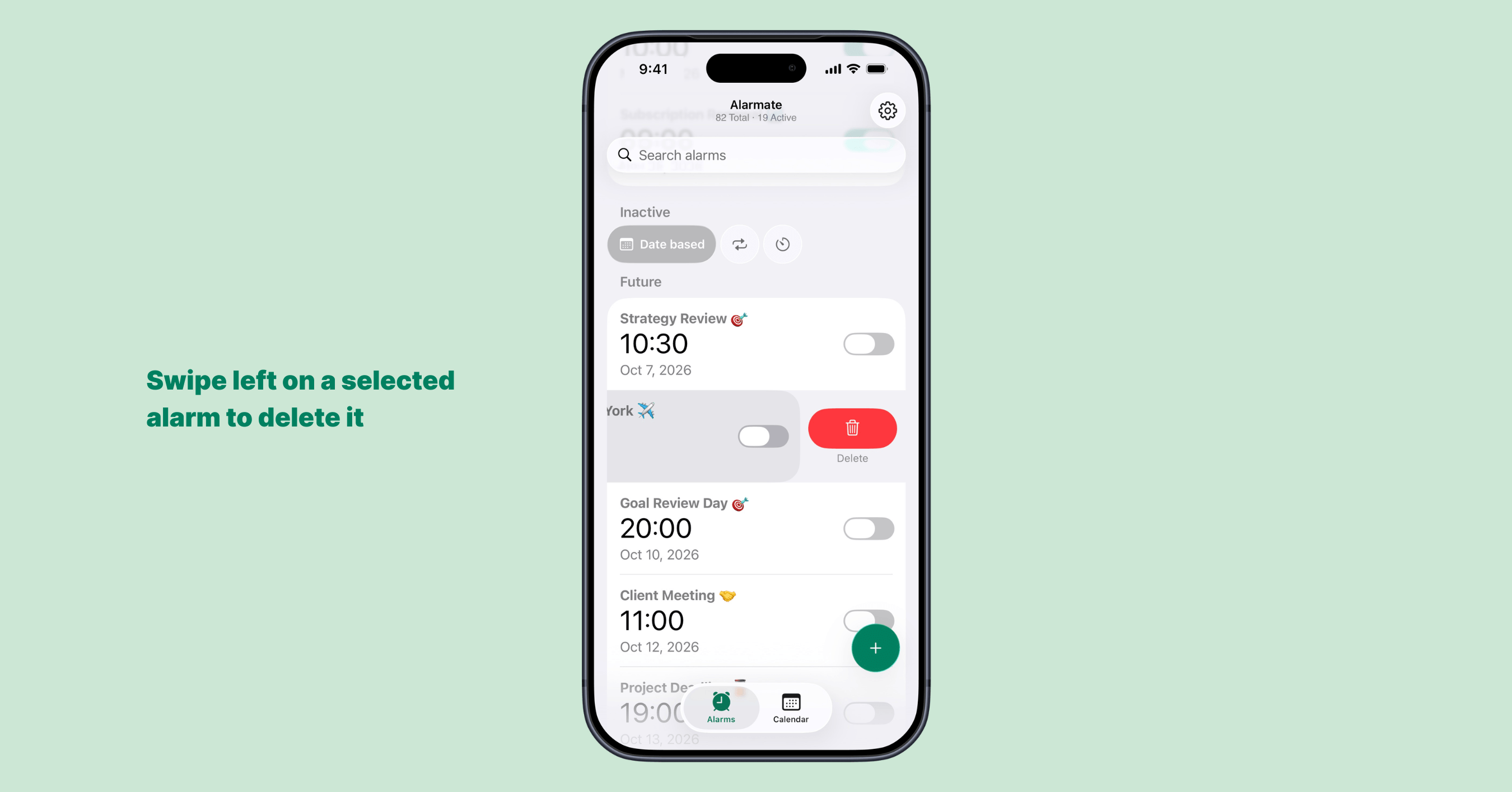
To delete a single alarm, swipe left on it in the Alarm Timeline and tap Delete.
How to remove all inactive alarms
Past alarms don’t need to stay on your timeline forever. To clear them out:
Settings → Danger Zone → Delete alarms…
Under Inactive, choose what you want to remove:
- Date based: all inactive date-based alarms
- Recurring: all inactive recurring alarms
- Timers: all inactive timers
Alarmate shows how many inactive alarms you have in each category, so you know exactly what will be deleted. Select one type or several, tap Delete inactive alarms…, and confirm.
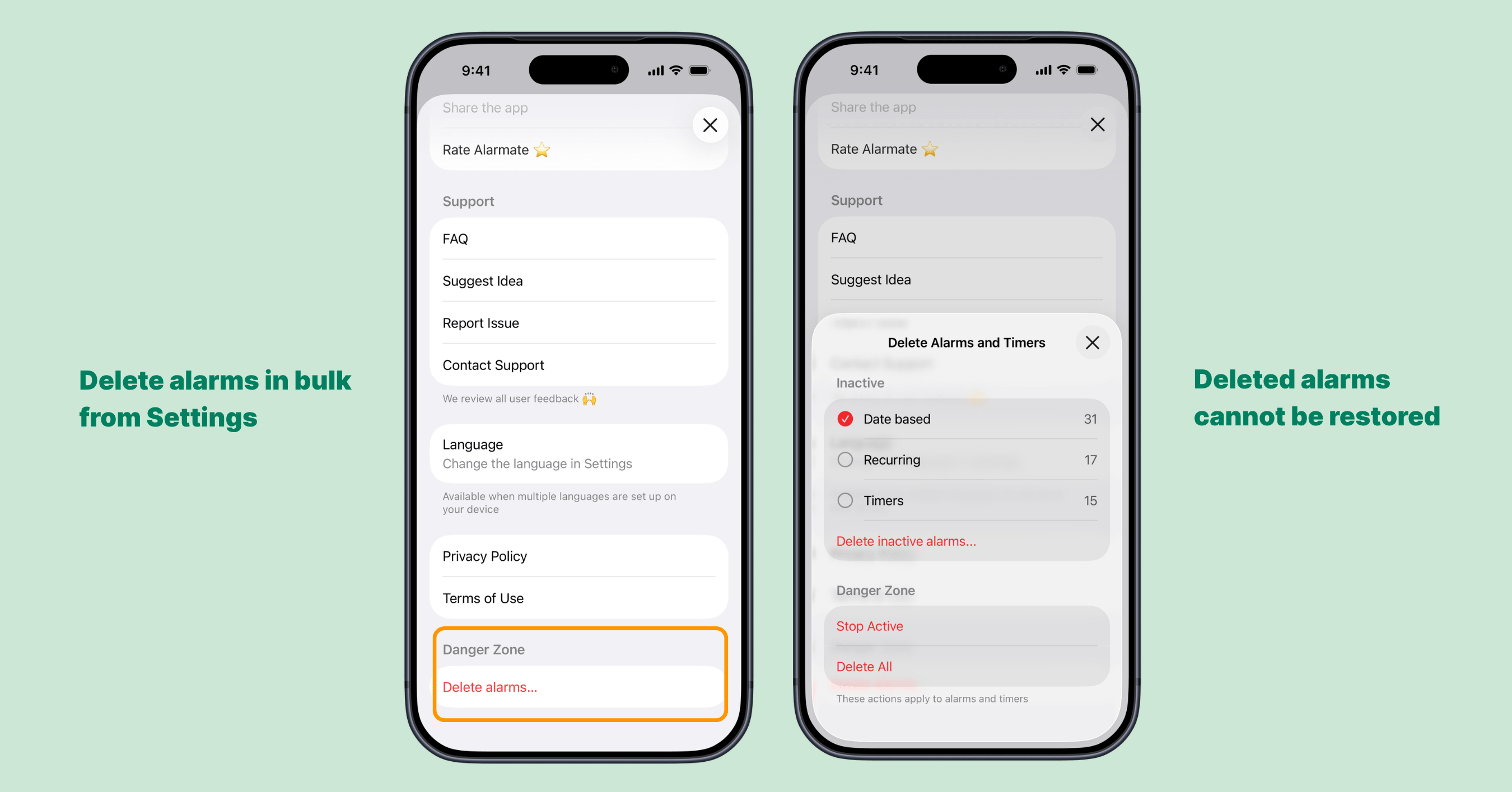
Open Delete alarms… from Settings, then select the inactive alarm types you want to remove. Each category shows how many alarms it contains.
Only inactive alarms of the selected types are permanently removed. Your active alarms and timers stay untouched.
How to stop all active alarms at once
Sometimes you don’t want to delete anything. You just want everything off. Maybe you’re on vacation, taking a day off, or heading into a week with a totally different schedule.
Here’s how:
Settings → Danger Zone → Delete alarms… → Stop Active
Confirm, and every active alarm and timer becomes inactive. Nothing is deleted, so it’s all still there when you need it.
When you’re ready to come back, you’ll turn alarms on again manually, one by one. Recently stopped alarms appear near the top of their group in the Alarm Timeline, and inactive alarms are grouped by type, so the ones you just stopped are easy to find.
How to delete all alarms and timers
Want a completely fresh start? Here’s how:
Settings → Danger Zone → Delete alarms… → Delete All
This permanently removes every alarm and timer in Alarmate. It can’t be undone, so Alarmate asks you to confirm before anything is deleted. It’s a good fit when your old setup no longer matches your life and you’d rather rebuild from scratch.
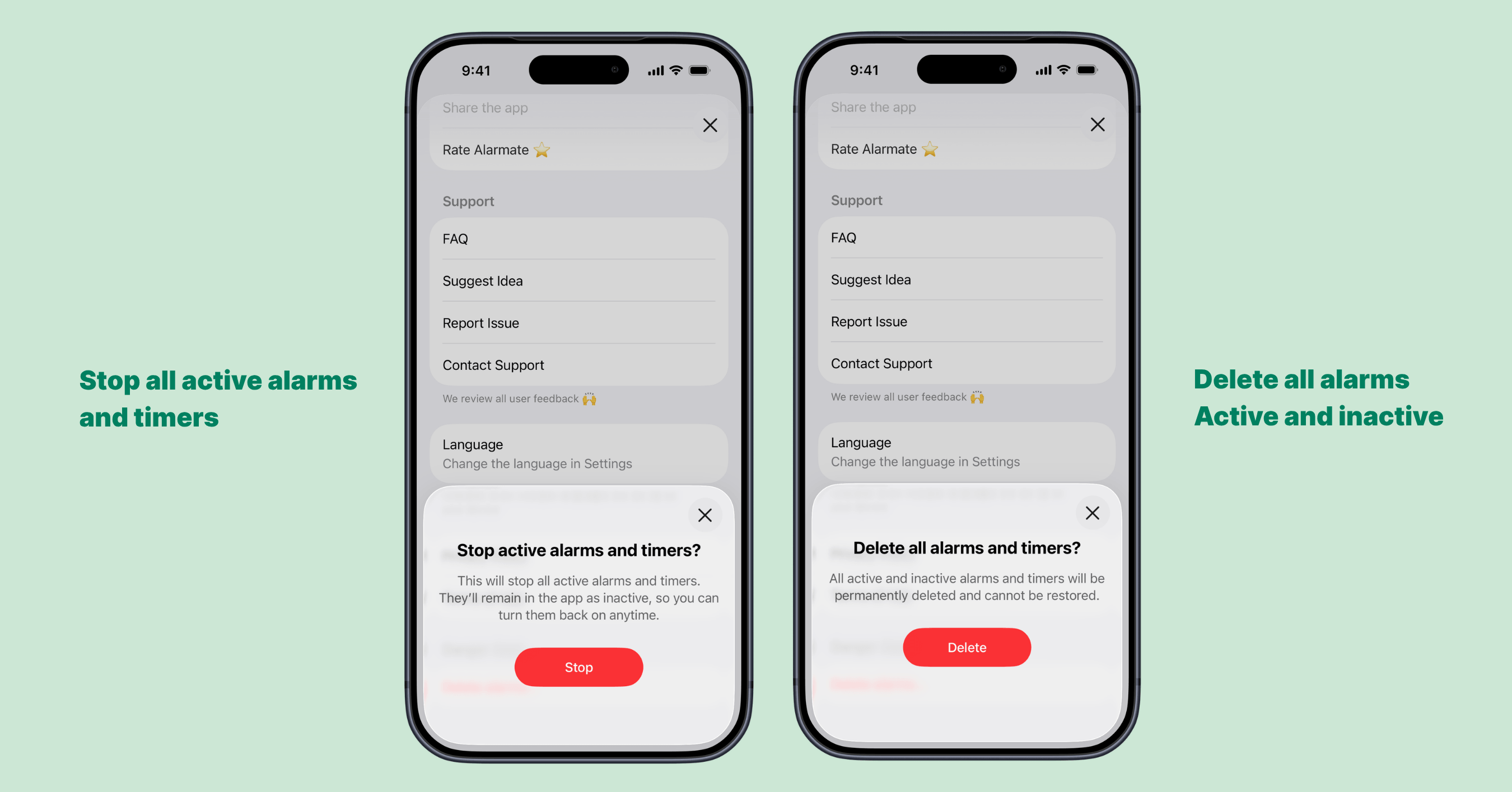
Stop Active (left) keeps your alarms and timers in the app as inactive. Delete All (right) permanently removes every active and inactive alarm and timer.
FAQ
How do I delete all alarms in Alarmate?
Go to Settings → Danger Zone → Delete alarms… and choose Delete All. Confirm, and every alarm and timer you created in Alarmate is gone.
How do I remove all inactive alarms?
On the same screen, go to the Inactive section, select Date based, Recurring, or Timers, then tap Delete inactive alarms… Your active alarms stay as they are.
Can I turn everything off without deleting it?
Yes. Choose Stop Active to switch off all active alarms and timers at once. They stay in Alarmate as inactive alarms, ready to turn back on.
Does this affect alarms in the iOS Clock app?
No. Alarmate only manages its own alarms and timers. Alarms you set in the Clock app or other apps are not affected. Learn more about how Alarmate differs from the default iOS Clock app.
Can I undo Delete All?
No. Deleted alarms can’t be restored, which is why Alarmate asks you to confirm first. If you only want a break, use Stop Active instead.
Try the new cleanup options
Already using Alarmate? Open Settings → Danger Zone → Delete alarms… and try the new tools. Delete all inactive alarms, stop all active alarms with one tap, or delete everything.
New to Alarmate? It turns the moments that matter into real alarms, not easy-to-ignore notifications. Set them for meetings, future dates, calendar events, reminders, routines, and timers, and stop worrying about missing anything.
Read Also: