For years, setting a reminder with Siri meant memorizing the magic words.
Say it the “wrong” way, like “remind me about the dentist thing,” and you might get a shrug. Say it the “right” way, like “remind me to call the dentist at 3 PM,” and it worked.
iOS 27 finally closes that gap.
Siri reminders are starting to feel less like issuing commands and more like talking to a person who actually gets what you mean. If you rely on your voice to capture tasks while you are cooking, driving, walking, or bouncing between meetings, this is one of the most useful productivity upgrades in iOS 27.
There is still one important catch, though: creating a reminder is not the same as making sure you actually hear it.
This guide walks through what is new for Siri and Reminders in iOS 27, the use cases worth trying, the limits to know, and how Alarmate helps turn the reminders that matter into real alarms.
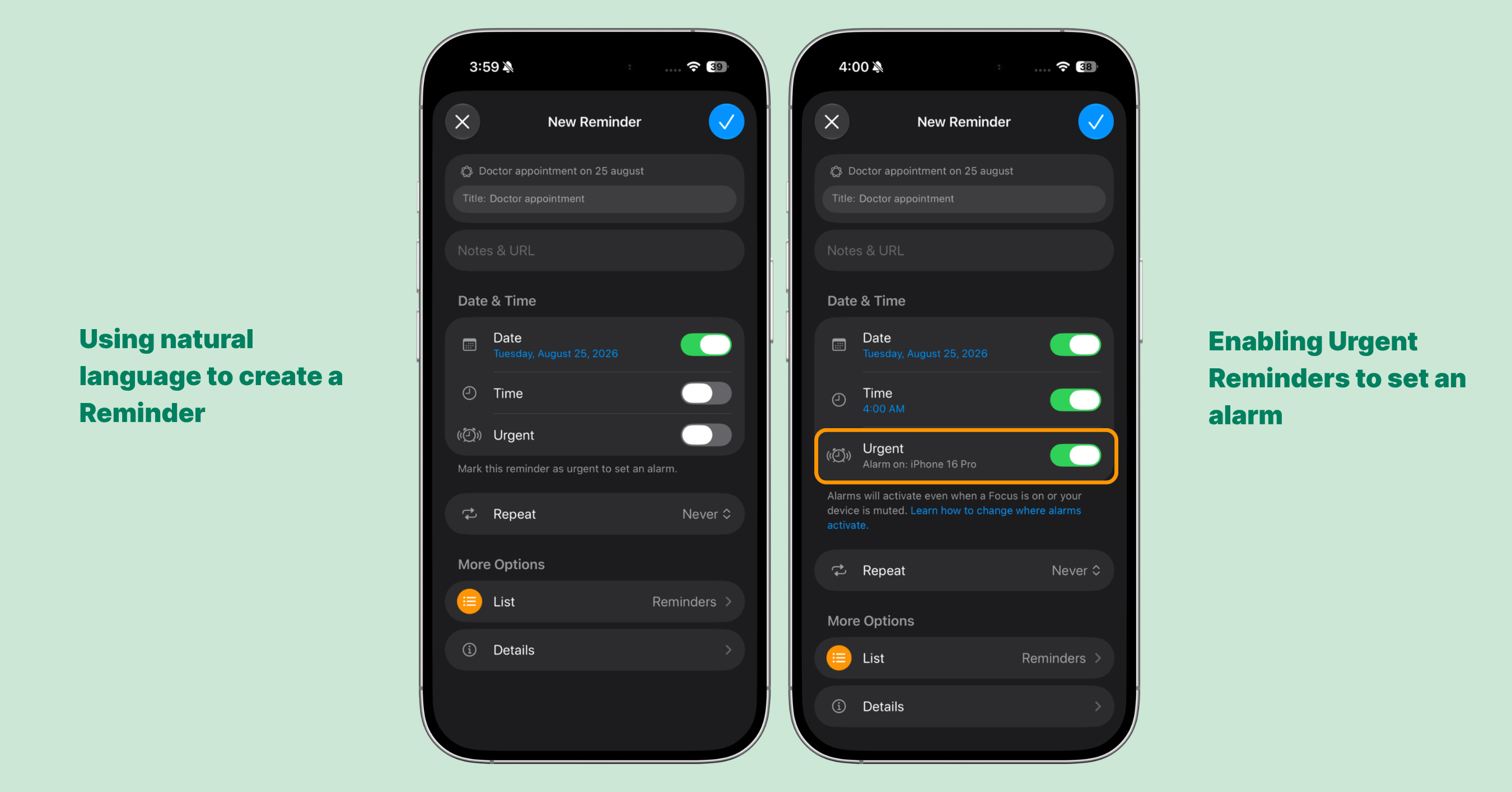
iOS 27 makes voice-created reminders feel more natural, and Urgent Reminders can turn selected reminders into alarms.
What’s in This Guide
- What’s new for Siri and Reminders in iOS 27
- How to create a reminder with Siri in iOS 27
- Use cases worth trying
- Pros, cons, and limits
- Best practices for Siri reminders
- The catch: reminders still behave like notifications
- Where Alarmate fits
- FAQ
- The takeaway
What’s new for Siri and Reminders in iOS 27
iOS 27 was unveiled at WWDC 2026. The public beta is already out, with a release candidate expected in early September and the full release landing later that month alongside the next iPhones.
The headline is Siri AI, Apple’s bigger rebuild of Siri. But the quieter changes to Reminders and natural-language input are the ones many people will feel every day.
1. Natural-language Reminders
The biggest change to Reminders is how well it understands plain language.
Instead of scanning for rigid keywords, Apple Intelligence can read a fuller description and fill in the details you mention, including date, time, and location.
Type or dictate something like:
Get the groceries at 6 PM tonight.
Or:
Send the photos to John tomorrow at 4 PM.
Reminders can structure the task for you.
The beta is not perfectly consistent yet, and sometimes you may still need to tap a suggestion to confirm the date and time. But this is a real reduction in friction, not just a prettier input box.
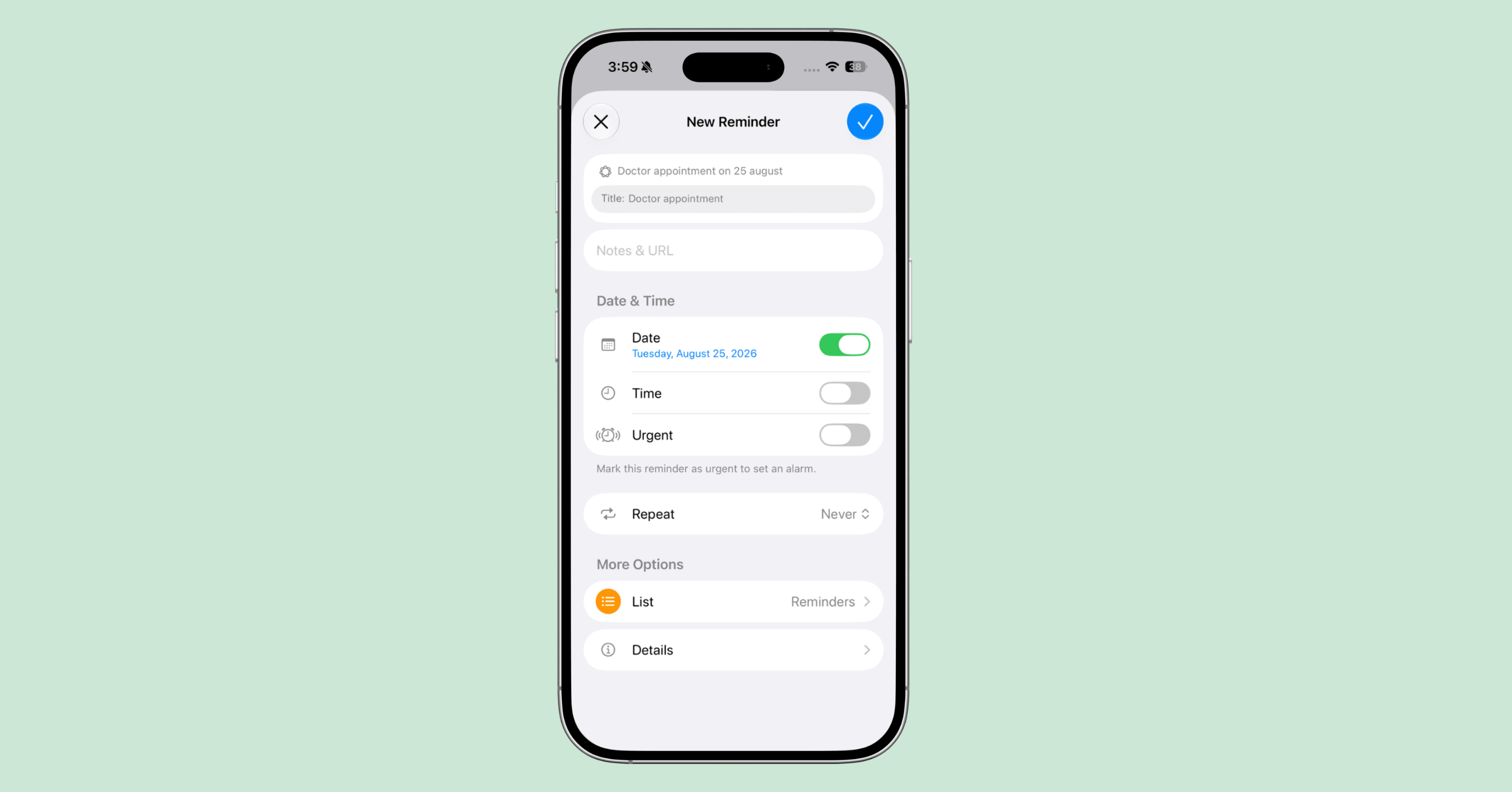
A phrase like “Doctor appointment on 25 August” can be parsed into a dated reminder in iOS 27.
2. A much smarter Siri
Siri AI is the centerpiece of iOS 27.
It is more conversational, more contextual, and, crucially for reminders, better at acting across apps without making you open each one manually.
Siri can search across both Calendar and Reminders, so it understands more of your schedule and your to-do list. It can also pull details from Mail and Messages to help create tasks from the things you are already looking at.
If you want the alarm-specific version of this, read our guide to Siri AI and alarms in iOS 27.
3. Visual Intelligence can turn a photo into calendar items
One of the most practical demos is the “school flyer” problem.
Point Visual Intelligence at a printed schedule, a kid’s activity flyer, a travel itinerary, or a messy email, and it can help turn those dates into structured Calendar events.
That matters because Calendar and Reminders are where many people already keep their life admin. The easier it is to capture those dates, the more important it becomes to decide which ones deserve a stronger alert.
4. Reminders gets deeper Shortcuts support
iOS 27 adds new Reminders actions to Shortcuts, including Create Group, Create List, and Create Section, plus a “Get What’s On Screen” option.
If you build routines and automations, that gives you more room to turn spoken requests into repeatable workflows.
Alarmate also works with Siri and App Shortcuts, so you can create date alarms, recurring alarms, and timers by voice when a reminder is not enough.
5. The smaller upgrades add up
Several smaller iOS 27 changes make reminders and schedule management feel smoother:
- Natural-language Calendar creation for events and repeats
- Holiday-aware alarm suggestions before days off
- Extra-large widgets for Calendar and Reminders
- Better grocery list sorting across more languages
- Independent alarm and timer volume, separate from your ringer
That last one is especially useful if you rely on alarms. iOS 27 finally makes it easier to keep alarms loud while keeping calls and alerts quieter.
How to create a reminder with Siri in iOS 27
The mechanics stay familiar. The flexibility is what changes.
You can create a reminder in three common ways:
- Just describe it. Say, “Hey Siri, remind me to renew my passport in two weeks.”
- Reference what is on screen. Ask Siri to create a reminder from a message, email, document, or page you are viewing.
- Use Shortcuts. Fold reminder creation into a morning routine, travel workflow, weekly reset, or any automation you already use.
For important reminders, include the exact time in the first sentence:
Hey Siri, remind me to call the dentist tomorrow at 3 PM.
That gives Siri less room to guess. Natural language is better in iOS 27, but a clear time still matters when the task is time-sensitive.
One expectation to set: the device-wide Siri AI flow that creates reminders from anywhere without opening an app requires an iPhone 15 Pro or later, and it is not available at launch in the EU or China.
Use cases worth trying
Some Siri reminder workflows feel small until you use them every day.
Try these first:
- The school flyer. Photograph a printed schedule and let Visual Intelligence help turn the dates into calendar items.
- The inbox confirmation. Ask Siri to create a reminder from a flight, hotel, medical, or delivery email.
- The hands-free capture. Cooking, driving, or walking: dictate the task naturally and keep moving.
- Recurring routines. Medication, hydration, weekly reviews, exercise, or recurring check-ins.
- Deadlines and renewals. Passport expiry, subscriptions, insurance dates, tax dates, and anything easy to forget once it is filed away.
That last category is where a subtle but important question comes up: should this be a reminder, or should it actually ring?
Pros, cons, and limits
Pros
- Natural phrasing finally works better, with less memorized Siri syntax.
- Cross-app awareness means Siri can act on Mail, Messages, Calendar, and Reminders.
- Visual Intelligence can turn photos and messy information into structured items.
- Deeper Shortcuts support unlocks more useful automations.
Cons and limits
- Hardware gating. Siri AI and the natural-language creation flow require newer devices, including iPhone 15 Pro or later.
- Regional rollout. Siri AI is not available at launch on iPhone or iPad in the EU or China.
- Beta behavior. Natural-language parsing is improving, but you should still review important dates and times.
- Feature tiers. Some advanced Siri and dictation features are limited to higher-memory devices, so not every current iPhone gets the same experience.
Best practices for Siri reminders
Siri reminders are most useful when you make them explicit.
Use these habits:
- Always include a time when timing matters.
- Glance at what Siri filled in before you move on.
- Use Shortcuts for anything repeatable.
- Match the tool to the stakes.
A casual “buy milk” reminder is fine as a notification. A flight check-in, medication reminder, deadline, or once-a-year renewal deserves something louder.
Turn on Urgent for a time-based reminder when you want Apple’s Reminders app to create an alarm.
The catch: reminders still behave like notifications
Here is the honest nuance no software update fully changes.
iOS 27 makes reminders dramatically easier to create, but by default, a reminder is still a notification. It buzzes once, shows up with everything else, and waits quietly in a list.
If your phone is on Silent, in a Focus mode, or you are deep in work, it is easy to swipe past it or never notice it at all.
Apple has been chipping away at this. Since iOS 26.2, you can mark a time-based reminder as Urgent, and it can ring more like an alarm instead of behaving like a silent notification, even through Silent mode and Focus.
That is a welcome fix, but it still has limits:
- It only applies to Reminders.
- Calendar events, flights, and future-dated plans are not covered by that toggle.
- Urgent reminder alarms depend on the device Find My uses as your current location, which can surprise people with multiple Apple devices.
- You still need to remember to turn it on reminder by reminder.
- There is no single timeline that shows every important alarm across reminders, calendar events, dates, and timers.
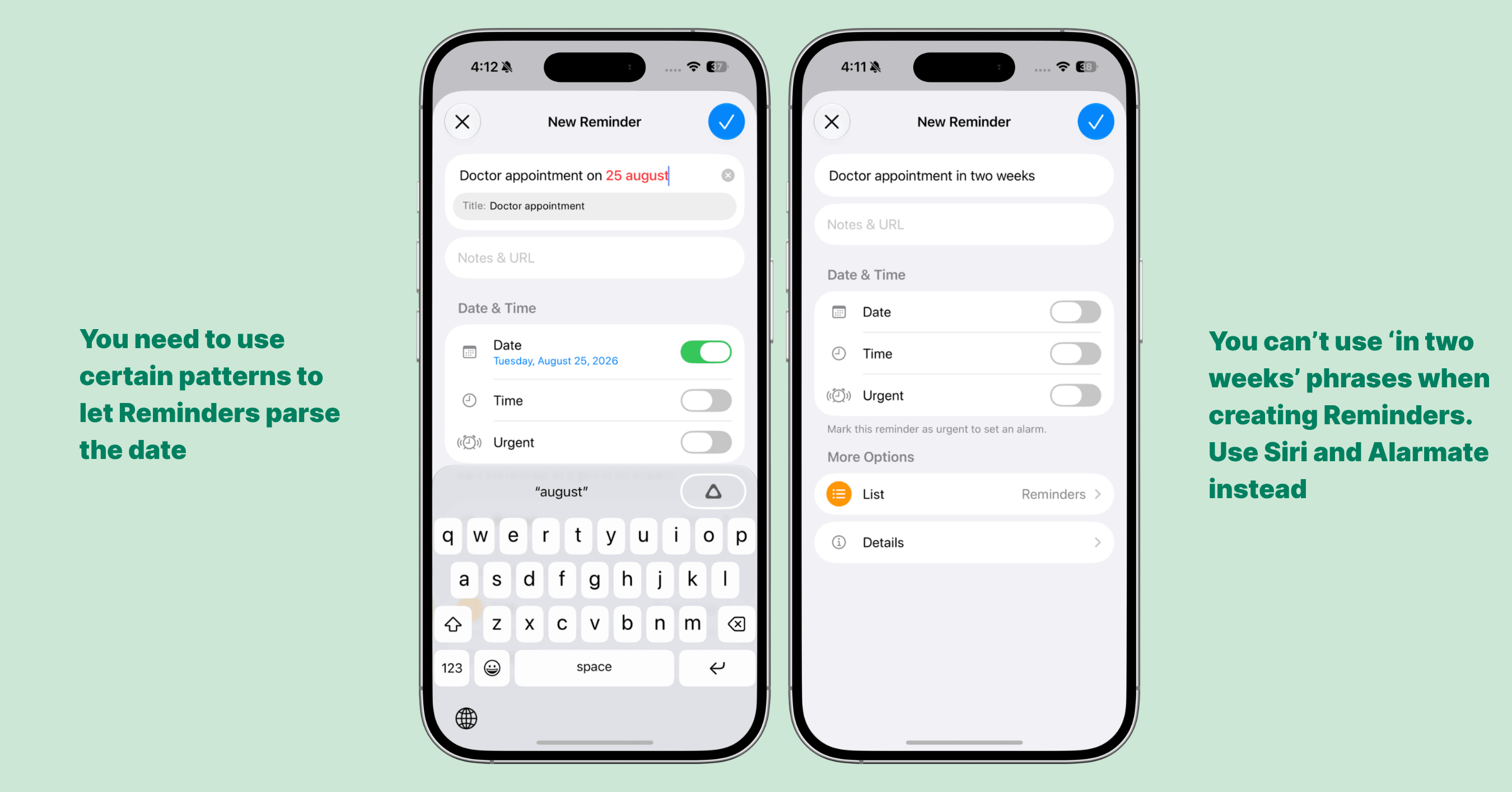
Reminders can parse many dates, but relative phrases like “in two weeks” may still need Siri, Alarmate, or manual adjustment.
For small tasks, none of this matters.
For a meeting you cannot miss, a flight, a deadline, a medication, a birthday, or a renewal date, the question is not only “did I create the reminder?”
It is: “will I actually hear it at the moment it matters?”
Where Alarmate fits
This is exactly the gap Alarmate was built to close.
You can still capture tasks the way you like, including with Siri and the native Reminders app. Then you choose which reminders, calendar events, or future dates deserve to become real alarms.
Alarmate turns them into alarms that ring until you stop them, even in Silent, Focus, Do Not Disturb, Sleep, and Airplane mode. For reminders, it pulls the alarm title straight from the reminder, so setup stays fast.
Just as useful: everything lands in one clear timeline. Your reminder-based alarms sit alongside calendar-based alarms, date alarms, timers, and recurring alarms, so you can see what is coming up without checking three different apps.
Alarmate also already speaks the same language iOS 27 is pushing everyone toward: natural, hands-free voice input.
With Siri support, you can say:
Hey Siri, set a date alarm in Alarmate.
Hey Siri, set an alarm in 4 weeks in Alarmate.
Hey Siri, set an alarm 2 hours before 4:30 PM in Alarmate.
Hey Siri, create a recurring alarm in Alarmate.
Hey Siri, set a timer in Alarmate.
Say a date, or just a timeframe like “in 3 weeks,” and Alarmate works out the exact day and time for you. Starting your request with “Alarmate,” or including it clearly in the phrase, helps Siri route the request to the right app.
For the full voice setup, read Siri Set Alarm: How to Set Alarms by Voice on iPhone. If you mainly want reminders to ring, start with the reminder alarm app for iPhone guide.
It's genuinely exciting to see where Apple is taking Reminders and Siri AI in iOS 27. We've believed for a long time that creating an alarm should be as easy as saying it out loud, and that's why we shipped Siri and App Shortcuts support as soon as we could. As Apple's tools keep getting smarter, we'll keep looking for ways to make reminder-based alarms feel even more effortless for the people who rely on them.
Maksym, Co-founder of Alarmate
FAQ
What reminder app works with Siri?
The native iOS Reminders app works with Siri for voice capture. Starting in iOS 26.2, you can also mark individual time-based reminders as Urgent so they behave more like alarms.
Alarmate works alongside Reminders and Siri, and goes further. It lets you turn selected reminders into real alarms, and it also supports Siri voice commands for date alarms, recurring alarms, and timers, including natural date math like “in 4 weeks” or “2 hours before 4:30 PM.”
Unlike Urgent Reminders, Alarmate is not limited to reminders. It can also turn calendar events into real alarms and helps you manage specific future-date alarms in one timeline.
How do I use Siri to remind me about things on my phone?
Say “Hey Siri,” then describe the task naturally.
For example:
Hey Siri, remind me to call the dentist at 3 PM.
Or:
Hey Siri, remind me to renew my passport in two weeks.
Siri creates the reminder in the Reminders app. If you want that reminder, calendar event, or future date to ring as a real alarm instead of a quiet notification, open Alarmate and turn it into an alarm, or say:
Hey Siri, create a date alarm in Alarmate.
Can Siri create alarms for future dates?
With the default Clock app, Siri is still best for basic alarms and timers. For true future-date alarms, Alarmate gives Siri a dedicated alarm creation flow.
Say “Alarmate, create a date alarm,” then give the date or timeframe. Alarmate can handle requests like “in 3 weeks,” “next Friday at 9 AM,” or “2 hours before 4:30 PM.”
For more examples, read the full guide on how to set an iPhone alarm for a specific future date.
Do Alarmate reminder alarms ring in Silent mode and Focus?
Yes. Alarmate alarms are designed to ring until you stop them, even in Silent mode, Focus, Do Not Disturb, Sleep, and Airplane mode.
You can also use Lock Screen and Dynamic Island countdowns to see what is coming before the alarm rings.
The takeaway
iOS 27 makes it easier than ever to capture what matters with your voice. The next step is making sure the important ones actually break through, wherever they live.
Use Siri and Reminders for fast capture. Use Alarmate when the reminder needs to become something you cannot miss.
When it matters, use an alarm.
Read Also: