You just booked a doctor’s follow-up three weeks out.
Your hands are full, you are walking to the door, and you say the obvious thing out loud:
Hey Siri, set an alarm in 3 weeks so I don’t forget.
It feels like your iPhone should simply handle that. One sentence, one alarm, done.
Here is the catch most people hit. Siri can set a basic alarm with the built-in Clock app, but the default Clock app was not designed for specific future-date alarms, date math, or “two hours before this thing” planning.
For that, you need an alarm app that works with Siri properly: one where you speak the timeframe, Alarmate works out the date, and the alarm gets scheduled for real.
That is exactly what Alarmate was built for.
In this guide, we will walk through everything you need to know about getting Siri to set an alarm by voice: what to say, what works, what does not, and how to create the kinds of alarms the default Clock app never offered, all hands-free.
Whether it is a flight months away, a meeting this afternoon, or a renewal date you keep forgetting, this is the guide for you.
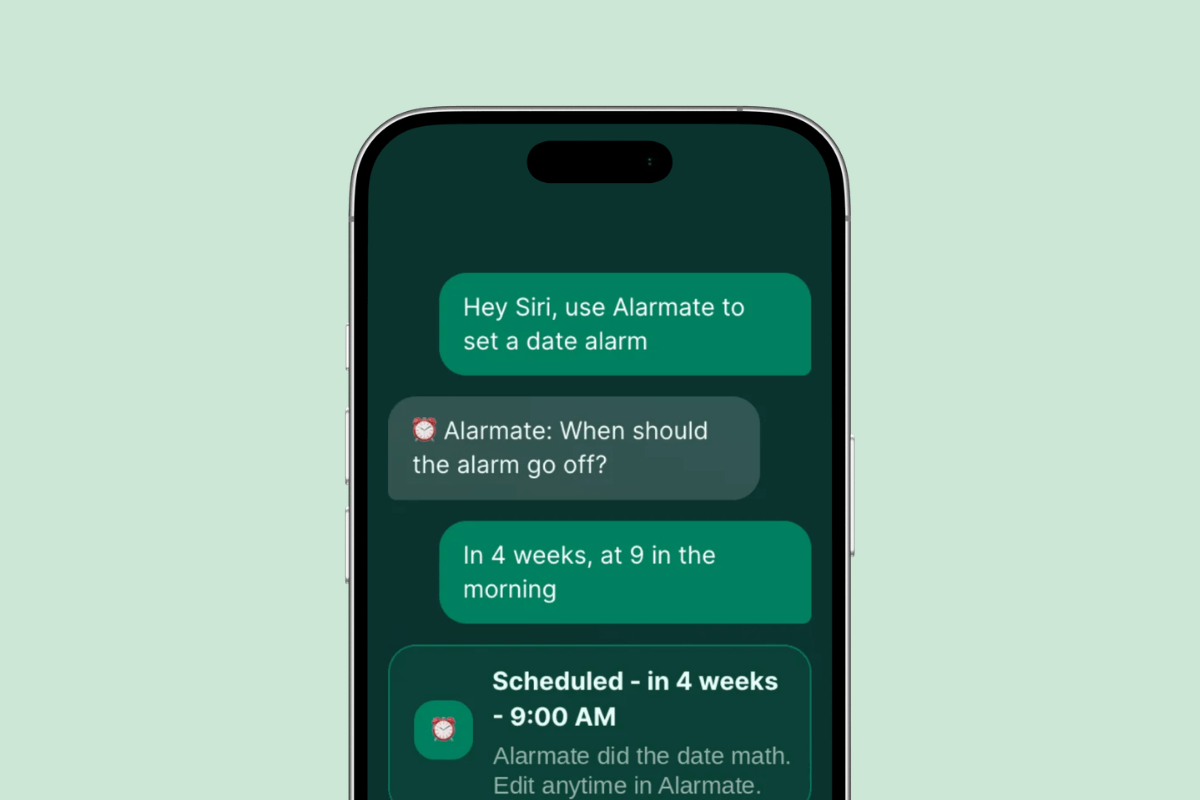
Using a Siri voice command to set an alarm in Alarmate without opening the app
What’s in This Guide
- How Siri and alarms actually work
- What alarm clock app supports Siri for iPhone?
- The one-time setup
- How to set alarms with Siri and Alarmate
- How to set an alarm in 4 weeks, or 2 hours before a time
- Real-life voice alarm recipes
- Best practices and troubleshooting
- Alarmate vs the default Siri and Clock app
- More questions people ask
How Siri and Alarms Actually Work
Here is the thing nobody explains clearly.
Siri is not one feature. It is a voice layer that hands your request off to whichever app fits best.
When you say “set an alarm,” Siri usually reaches for Apple’s default Clock app. That is fine for “wake me at 7.” It hits a wall the moment you need anything more specific, because the Clock app itself was never designed around true future dates.
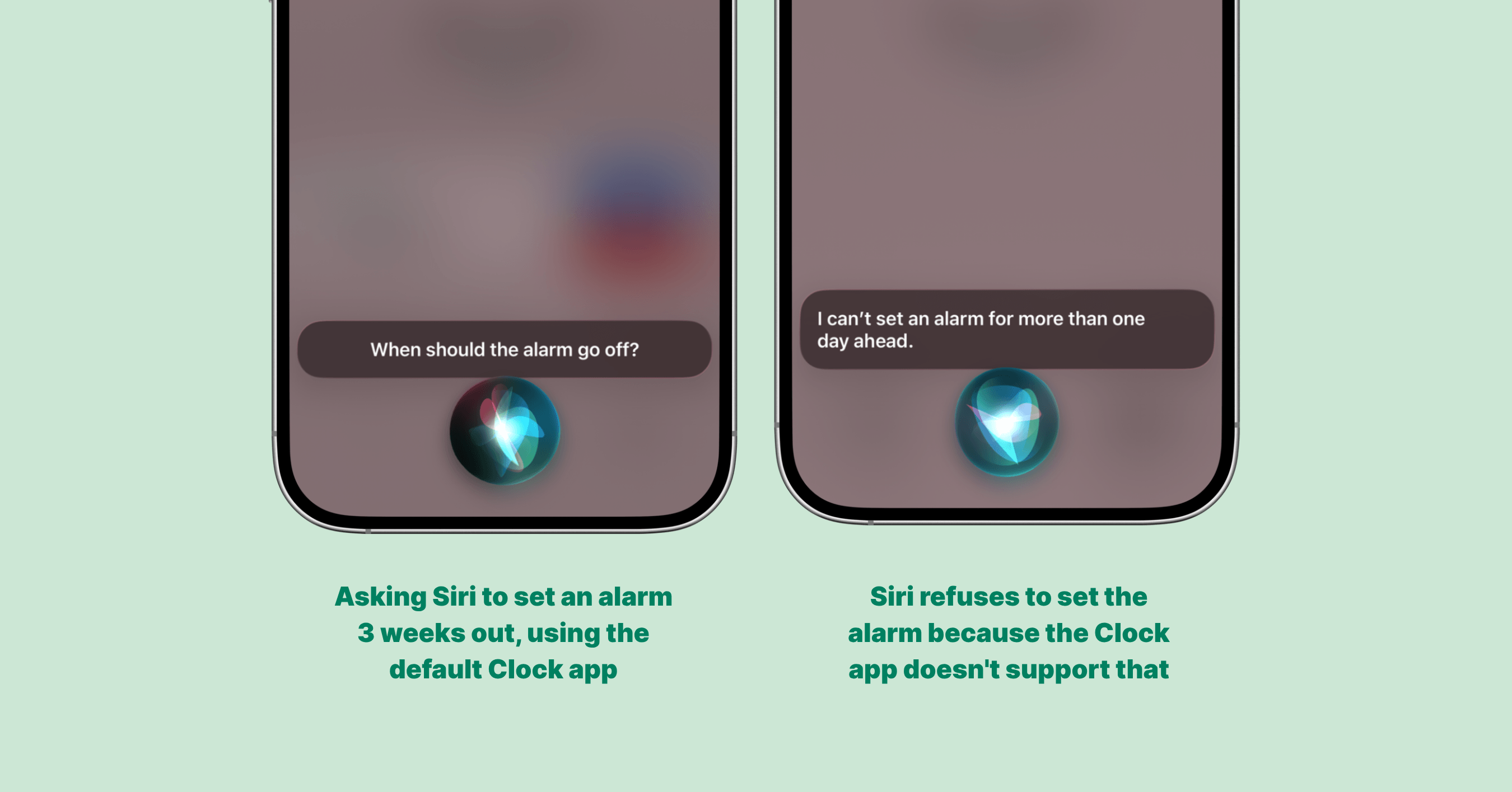
The default Clock app cannot turn a request like “set an alarm in 3 weeks” into a future-date alarm.
Alarmate works differently. It gives Siri access to Alarmate’s alarm creation flow, so your voice can create:
- Date alarms for any future date
- Recurring alarms for selected days
- Timers and countdowns
- Alarms that involve simple date math, like “in 4 weeks” or “30 minutes before 6 PM”
That is what makes Alarmate a true Siri alarm clock for iPhone, not just another alarm list.
There is one habit that makes this reliable: start your sentence with the word “Alarmate.”
What Alarm Clock App Supports Siri for iPhone?
The short answer is Alarmate.
The default Clock app responds to Siri, but only for basic alarms and timers. Alarmate was built the other way: it connects to Siri so your voice can handle the alarms that matter in real life.
With Alarmate and Siri, you can create:
- Alarms for any future date, days, weeks, months, or even years from now
- Recurring alarms for routines, meetings, medication, school runs, and weekly tasks
- Timers for focus sessions, cooking, naps, and quick countdowns
- Date-math alarms, such as “set an alarm in 6 weeks” or “set an alarm 2 hours before 4:30 PM”
And because Alarmate uses iOS alarm behavior, alarms ring through Silent mode, Focus, Do Not Disturb, Sleep, and Airplane mode. A voice-controlled alarm clock is only useful if the alarm actually reaches you.
Alarmate requires iOS 26 or later and works on iPhone and iPad.
If you want the broader product overview, start with the Alarmate features page. If your main need is future alarms, the date alarm app for iPhone page is the best next stop.
For a broader look at everyday alarms, calendar alarms, timers, and future-date use cases together, see why Alarmate is one of the best alarm clock apps for iPhone.
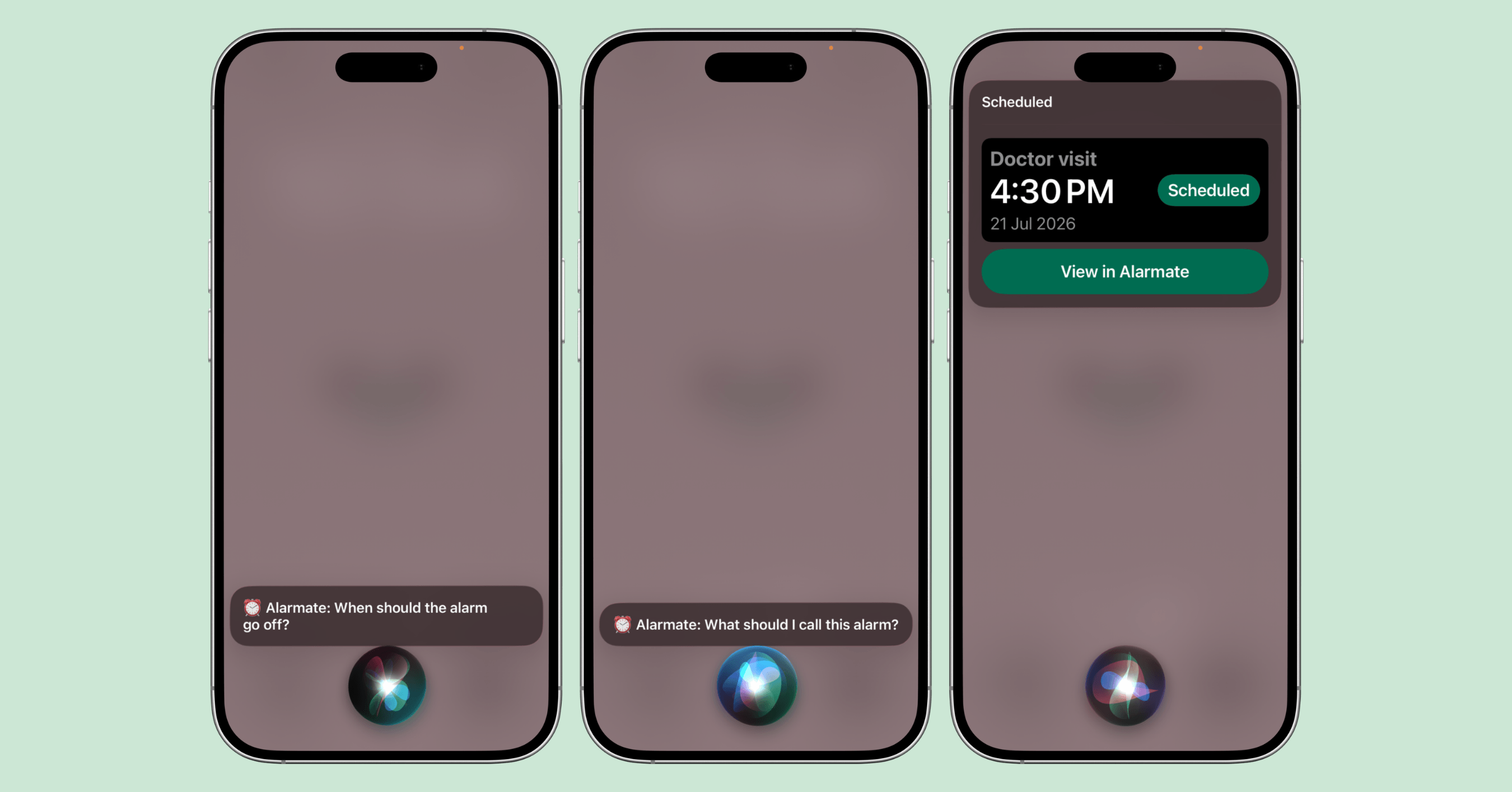
A natural phrase like “in three weeks at 4:30 PM” becomes a scheduled date alarm in Alarmate.
The One-Time Setup
Before voice creation works, you set this up once.
It takes under a minute, and you should not have to think about it again.
- Download Alarmate from the App Store. It is free.
- Open Alarmate at least once so it registers with Siri.
- Make sure Siri is enabled in iPhone Settings.
- Allow Alarmate to work with Siri. The first time you create an alarm by voice, iOS may ask whether Alarmate can work with Siri. Tap to allow it.
That is the whole setup. No accounts, no fiddling.
Right after setup, run one simple test out loud:
Alarmate, set a timer.
Confirming it works once is what makes you trust it later, in the moment when your hands are full.
How to Set Alarms with Siri and Alarmate
Activate Siri the way you always do, either by holding the side button or saying “Hey Siri.” Then speak your request.
A full request can sound like:
Hey Siri, Alarmate, set a date alarm.
The golden rule: say “Alarmate” in the request. That single word tells Siri which app you mean, so your request lands in Alarmate instead of the default Clock app.
“Use Alarmate to set a date alarm” and “Create a date alarm in Alarmate” work too.
There is a quick way to confirm it worked. Siri should show Alarmate while it asks follow-up questions. If it looks like Siri has routed the request to the default Clock app, repeat the request and include “Alarmate” clearly.
Each alarm type follows the same simple pattern:
- You say the phrase.
- Alarmate asks when the alarm should go off.
- Alarmate asks for a title if needed.
- The alarm is scheduled.
You can create date alarms, recurring alarms, and timers this way.
How to Set a Future Date Alarm with Siri
This is the headline use case.
Launch Siri and say:
Alarmate, set a date alarm.
Siri asks when it should go off. Give it the exact date and time if you have it, or just the timeframe:
In 3 weeks at 4:30 PM.
Then add a title, like:
Doctor follow-up.
Alarmate schedules it as a real alarm.
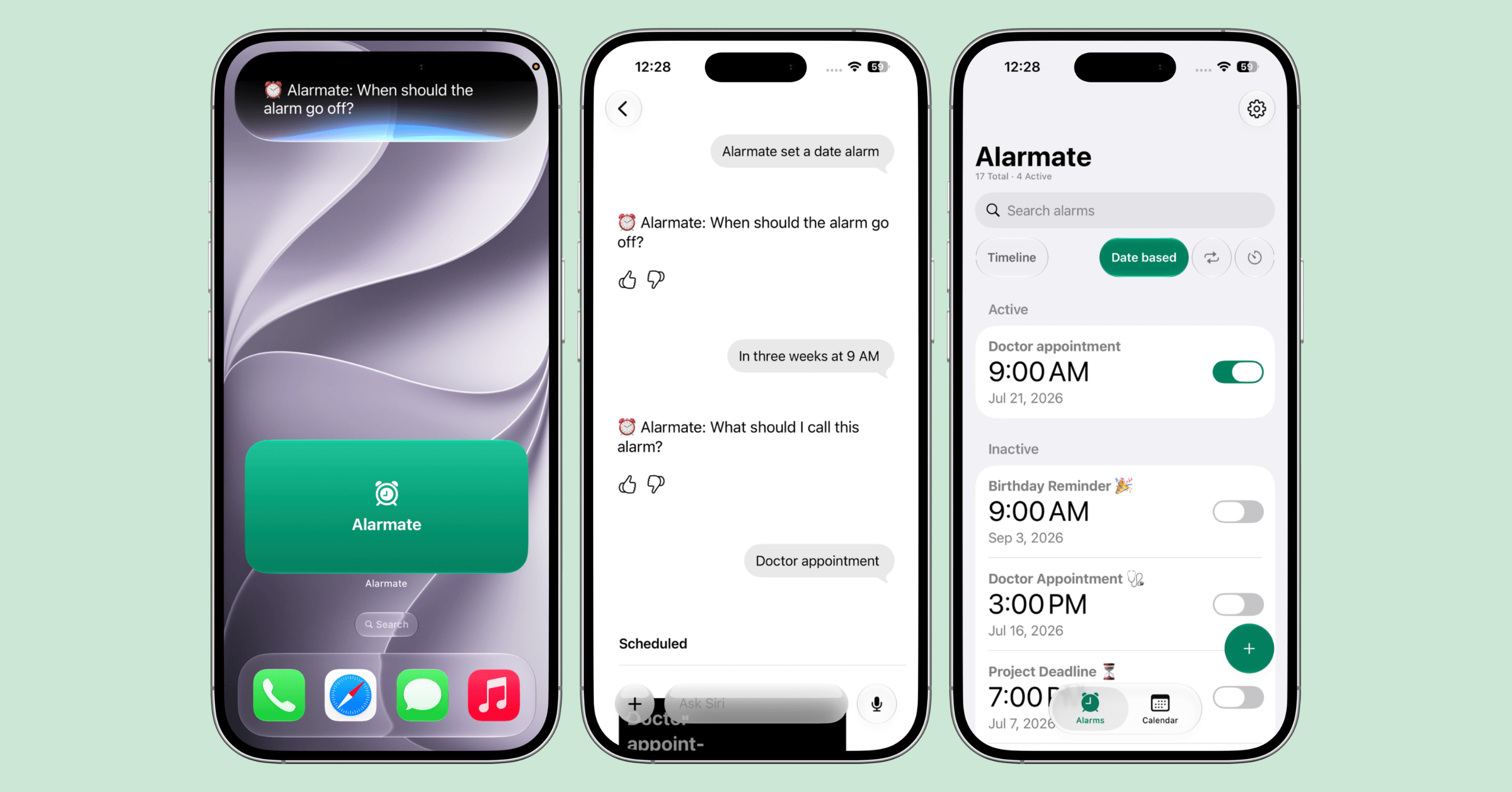
Siri asks for the date and title, then Alarmate saves the doctor’s appointment as a scheduled date alarm.
You do not need to count days on a calendar or do the math yourself. Alarmate works out the date from your phrase and saves the alarm.
Other useful phrasings:
- “Use Alarmate to set a date alarm”
- “Create a date alarm in Alarmate”
- “Alarmate, create an alarm for a future date”
- “Schedule a date alarm in Alarmate”
For a deeper walkthrough of all future-date alarm options, read How to Set an iPhone Alarm for a Specific Future Date.
How to Set a Recurring Alarm with Siri
For things that repeat, say:
Alarmate, create a recurring alarm.
Then give the time and the days.
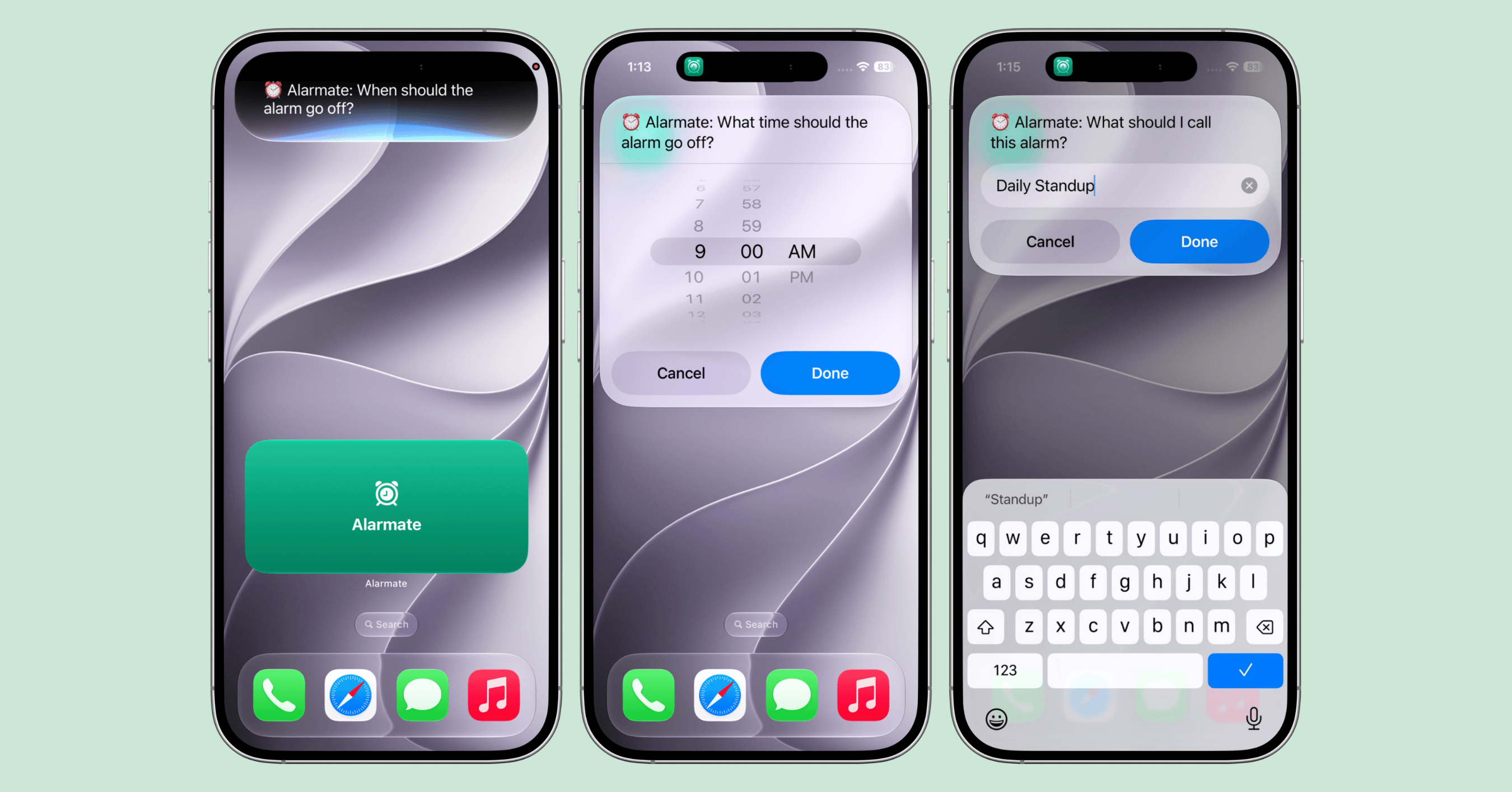
For recurring alarms, Siri can guide you through selecting the time and naming the alarm with familiar iOS pickers and dropdowns.
Recurring alarms are useful for:
- Weekday wake-ups
- Medication
- Standups
- School runs
- Weekly chores
- Exercise routines
Other phrasings:
- “Alarmate, create a weekday alarm”
- “Set a repeating alarm in Alarmate”
- “Use Alarmate to create a recurring alarm”
How to Set a Timer with Siri
When you just need a countdown, say:
Alarmate, set a timer.
Then give the duration.
Other phrasings:
- “Alarmate, start a focus timer”
- “Start a countdown in Alarmate”
- “Use Alarmate to set a 25-minute timer”
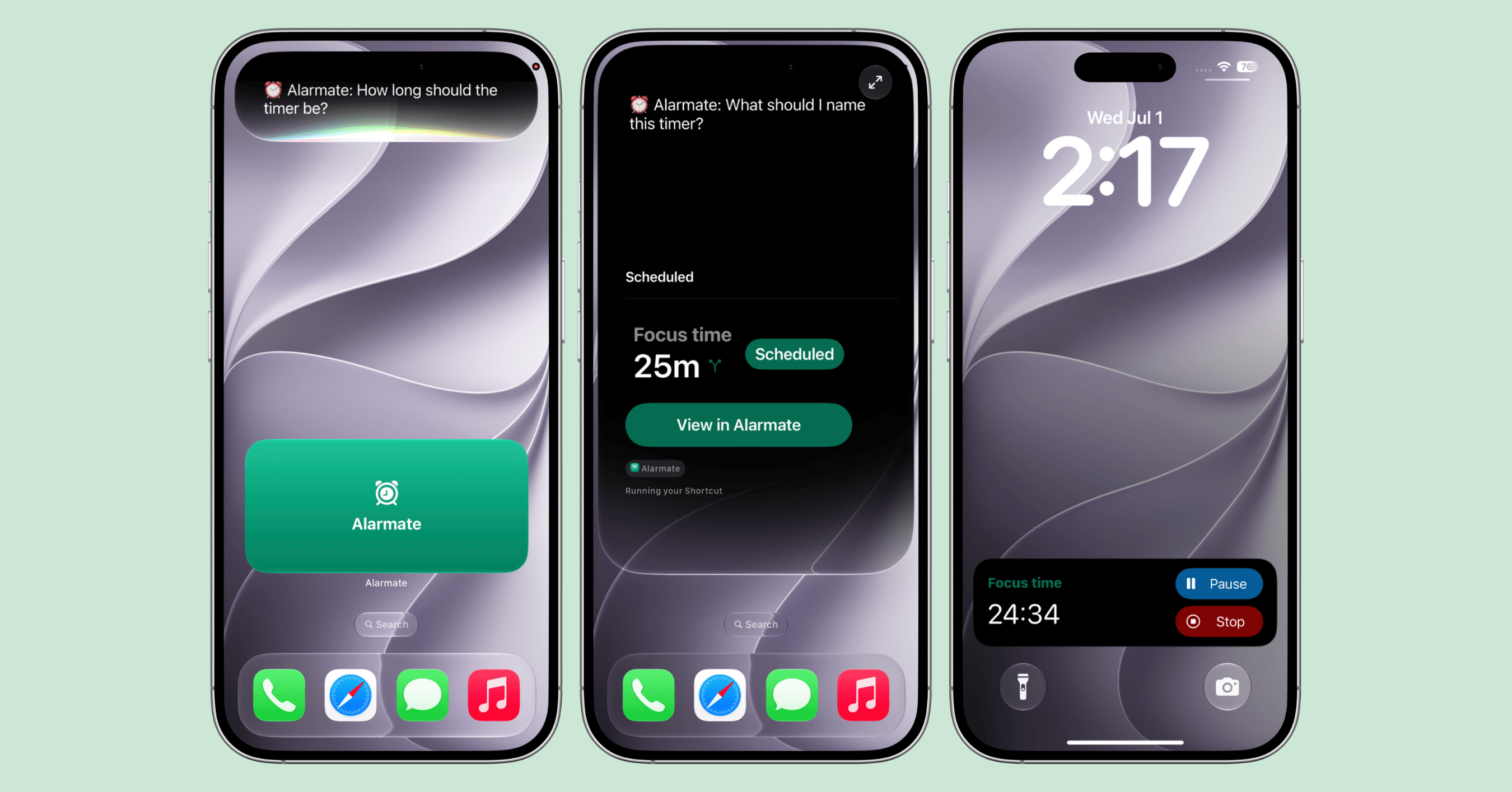
Timers work the same way: ask Alarmate for a duration, name it, and control the countdown from the Lock Screen.
Timers are useful for focus blocks, cooking, naps, errands, workouts, and those small “do not let me lose track of this” moments that pile up during the day.
Can I Set an Alarm in 4 Weeks, or 2 Hours Before a Time?
Yes.
This is where the voice flow really pays off, because Alarmate does the date math after Siri routes the request. You speak the timeframe; Alarmate schedules the real alarm.
With date alarms, you do not even need to know the date. Most of us do not think in calendar dates anyway. We think in phrases like:
- “Before my flight”
- “A month from now”
- “Two hours before that call”
- “A few days before the renewal”
That is exactly the kind of phrase Siri and Alarmate are built to handle.
| You say | Alarmate sets |
|---|---|
| "Set an alarm in 3 days" | A date alarm three days from today |
| "Set an alarm in 6 weeks" | A date alarm six weeks from today |
| "Set an alarm in 10 months" | A date alarm ten months out |
| "Set an alarm 3 days before the 1st" | A date alarm three days before that day |
| "Set an alarm 30 minutes before 6 PM" | An alarm at 5:30 PM |
| "Set an alarm 1 hour before my 8 AM flight" | An alarm at 7 AM |
No mental arithmetic. No “wait, what time is two hours before that again?”
You describe the plan, and it becomes a ringing alarm at the right minute.
Real-Life Voice Alarm Recipes
Once you have a voice-command alarm clock that handles future dates, you start finding uses for it everywhere.
Borrow any of these.
Appointments
Say:
Alarmate, set an alarm 25 minutes before my 2 o’clock dentist appointment.
Use it when you need a real nudge to leave, not a calendar notification you might swipe away.
Work
Say:
Alarmate, create a recurring alarm for weekdays at 9:55 AM.
That can cover a daily standup, a recurring check-in, or the five-minute buffer before your first meeting.
For calendar-heavy days, Alarmate can also turn Apple Calendar events into real alarms.
Travel
Say:
Alarmate, set a date alarm in 3 weeks at 6 AM.
Use date alarms for flights, train departures, hotel check-out, visa appointments, rental car returns, and anything else you absolutely do not want to miss.
If you like seeing time left before something important, pair the alarm with a Lock Screen countdown and Dynamic Island Live Activity.
Health and Personal Life
Say:
Alarmate, set an alarm in 5 weeks.
That can cover follow-ups, medication changes, routine check-ins, prescription refills, or any date someone gives you while you are nowhere near your calendar.
Money and Admin
Say:
Alarmate, set an alarm 3 days before my free trial ends.
Use it for trial renewals, insurance deadlines, tax dates, subscriptions, bills, and the little admin tasks that become expensive when they slip.
Focus
Say:
Alarmate, start a 50-minute focus timer.
The pattern is always the same. A plan forms, you say it out loud, and it becomes something that will actually reach you.
Best Practices for Voice Alarms
A few small habits make voice alarms much more reliable.
The biggest one is leading with “Alarmate.” It is the single factor that decides whether your words reach Alarmate or get handed to the default Clock app.
If saying it first feels awkward, these work too:
- “Use Alarmate to create a date alarm”
- “Create a date alarm in Alarmate”
- “Use Alarmate to set a timer”
Beyond that:
- Keep the first phrase simple.
- Name the alarm type you need: date alarm, recurring alarm, or timer.
- Let Alarmate ask follow-up questions instead of trying to pack everything into one long sentence.
- Treat voice as capture. Create the alarm in the moment, then open Alarmate later if you want to fine-tune the sound, snooze, title, or Live Activity timing.
You can edit any Alarmate alarm anytime.
For repeatable setups, like the same travel countdown or weekly prep alarm, you may also like Alarm Templates.
Troubleshooting
The most common hiccup is Siri setting a normal Clock alarm instead of an Alarmate one.
That usually means Siri routed the request to the default Clock app.
Try this, in order:
- Repeat the request and include “Alarmate” clearly.
- Open Alarmate once so iOS can register it with Siri.
- Check that Siri is enabled in iPhone Settings.
- Try a different phrasing, like “Use Alarmate to create a date alarm.”
If your date is in the past, Alarmate may save the alarm but not schedule it until you edit the date. That protects you from losing the idea completely.
If you have reached the free plan’s active-alarm limit, Alarmate can still save the new alarm and ask you to open the app to activate it or manage the others. Alarmate is free for up to 3 active alarms, and Alarmate Pro removes that cap.
For more on the free and Pro options, read Alarmate Pro: What You Get with the Upgrade.
Alarmate vs the Default Siri and Clock App
To be fair to Apple, the built-in Siri and Clock combination is genuinely good at a narrow set of things.
Say “Hey Siri, set an alarm for 7 AM” and it works. For a wake-up or a kitchen timer, it is quick and reliable.
Where it runs out of road is everything beyond basic Clock behavior. It cannot create a true alarm for a specific future date weeks or months out. It cannot reliably turn “2 hours before 4:30 PM” into a scheduled future-date alarm. It does not give you a timeline of all upcoming alarms across calendar events, reminders, timers, and dates.
Alarmate is built for that fuller planning layer.
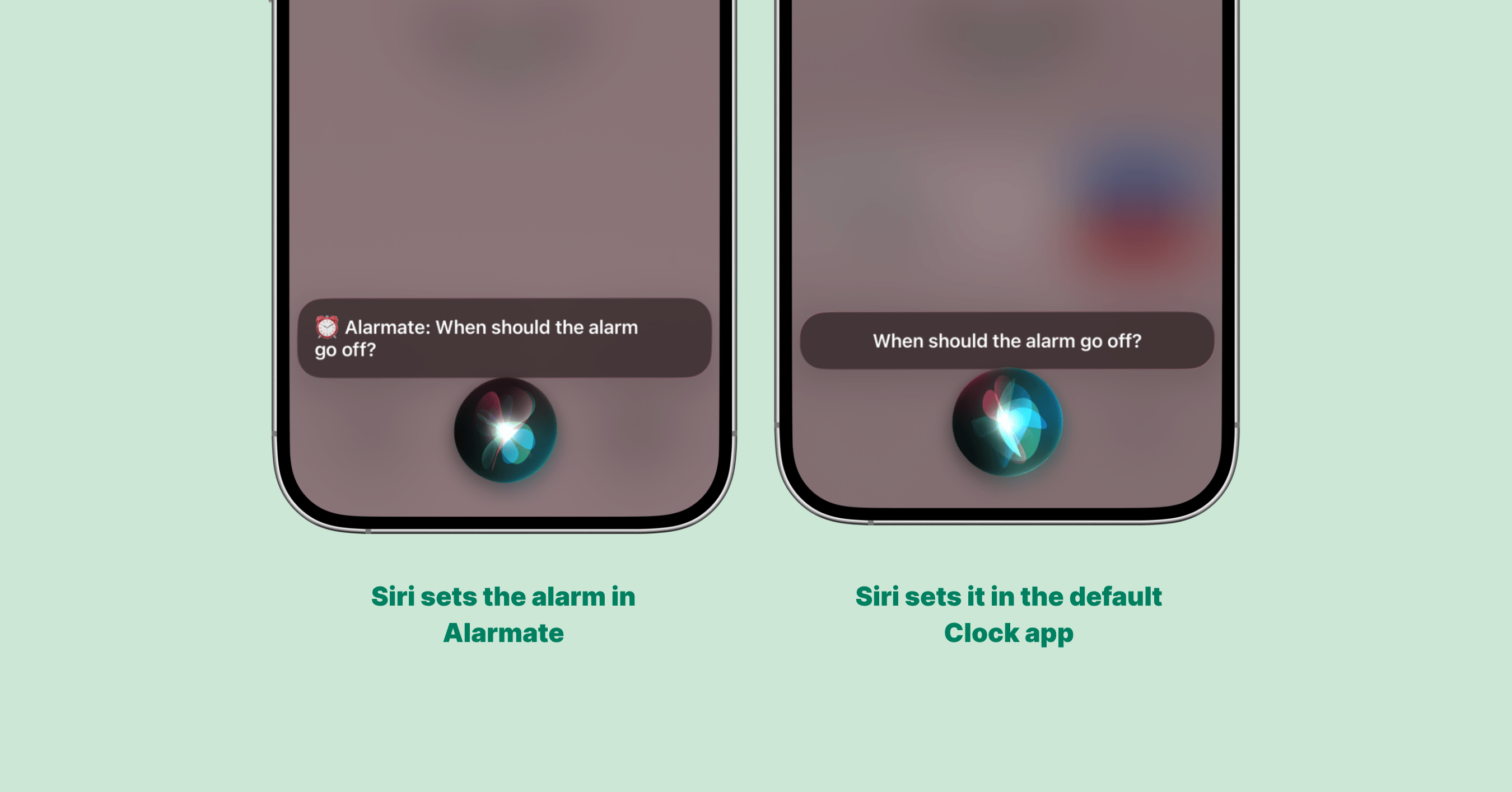
When the request is routed to Alarmate, Siri can schedule the alarm there instead of falling back to the default Clock app.
| Voice task | Siri + default Clock | Siri + Alarmate |
|---|---|---|
| One-time alarm for today or tomorrow | Yes | Yes |
| Recurring alarm by weekday | Yes | Yes |
| Timer for a duration | Yes | Yes |
| Alarm for a specific future date | No | Yes |
| "Set an alarm in 4 weeks" | No | Yes |
| Alarm a set time before a moment | No | Yes |
| Calendar event alarms | No | Yes |
| Reminder-based alarms | No | Yes |
| Live Activity countdowns | No | Yes |
| Rings through Silent, Focus, DND, and Airplane mode | Yes | Yes |
The takeaway is simple.
For a wake-up or a quick timer, the default Siri works well. For anything dated, calendar-based, reminder-based, or math-heavy, say “Alarmate” first.
If you are also using Apple’s Reminders app, read how Siri reminders work in iOS 27 and when they still need a real alarm.
For the full feature comparison, read Alarmate vs the default iOS Clock app.
More Questions People Ask
Do Alarmate’s Siri alarms ring on Silent or in Focus mode?
Yes. Voice-created alarms use the same alarm behavior as every other alarm in Alarmate, so Silent mode, Focus, Do Not Disturb, Sleep, and Airplane mode do not silence them.
Can I create alarms by voice without opening the app?
Yes. Once Alarmate is connected to Siri, date alarm, recurring alarm, and timer phrases work without opening the app. You only need to open Alarmate later if you want to edit details like sound, snooze, title, or Live Activity timing.
Why did Siri use the regular Clock app instead of Alarmate?
Usually because the app name was missing or unclear. Lead with “Alarmate,” or say “Use Alarmate to create a date alarm.”
Is Alarmate free?
Yes. Alarmate is free for up to 3 active alarms, with no ads. Alarmate Pro removes the active-alarm cap.
Can I set an alarm on my Apple Watch with Alarmate?
Alarmate alarms can ring on Apple Watch, and you can snooze or stop from your wrist. Creating alarms by voice happens through Siri on iPhone.
What if I am not sure what to say to Siri?
Start simple:
Alarmate, set a date alarm.
Then let Siri ask the follow-up questions.
A Note from Our Founder
We built Alarmate to help people not be late and not forget the things that matter, with the help of alarms instead of easy-to-ignore notifications. It was important for us to create a simple alarm creation experience, one that lets you set an alarm fast and stop holding meeting times in your head. I am happy that we support Siri and voice alarm creation, because it makes that even easier and opens up more ways to set an alarm.
Maksym, Founder of Alarmate
Start Setting Alarms by Voice Today
The default iPhone Clock app was never built for the alarms that run your actual life.
Alarmate was.
For a wake-up or a quick timer, the default Siri handles it well. For a future date or a little date math, like “set an alarm in 4 weeks” or “set an alarm 2 hours before 4:30 PM,” say “Alarmate” first and let Alarmate do the work.
That is the difference between a basic Siri alarm and a true voice-command alarm clock.
Say what matters out loud, and trust that it will reach you.
Download Alarmate from the App Store. It is free for up to 3 active alarms, with no ads.
Read Next
- Siri Alarm Clock for iPhone
- iOS 27, Siri AI & Alarms: Everything New
- How to Create Reminders With Siri in iOS 27
- Date Alarms on iPhone: The Complete Guide to Alarmate
- How to Set an iPhone Alarm for a Specific Future Date
- Alarmate vs the Default iOS Clock App
- Alarm Templates are here: set alarms and countdowns in seconds